Tool Calling
Tools are one of the most important parts of ConsoleX AI. They let models interact with external systems and information so the model can execute steps and return verifiable results inside the chat.
Browse and manage tools
The entry to the tool panel is built into the add menu in the lower-left corner of the message input area. Click Find or add tools there—or use the shortcut—to open the tool panel.
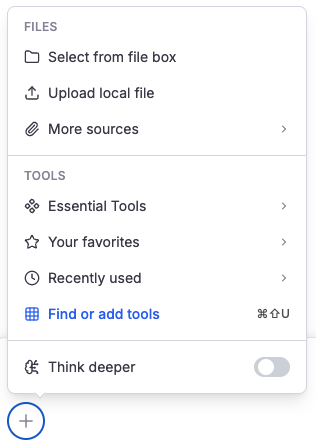
From that panel, you can browse, search, and manage preset tools and MCP servers, or add custom tools and custom MCP servers for more personalized workflows.
If you use some tools often, you can star them for easier access from the add menu later.
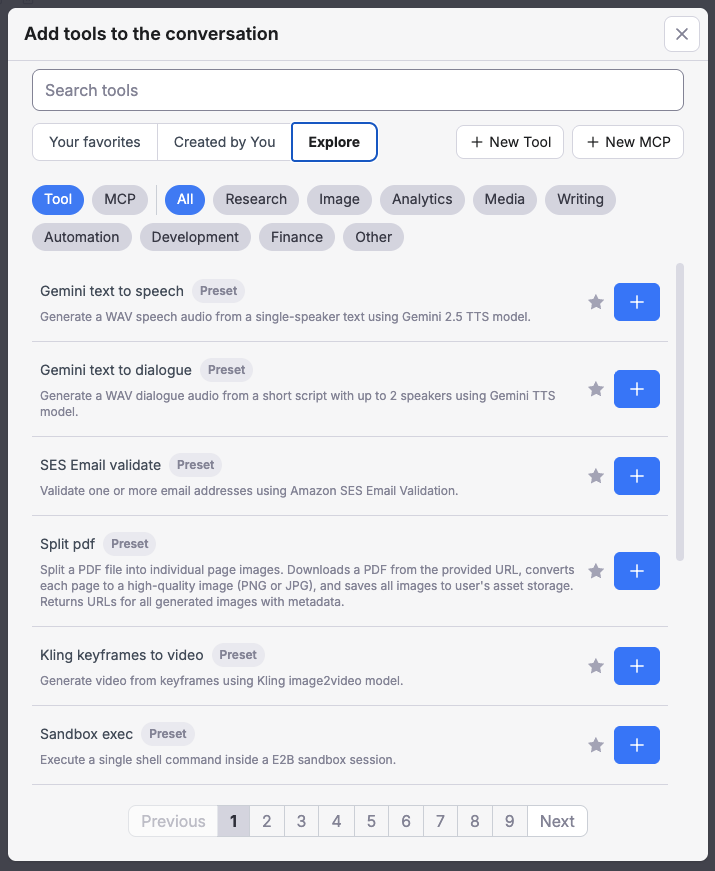
Add and use tools
In the tool panel, click the add button next to a tool to attach that Tool or MCP server to the current conversation. The model will decide whether to use it based on the task and context.
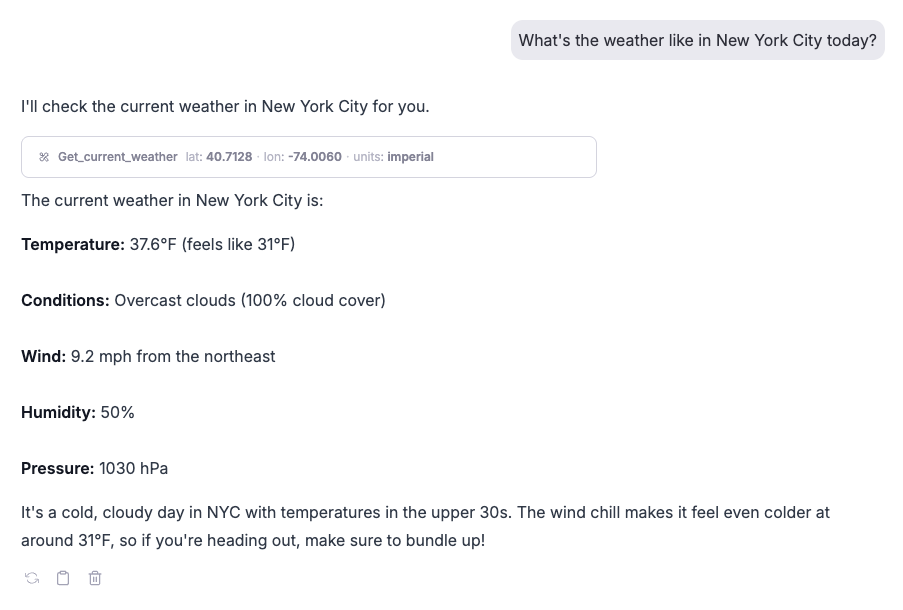
If the model calls a tool during the conversation, the execution result is returned directly into the chat. You can click the tool-call card in the conversation to inspect the details.
Force Mode
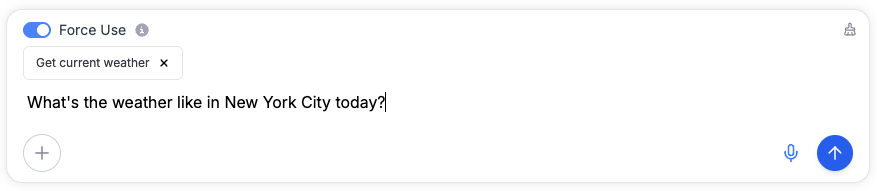
You can also turn on Force Mode. When enabled, the model is required to choose one or more tools from the attached candidates instead of answering without using them.