Settings Overview
Settings is where you choose how ConsoleX looks and behaves for you: language and theme, defaults for new chats, the model that checks your task runs, coding agents and memory. Your profile, password and account live on a separate Account page, covered at the end.
Open Settings
- Click your avatar at the bottom of the left rail.
- Choose Settings.
Settings is one scrolling page. The list on the left jumps to each section: Preferences, Chat Settings, Checking model, Coding agents and Memory. Click Home to go back to the Dashboard.
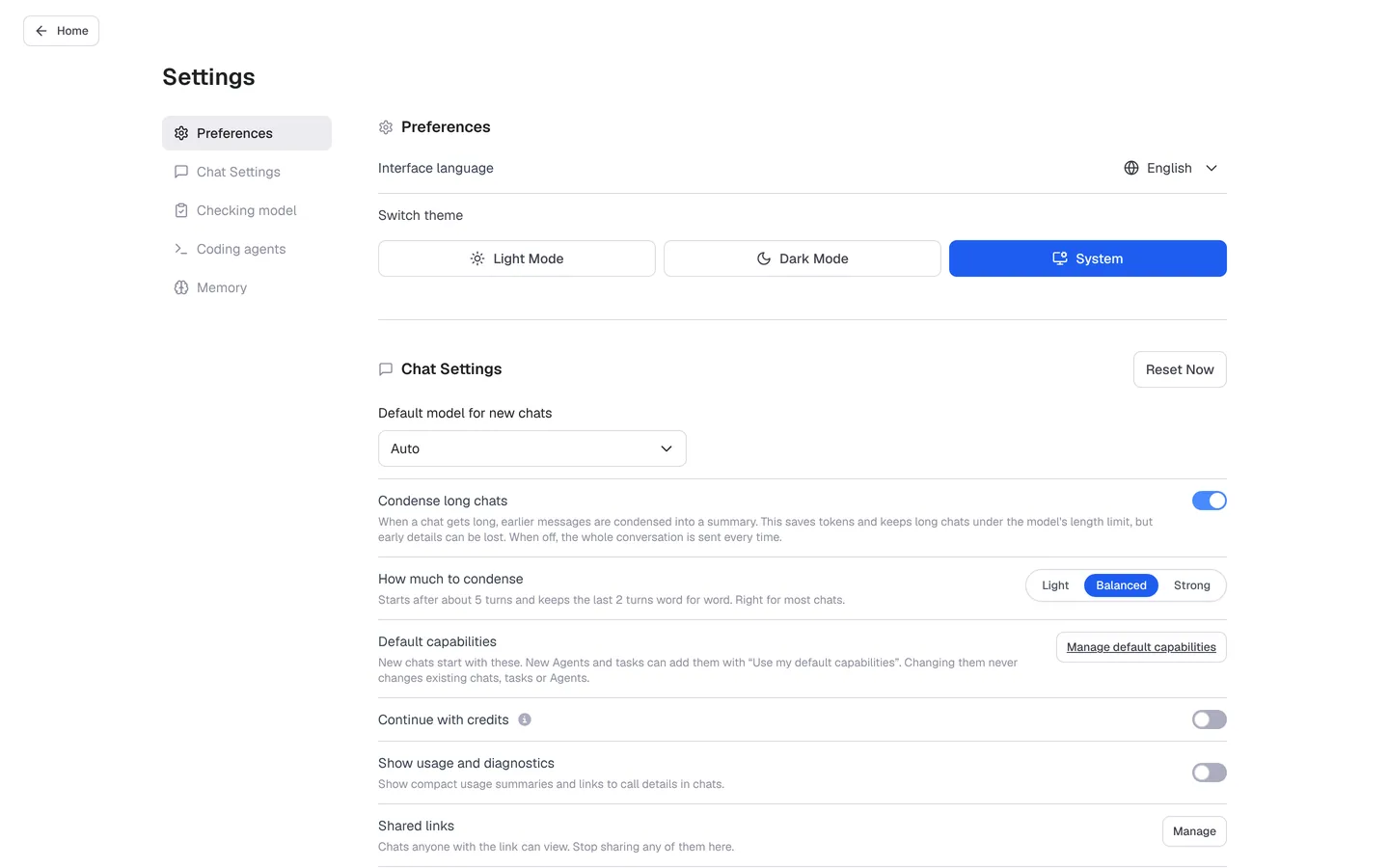
Preferences
- Interface language: English, 中文简体, العربية, Deutsch, Español, Français, Italiano, 日本語, Polski, Português, Русский or 中文繁體.
- Switch theme: Light Mode, Dark Mode or System (follows your device).
Chat Settings
| Setting | What it does |
|---|---|
| Default model for new chats | The model new chats start with. Auto by default. See Use shared models. |
| Condense long chats | When a chat gets long, earlier messages are condensed into a summary. This saves tokens and keeps long chats under the model's length limit, but early details can be lost. When off, the whole conversation is sent every time. |
| How much to condense | Light, Balanced or Strong. With Balanced, the default, condensing starts after about 5 turns and keeps the last 2 turns word for word. |
| Default capabilities | The tools and Skills new chats start with. Click Manage default capabilities to change them. See Default capabilities. |
| Continue with credits | When on, usage past your monthly allowance is paid from your credits balance instead of waiting for the allowance to renew. Off by default. See Credits and usage. |
| Show usage and diagnostics | Shows compact usage summaries and links to call details in chats. |
| Shared links | Chats anyone with the link can view. Click Manage to stop sharing any of them. |
| Clear all conversations | Clear Now deletes all your chats. Use with care. |
Reset Now, at the top right of Chat Settings, resets this section's settings.
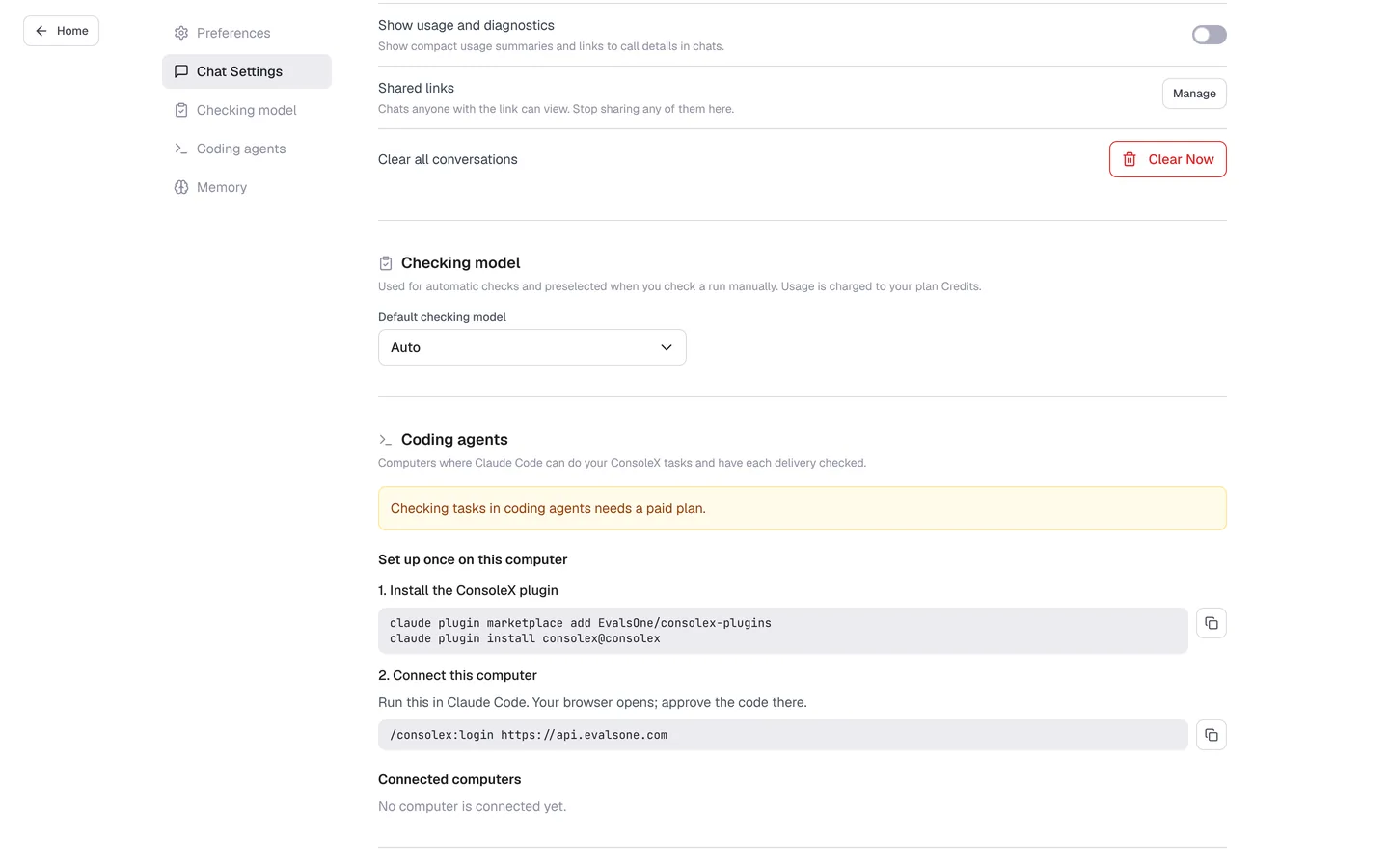
Checking model
The checking model is used for the automatic checks after each task run, and it is preselected when you check a run manually. Its usage is charged to your plan credits. Default checking model is Auto unless you change it. To learn how checks work, see Read check results.
Coding agents
This section lists the computers where Claude Code can do your ConsoleX tasks and have each delivery checked. Checking tasks in coding agents needs a paid plan (Pro or Max). Set up once on each computer:
-
Install the ConsoleX plugin in your terminal:
claude plugin marketplace add EvalsOne/consolex-plugins
claude plugin install consolex@consolex -
Connect this computer. Run this in Claude Code; your browser opens, and you approve the code there:
/consolex:login https://api.evalsone.com
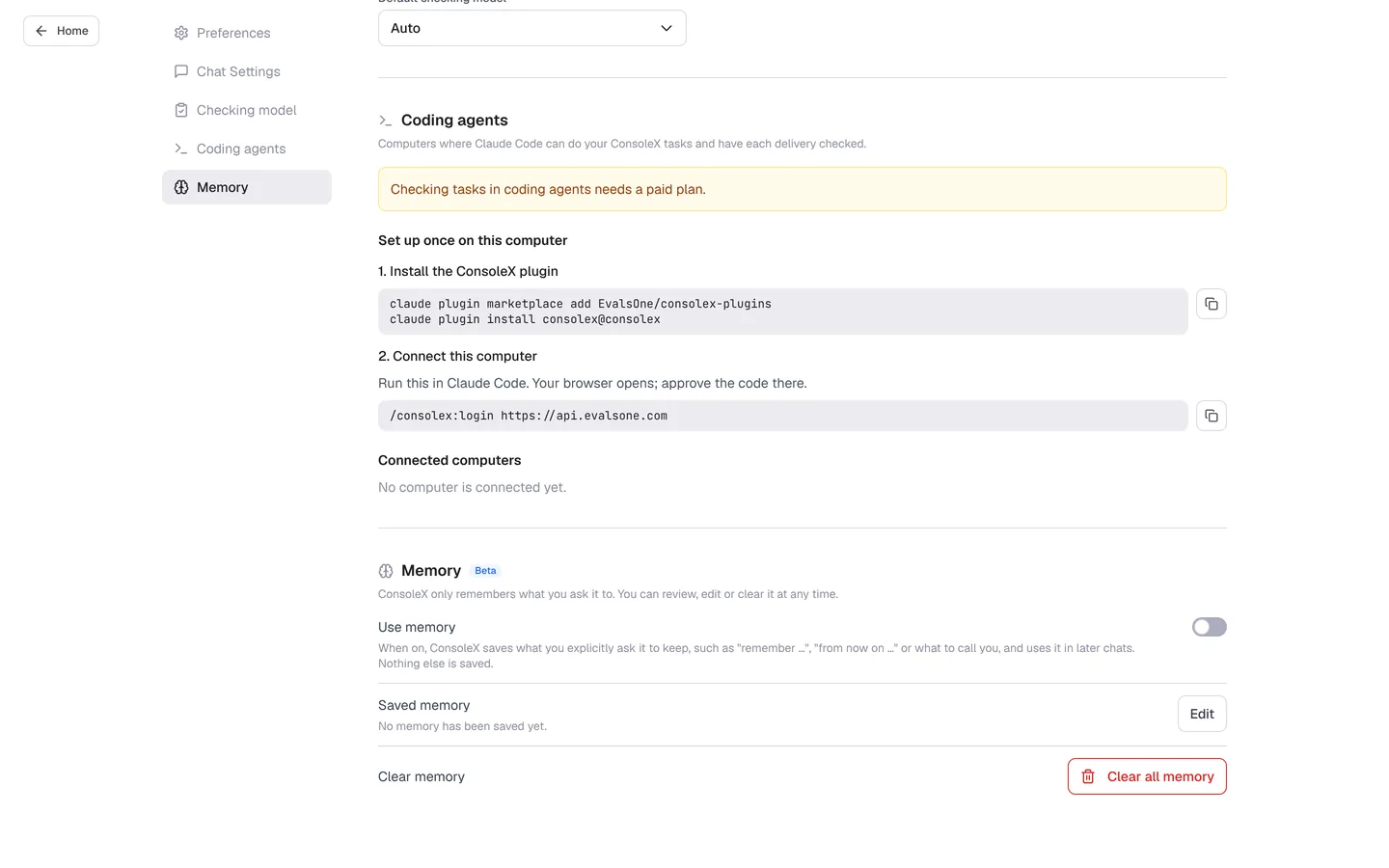
Connected computers then appear under Connected computers. For the full workflow, see Coding agents.
Memory (Beta)
ConsoleX only remembers what you ask it to, and you can review, edit or clear it at any time.
- Use memory: when on, ConsoleX saves what you explicitly ask it to keep, such as "remember …", "from now on …" or what to call you, and uses it in later chats. Nothing else is saved.
- Saved memory: click Edit to review or change what's saved.
- Clear memory: Clear all memory deletes everything saved.
Agents can have their own memory too: turn on Remember what I ask it to remember when you set up the agent. See Create a custom agent.
Your account
Click your avatar, then Account, to open Account Management. It has three tabs:
- Profile:
- Profile photo: click Change photo to upload a JPG, PNG or WebP image up to 2 MB. If you signed in with Google, your Google photo is used by default.
- Nickname: used to greet you. It defaults to the part of your email before the @ and can be 1–40 characters.
- Time zone: Automatic follows the device you're using, or choose a time zone from the list. Task schedules and the times shown in ConsoleX use this time zone.
- Click Save changes.
- Change Password: set a new password.
- Delete Account: delete your ConsoleX account.
The same avatar menu also opens Usage & Credits (see Credits and usage) and Upgrade Plan (see Membership). Help opens this help center.