Manage Conversations
As you use ConsoleX AI more, your chat history can grow quickly. To keep your workspace organized, ConsoleX includes folders, starred chats, and search.
Starred conversations
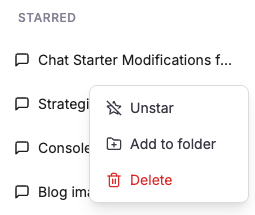
From the menu under a conversation title, you can mark any conversation group as starred. Starred chats appear above the rest of your history so they are easier to find.

Hover over a starred conversation and choose the unstar action to remove it from the starred list.
Folder management
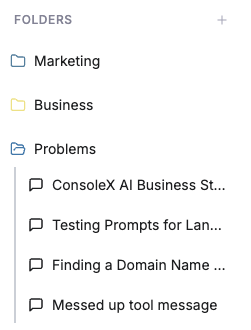
You can create multiple folders to organize conversations by project, client, topic, or any other structure you prefer. Each folder can have its own name and color, making it easier to distinguish different groups of work.
Drag a conversation into a folder to organize it. Drag it back out if you want to remove it.
Create and manage folders
- Click the
+icon in the Folders section of the left menu to create a folder. - Click the edit icon beside a folder name to rename it.
- Click the palette icon to customize its color.
Move chats in and out of folders
- Drag a conversation onto a target folder name, or hover over a conversation in the sidebar and choose Move to folder.
- Drag a conversation out of a folder, or use the Remove from folder action from the conversation menu.
Delete folders
Click the trash icon next to a folder name to delete it. Deleting a folder does not delete the conversations inside it.
Search conversation history
When you need to find an older conversation, use the Search Chats entry under New Chat in the left menu. You can search across all history by keyword and jump directly into the matched conversation.