Asset Library
The Library keeps the files you upload, the media you generate, and the artifacts and prompts you save, so you can reuse them in any chat or task. This page covers the Assets tab, where your files live, and gives a short tour of the other two tabs.
Open the Library
- In the left rail, click … (More).
- Choose Library.
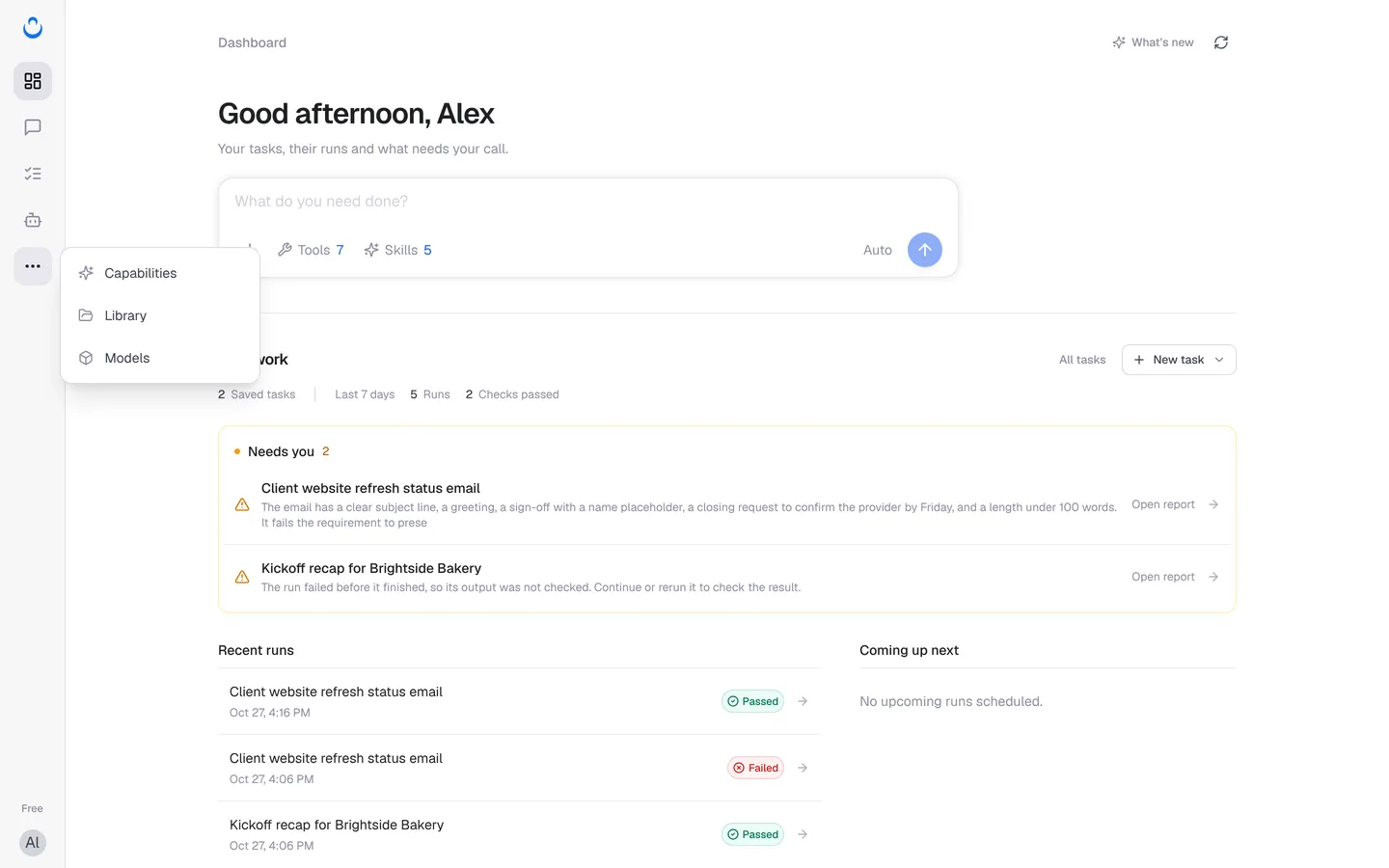
The Library has three tabs:
| Tab | What it holds |
|---|---|
| Assets | Files you upload, and images, video and audio generated in chats or with Generate. |
| Artifacts | Web pages, React components, SVGs, diagrams and documents the assistant builds in your chats. |
| Prompts | 51 preset prompts plus the prompts you write. See Prompt Library. |
Upload files
Upload brand guides, source material or reference images once, then attach them to any chat or task. For example, Alex uploads Brightside Bakery's logo and brand guide before starting the website refresh.
- Open Library, then the Assets tab.
- Click Upload and choose files from your computer.
You don't have to upload everything here first: files you upload in a chat, and files that models or tools generate in chats, are saved to Assets automatically.
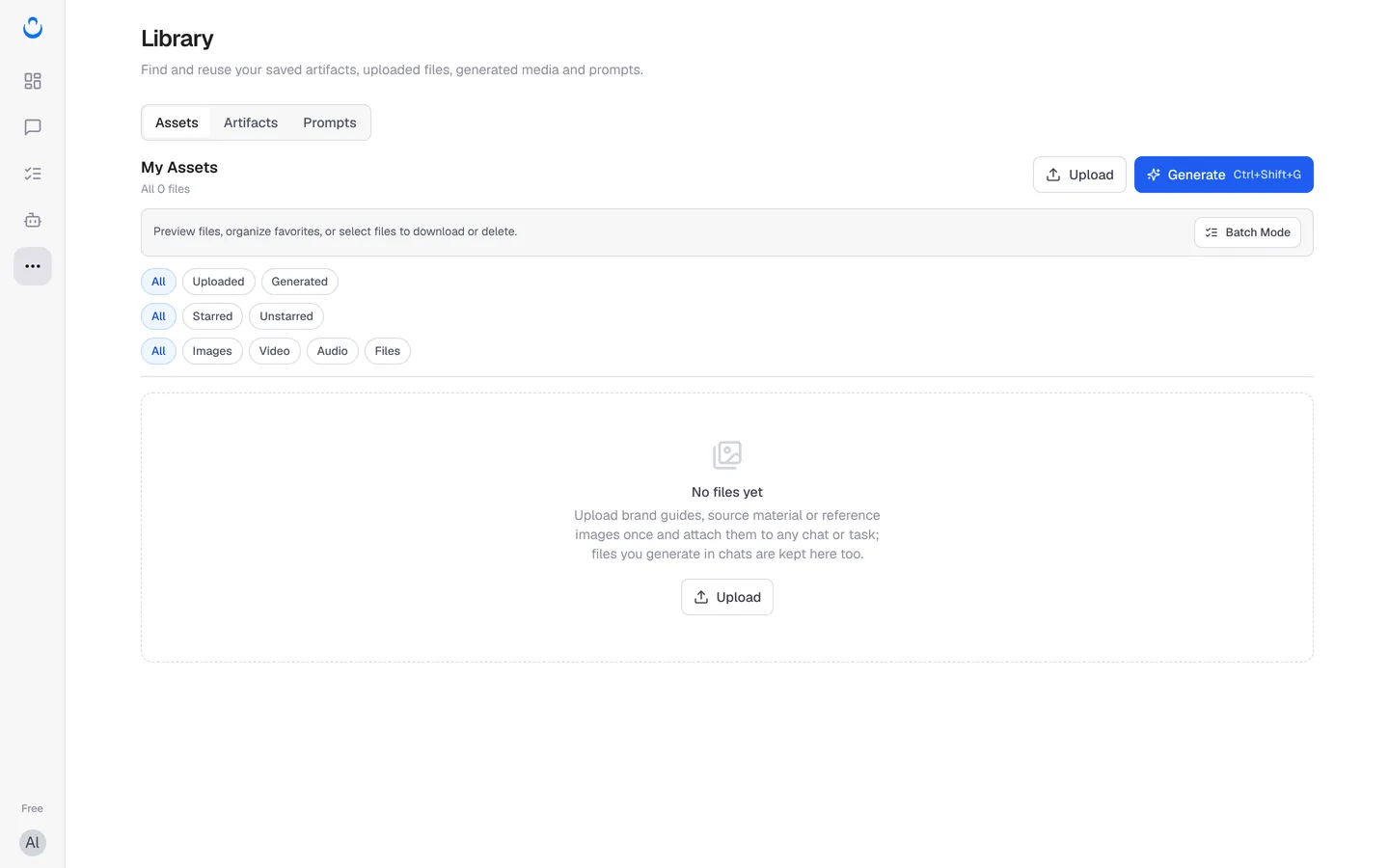
To create an image, video or audio clip straight from the Library, click Generate (Ctrl+Shift+G). See Generate assets.
Find and organize files
My Assets shows how many files you have. Three rows of filters narrow the list:
- All / Uploaded / Generated: where the file came from.
- All / Starred / Unstarred: star the files you use often so you can find them quickly.
- All / Images / Video / Audio / Files: the type of file.
You can preview a file, star it, or select several files to download or delete.
Download or delete several files
- Click Batch Mode.
- Select the files you want.
- Download or delete them together.
Use your files in chats and tasks
- In a chat: click + in the composer and choose Select from assets. Upload local file adds a new file from your computer, and it is saved to Assets as well.
- In a task: under What to work from → Files in the task wizard or the task's Config tab, click Select from assets or Upload local file. These files are used on every run.
- For one run only: on a task, open the Run menu, choose Add new materials and run, then Select from assets. The saved task stays the same; the materials are used only for that run.
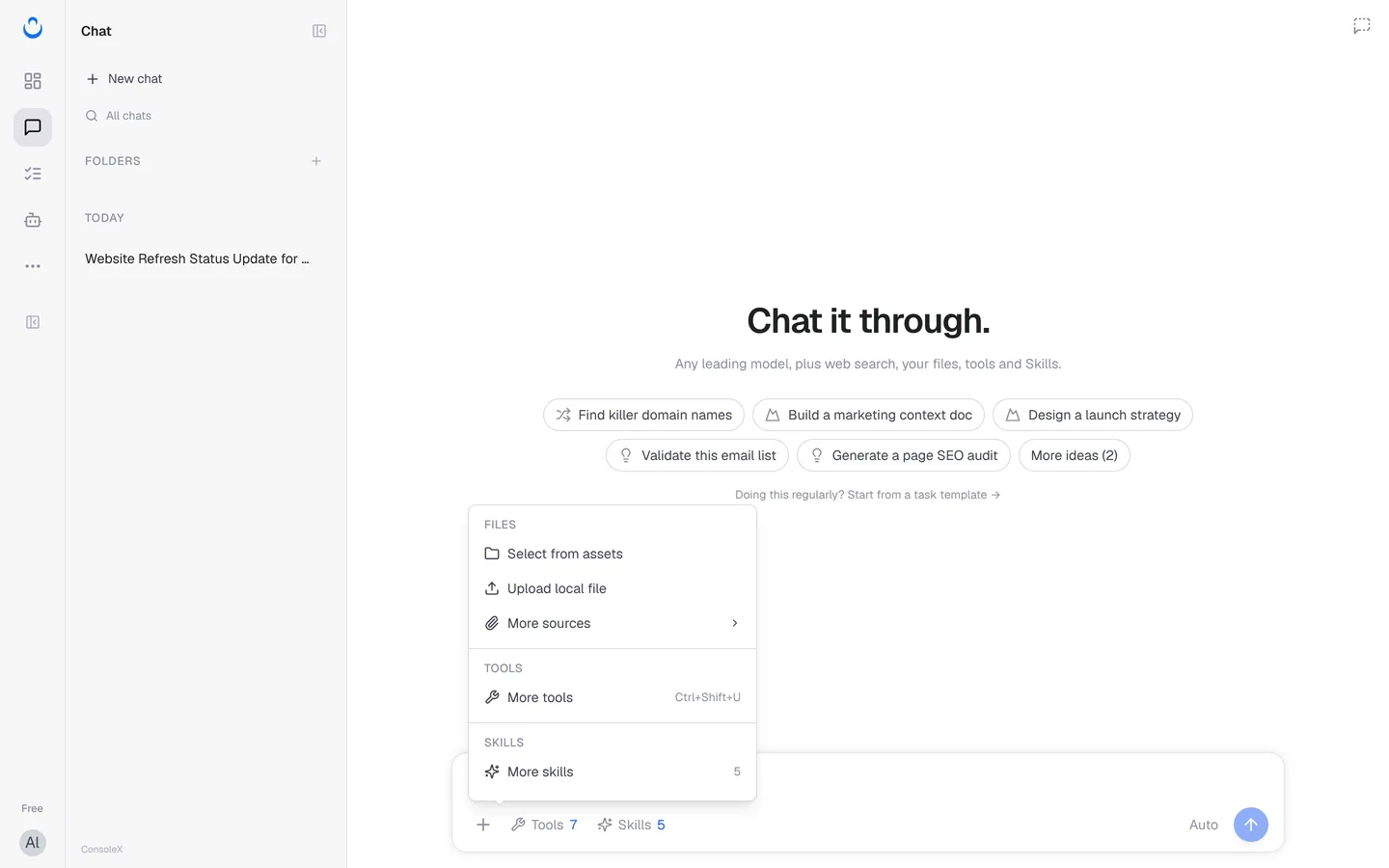
For more on files in chats, see Use file assets. For task runs, see Run a task.
Supported file types
Common formats work, including:
- Images such as JPG, PNG, GIF, WEBP and SVG
- Audio such as MP3, WAV and AAC, and video files
- Documents such as plain text, PDF and Word
- Spreadsheets such as Excel, and presentations such as PowerPoint
- Code and markup files such as Python, JavaScript, HTML, CSS, Markdown, JSON and YAML
Artifacts tab
The Artifacts tab lists what the assistant builds in your chats: web pages, React components, SVGs, diagrams and documents. Artifacts are saved from your chats and are private to you. Search by title, filter by type (All types / Web page / React / SVG / Diagram / Document), star the ones you need, open one full screen, or go back to the chat it came from.
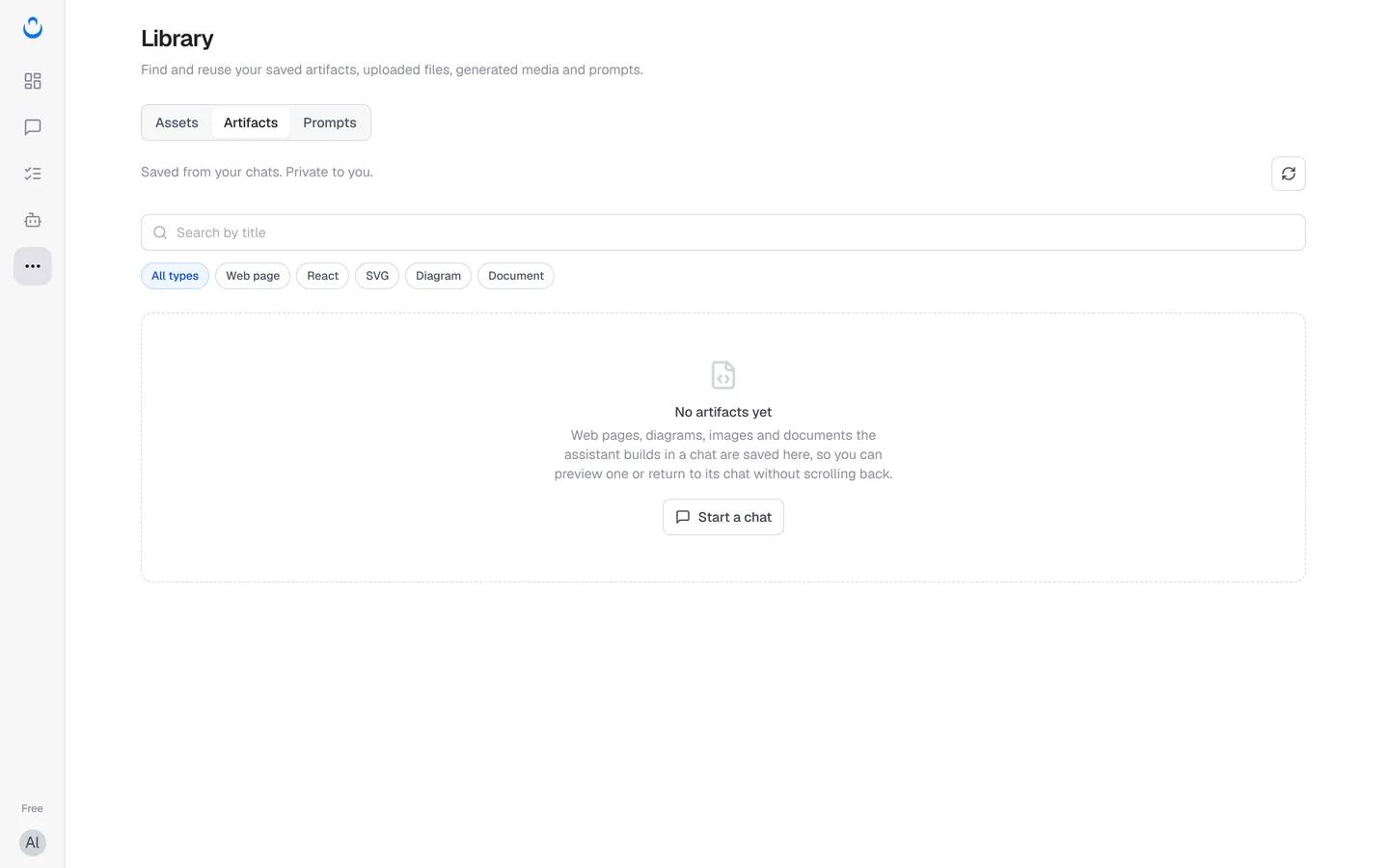
To learn how artifacts are created and previewed in a chat, see Artifacts preview.
Prompts tab
The Prompts tab holds ready-made prompts and your own. You can import them as a chat's system prompt or into an agent's instructions. See Prompt Library.