Capabilities Overview
Capabilities are what your chats, tasks and agents can use. Tools are what they can do and which services they can reach; skills are ways of working. This page explains how the Capabilities section is organized and how to connect the services you need.
Tools and skills
- Tools do things and reach other services. Some work right away: web search, reading pages and files, running code, making images. Services like Notion and GitHub work once you connect your account.
- Skills are reusable ways of working, such as a writing guide or an analysis routine, so results come out the same way each time.
Open Capabilities
Click … (More) in the left rail, then Capabilities. The first time, a short introduction explains the three parts. Choose Browse tools, Browse Skills or Skip to the list.
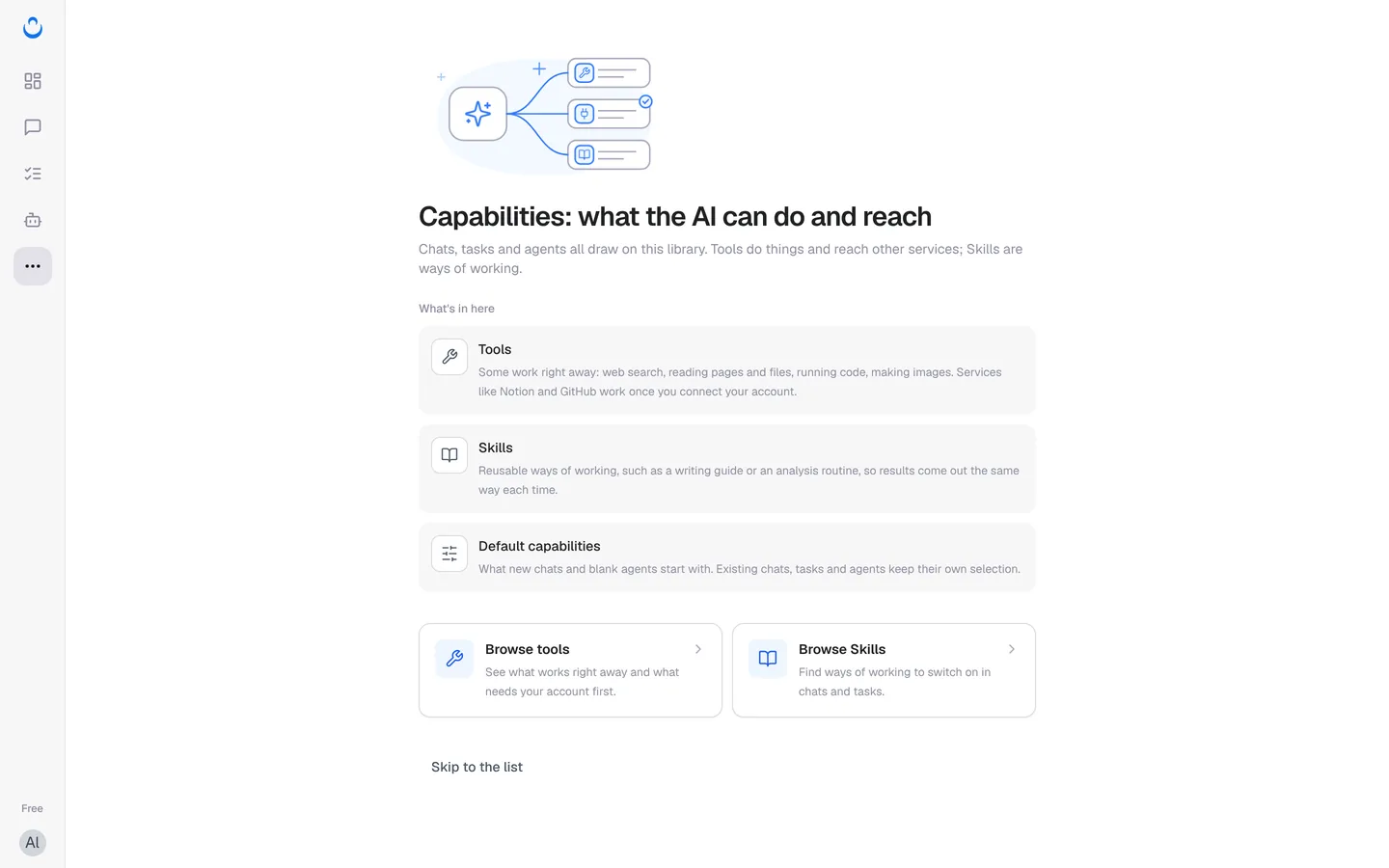
The section has three tabs:
- Tools: every preset tool, plus the custom tools and MCP servers you add.
- Skills: preset skills and your own. See Preset skills.
- Default capabilities: the tools and skills new chats start with. See Default capabilities.
Browse tools
The Tools tab lists about 120 tools, grouped by purpose: Find information, Read and process, Create, Work and collaboration, Sending, Data and search services, Growth and SEO, AI services, Notifications and utilities, and More tools.
Use the search box and filters to narrow the list: Preset / Custom, Ready to use / Needs setup / Connected, and Starred / Unstarred. Click the star on a card to mark a tool you use often; the Starred filter also appears in the tool panels of chats, tasks and agents.
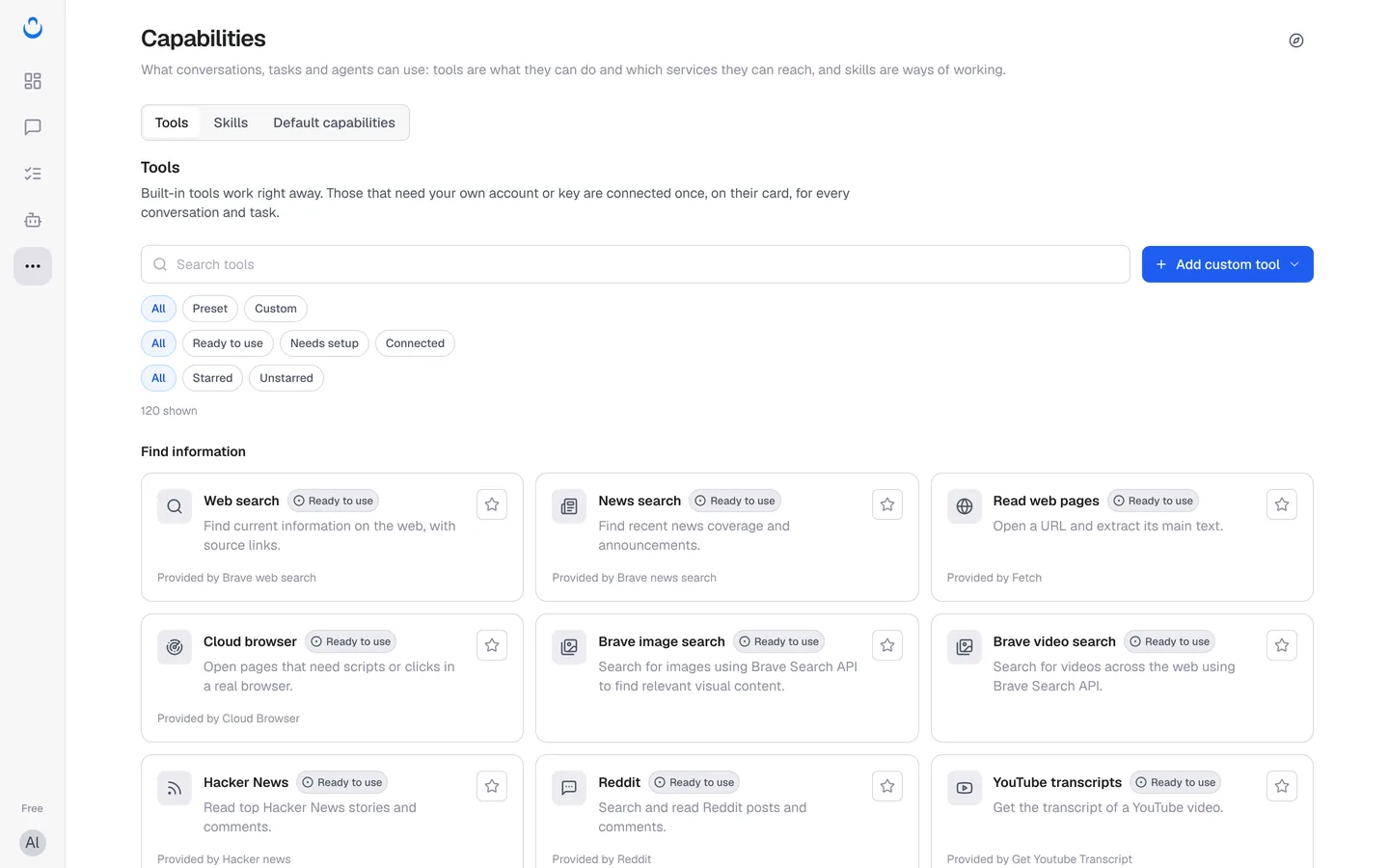
Each card shows a status:
| Status | What it means |
|---|---|
| Ready to use | Built in. Works right away, with nothing to set up. |
| Not connected | Needs your own account or key. The Needs setup filter shows these tools. |
| Connected | You have connected your account or saved your key. |
| Pro | A Pro tool, available on the Pro and Max plans. The card shows Upgrade to use. |
Connect a service
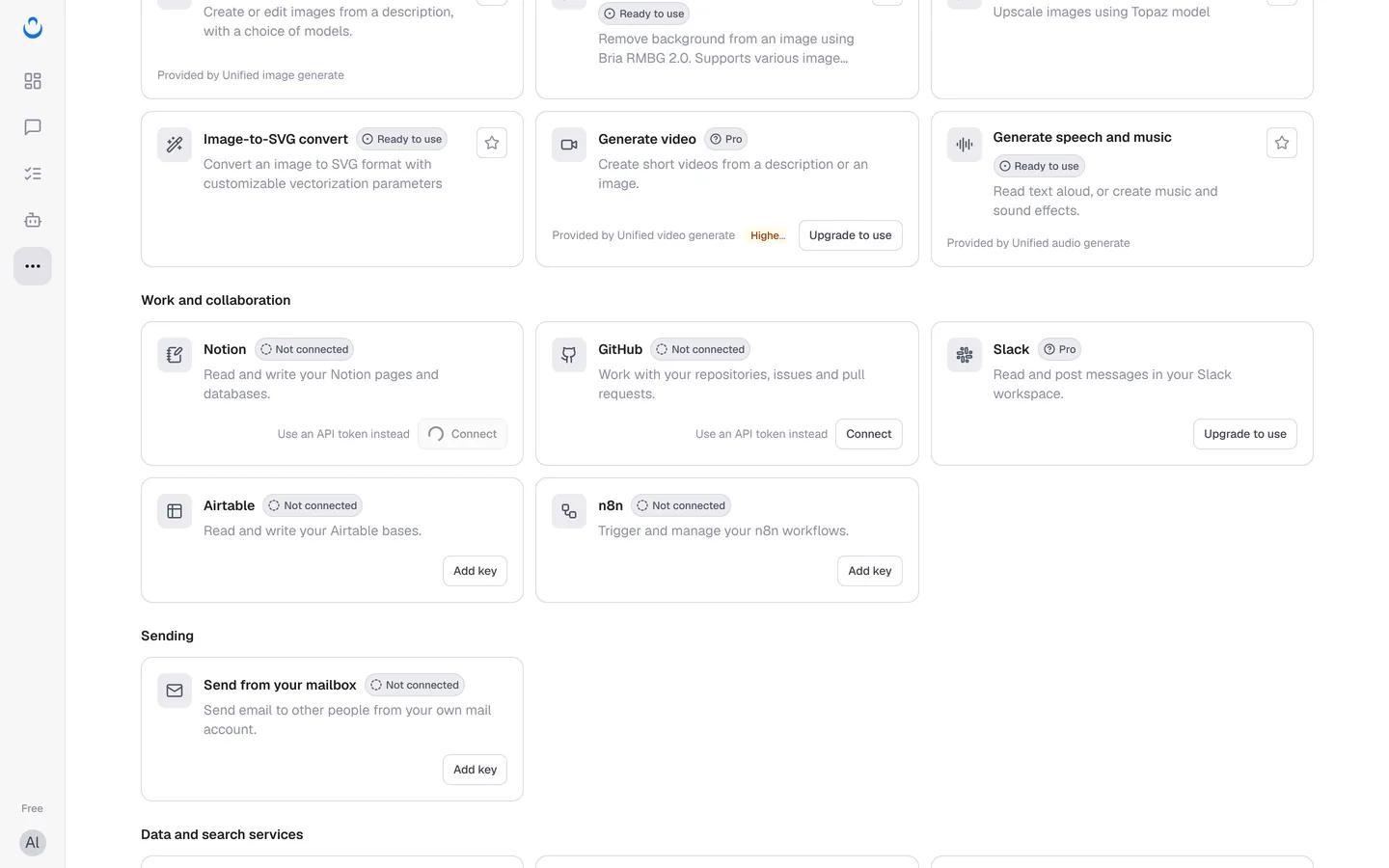
"Built-in tools work right away. Those that need your own account or key are connected once, on their card, for every conversation and task." The button on the card tells you what to do:
- Connect (for example Notion and GitHub): sign in to the service and allow access.
- Use an API token instead: paste a token from the service instead of signing in.
- Add key (for example Airtable, n8n, FireCrawl or Send from your mailbox): enter your key in the dialog and click Save. The key is "Used only for your conversations and tasks, and never shown again after saving."
- Use my own key: some ready-to-use tools, such as Perplexity and Google Maps, let you switch to your own key.
- Upgrade to use: Pro tools such as Slack, Tavily search and video generation. Pro and Max only.
Add your own tools
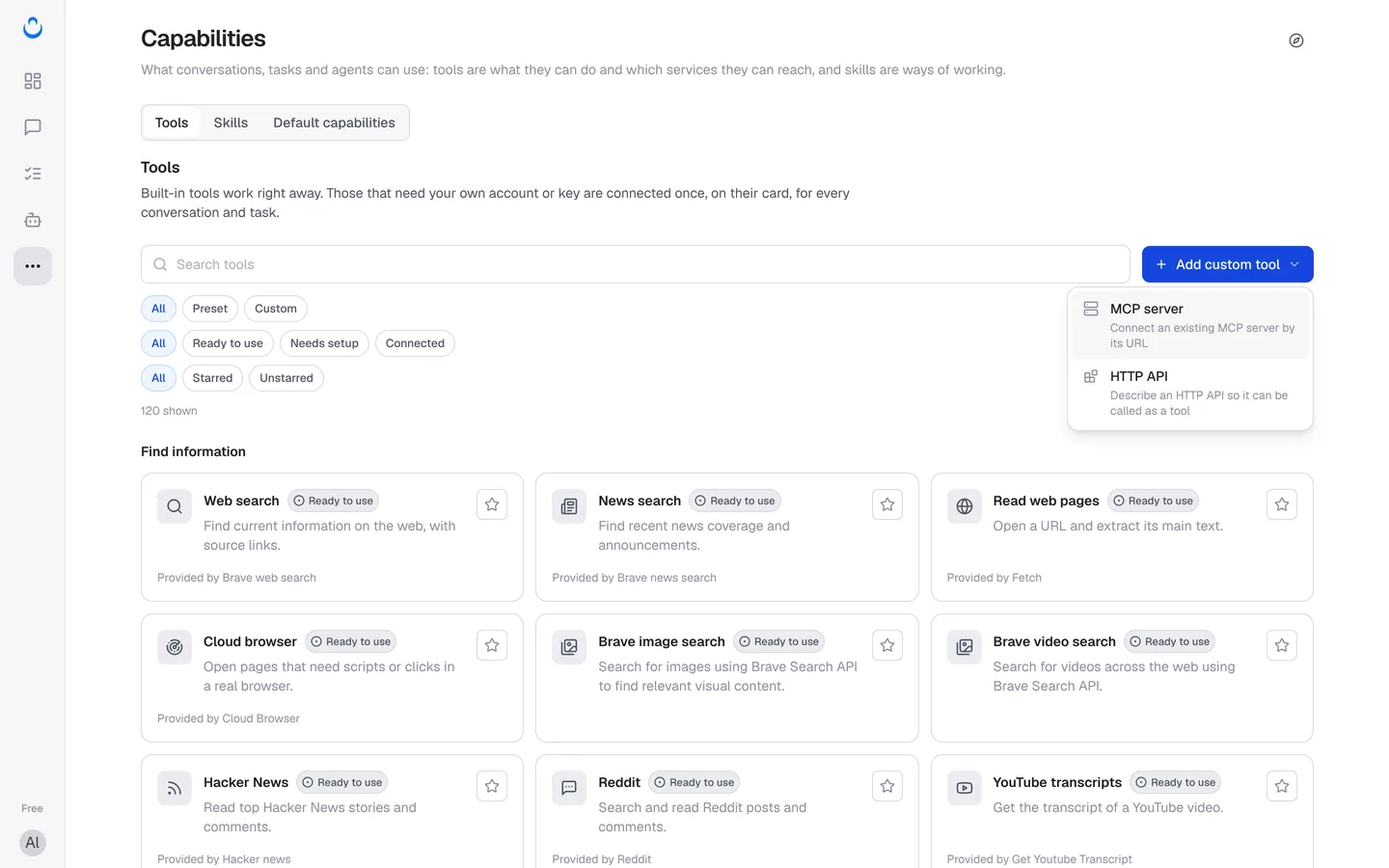
Click Add custom tool on the Tools tab:
- MCP server: "Connect an existing MCP server by its URL." See Add an MCP server.
- HTTP API: "Describe an HTTP API so it can be called as a tool." See Add a custom tool.
Chats, tasks and agents keep their own selection
Capabilities are a library. Each chat, task and agent picks what it uses from it, and keeps its own list:
- Chats start with your default capabilities. Change them for one chat with Tools and Skills under the message box; "Changes here apply only to this chat."
- Tasks get their capabilities from the template, or from what you add under What to work from → Capabilities (Add capabilities, Use my default capabilities, Disable all tools, Disable all skills).
- Agents use the capabilities you add in the agent editor. See Create a custom agent.
Changing your default capabilities never changes existing chats, tasks or agents. A tool you turn off is no longer used, even in a reply that is already running.
For how to turn tools on in a chat or task, see Use preset tools and Tool calling in chats.
What tools cost
Some tools are free to use; others are billed when they are called, from your plan allowance first and then Credits. Failed tool calls are not charged. See Preset tool pricing.