Use Preset Tools
The entry to the Tool Library is built into the add menu inside the message input area. Click Find or add tools—or use the shortcut—to open the library, where you can browse, search, and manage preset Tools and MCP servers, as well as your own custom tools and MCP servers.
From the Explore section, you can access a large collection of preset Tools and MCP servers that cover many everyday work and life scenarios. Most of them work out of the box, without local installation or complicated setup.
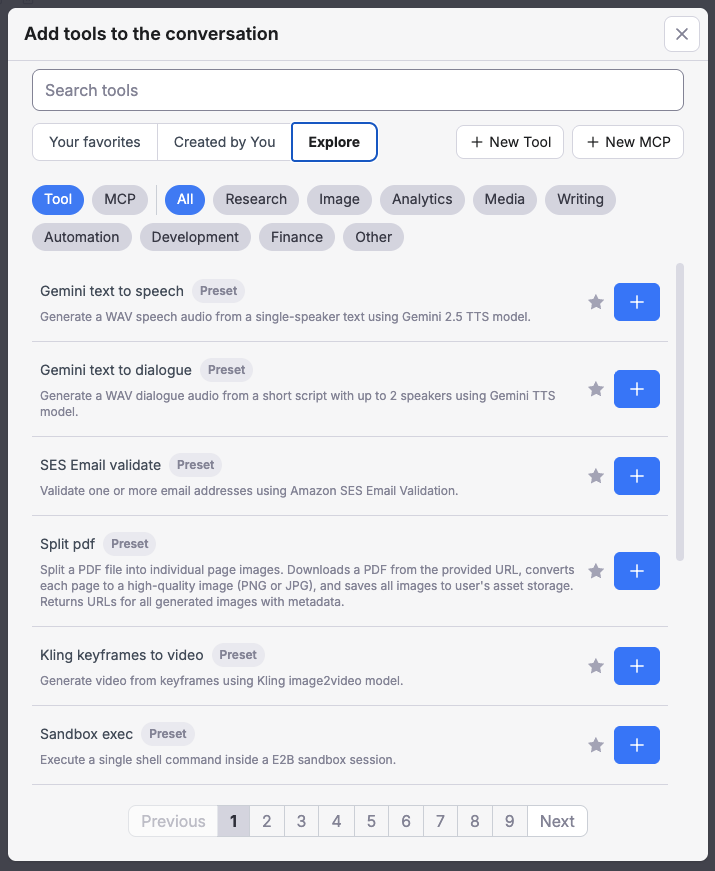
You can also click the ⭐️ icon on a tool to add it to Favorites for faster access later.
Configure tools
Most preset Tools and MCP servers are ready to use immediately, but some require extra configuration or OAuth authorization.
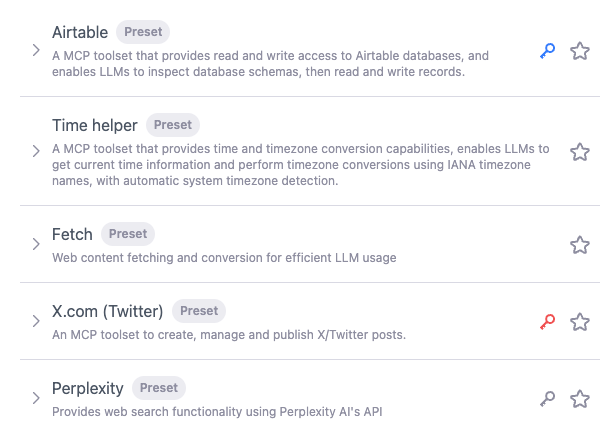
- No key icon: ready to use with no setup.
- Gray key icon: optional custom configuration is supported.
- Red key icon: custom configuration is required before use.
- Blue key icon: the tool is currently using your custom configuration.
- icon: OAuth authorization is required. After successful authorization, the icon turns blue. Clicking it again lets you revoke or restart authorization.
We take credential security seriously. User credentials are encrypted at rest and only decrypted at runtime on the server with your own stored private key.
Tool costs
Some preset Tools are free to use, while others are paid. See Preset Tool Pricing for details on how each tool is billed.