Save a chat as a task
When a chat finally gives you the result you wanted, save it as a task. ConsoleX turns the conversation, including your corrections, into task instructions and suggested checks, so the next run starts from what worked.
Example: a client status email
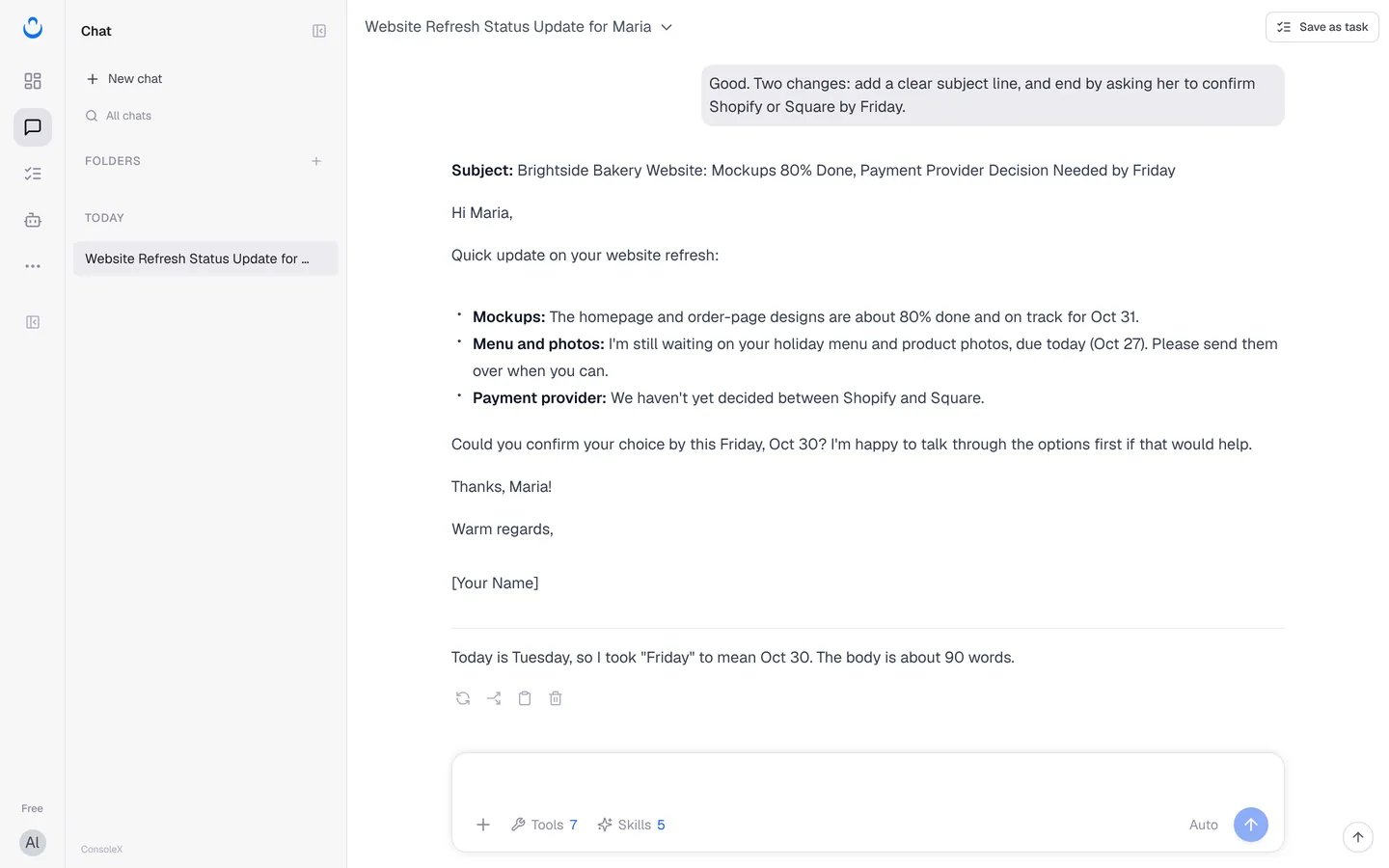
Alex asks ConsoleX for a short status email to his client Maria at Brightside Bakery: the homepage and order-page mockups are 80% done and on track for Oct 31, he is still waiting for her holiday menu and product photos, and the payment provider (Shopify or Square) is undecided. Friendly tone, under 100 words.
The first draft is close. Alex replies: "Good. Two changes: add a clear subject line, and end by asking her to confirm Shopify or Square by Friday." The second draft is right, so he saves the chat as a task.
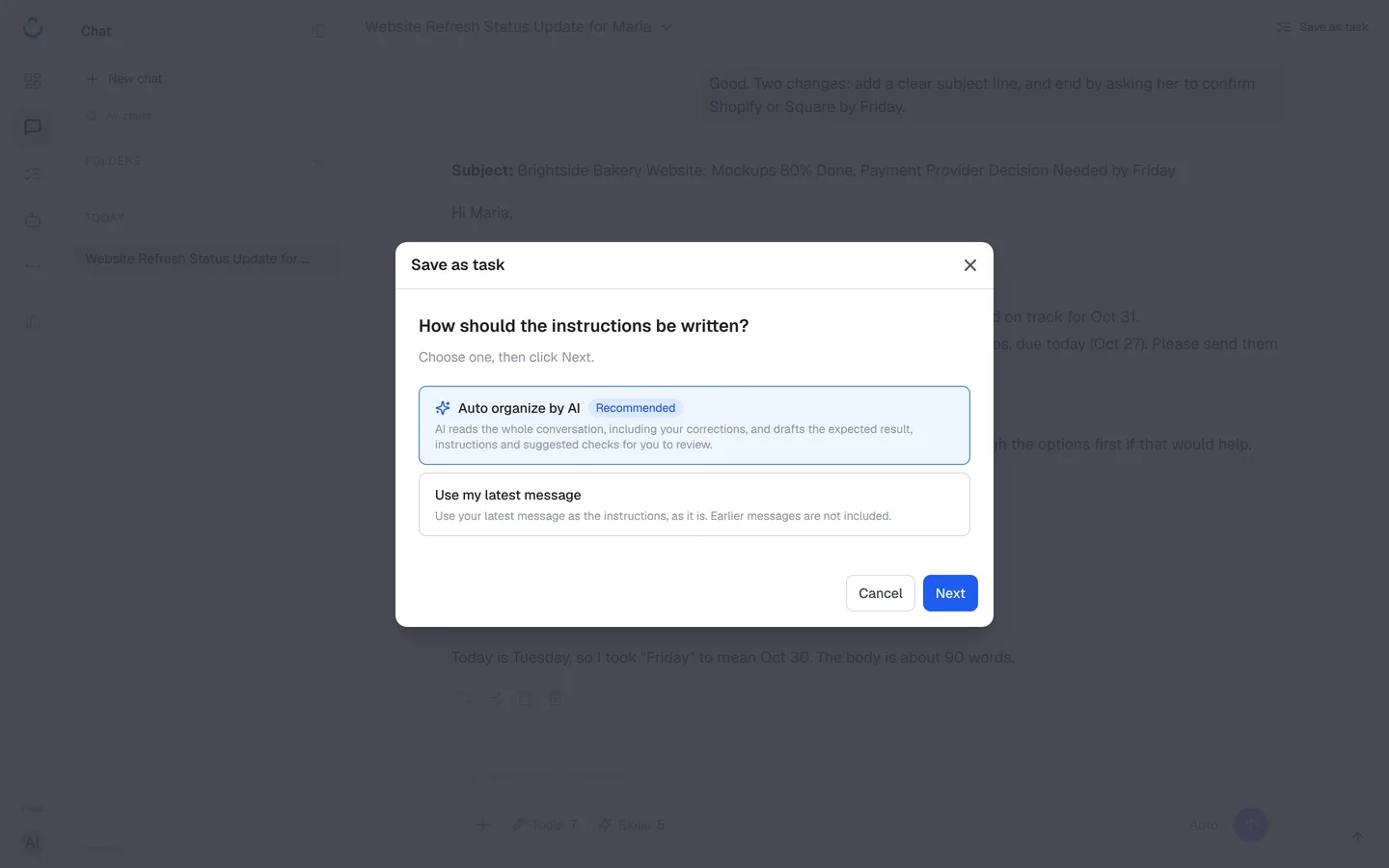
Step 1: Choose how the instructions are written
- In the chat, click Save as task at the top right.
- Under "How should the instructions be written?", choose one:
- Auto organize by AI (Recommended): "AI reads the whole conversation, including your corrections, and drafts the expected result, instructions and suggested checks for you to review."
- Use my latest message: "Use your latest message as the instructions, as it is. Earlier messages are not included." Choose this when your last message already says everything the task needs.
- Click Next.
Step 2: Let AI organize the conversation
With Auto organize by AI, the dialog shows "AI is organizing your conversation…" while it prepares "the instructions, tools and suggested checks". This takes a few seconds. You can review everything before the task is created.
Organizing uses a model call. In Usage & Credits → Usage records, it is listed as Organize chat.
Step 3: Review the summary
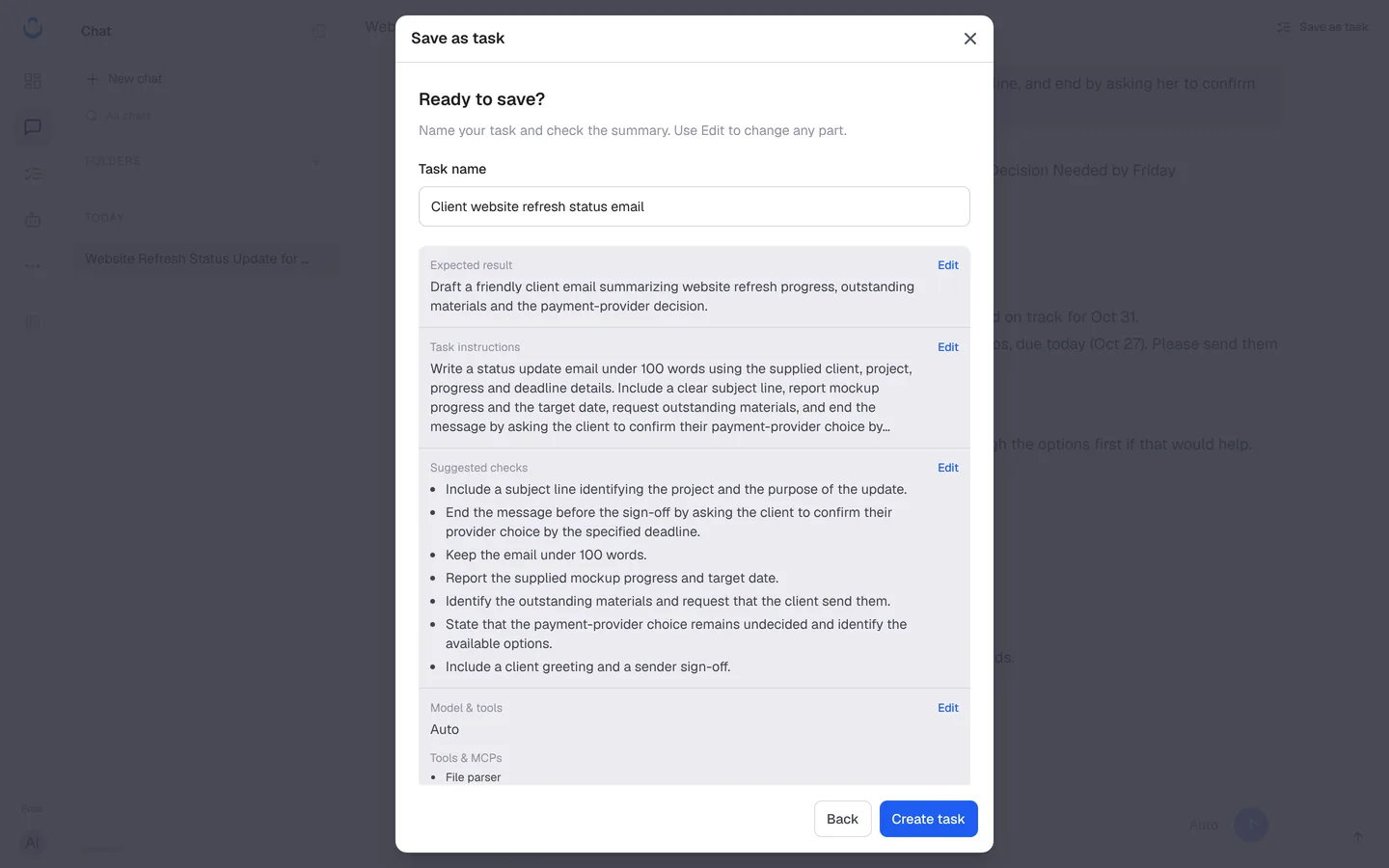
The dialog then asks Ready to save?: "Name your task and check the summary. Use Edit to change any part."
- Task name: for example, "Client website refresh status email".
- Expected result: what a good result looks like.
- Task instructions: what the AI is asked to do on every run.
- Suggested checks: what each run is checked for. For Alex's email, these include a subject line that identifies the project, a closing request to confirm the provider by the deadline, staying under 100 words, and reporting the mockup progress and target date.
- Model & tools: the model plus the Tools & MCPs and Skills the chat used. The task inherits them.
- Files: any files the task works from.
Each part has an Edit link. Expand A few things to check to see points the AI wants you to confirm.
At the bottom, the dialog reminds you: "Saving doesn't run the task. From the task page you can run it, put it on a schedule, or change its checks. Your original chat stays available."
Step 4: Edit the instructions and checks (optional)
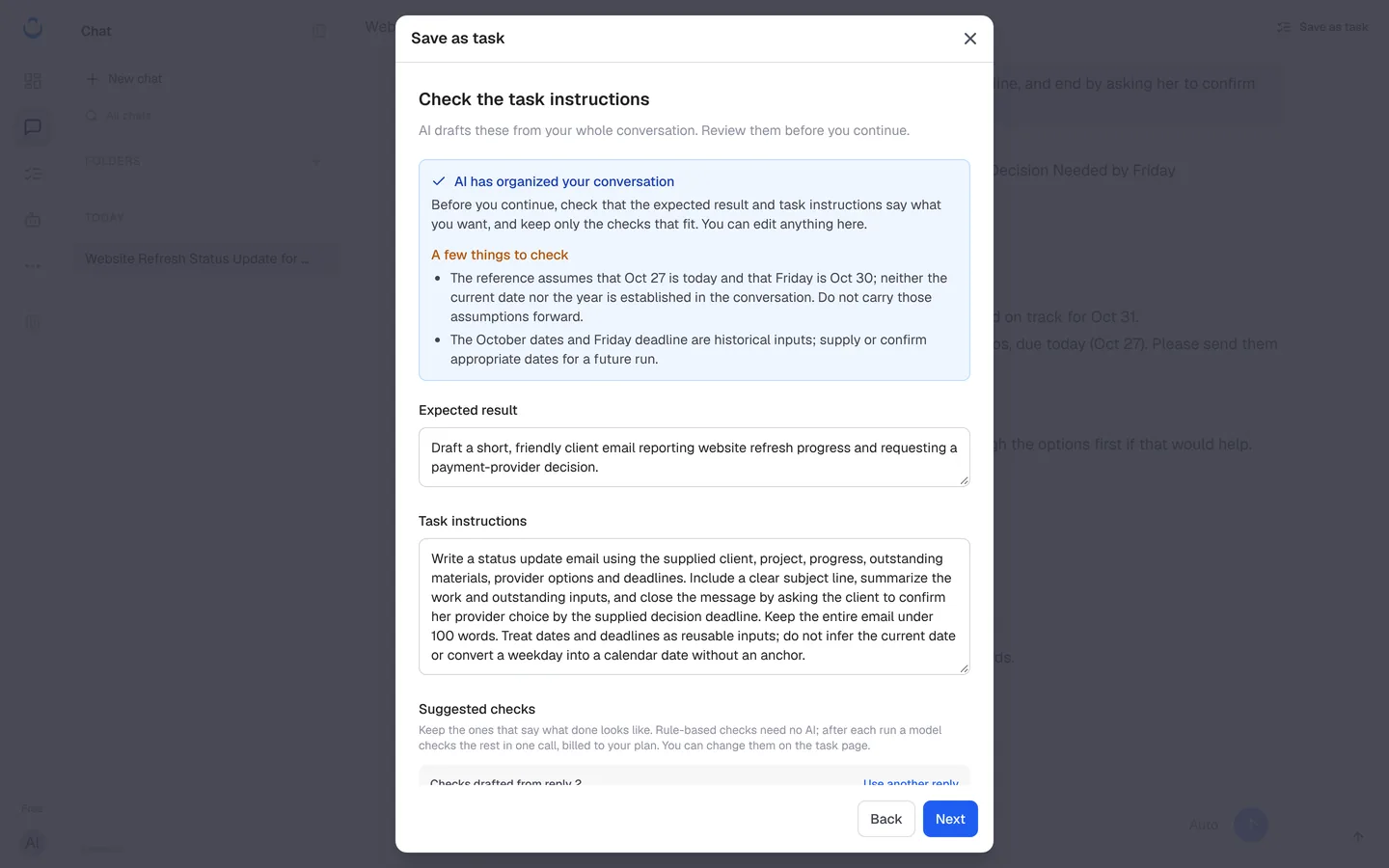
Click Edit on any part to open Check the task instructions: "AI drafts these from your whole conversation. Review them before you continue."
- Read A few things to check. The AI points out what it could not settle from the chat. In Alex's case, it notes that the dates (Oct 27 as "today", Friday as Oct 30) were assumptions in the conversation and that a future run needs the right dates.
- Edit Expected result and Task instructions as needed. For a weekly email, Alex keeps the instructions general and supplies new dates with each run.
- Under Suggested checks, keep the ones that describe a good result: "Keep the ones that say what done looks like. Rule-based checks need no AI; after each run a model checks the rest in one call, billed to your plan. You can change them on the task page."
- Each check shows where it came from, for example From your correction.
- The checks are drafted from one reply of the chat (for example, "Checks drafted from reply 2"). Click Use another reply to draft them from a different reply.
- Click Organize again to have the AI redo the draft. On the Free plan, this counts toward a limit of 3 a month.
- Click Next to return to the summary.
Step 5: Create the task
Click Create task. To change something on the summary first, use Edit, or Back to go to the previous step.
What happens next
You land on the new task's Run history. Saving does not run the task, so it shows "No runs yet": "Run it once to see the result here. If the task has checks, each result is checked against them."
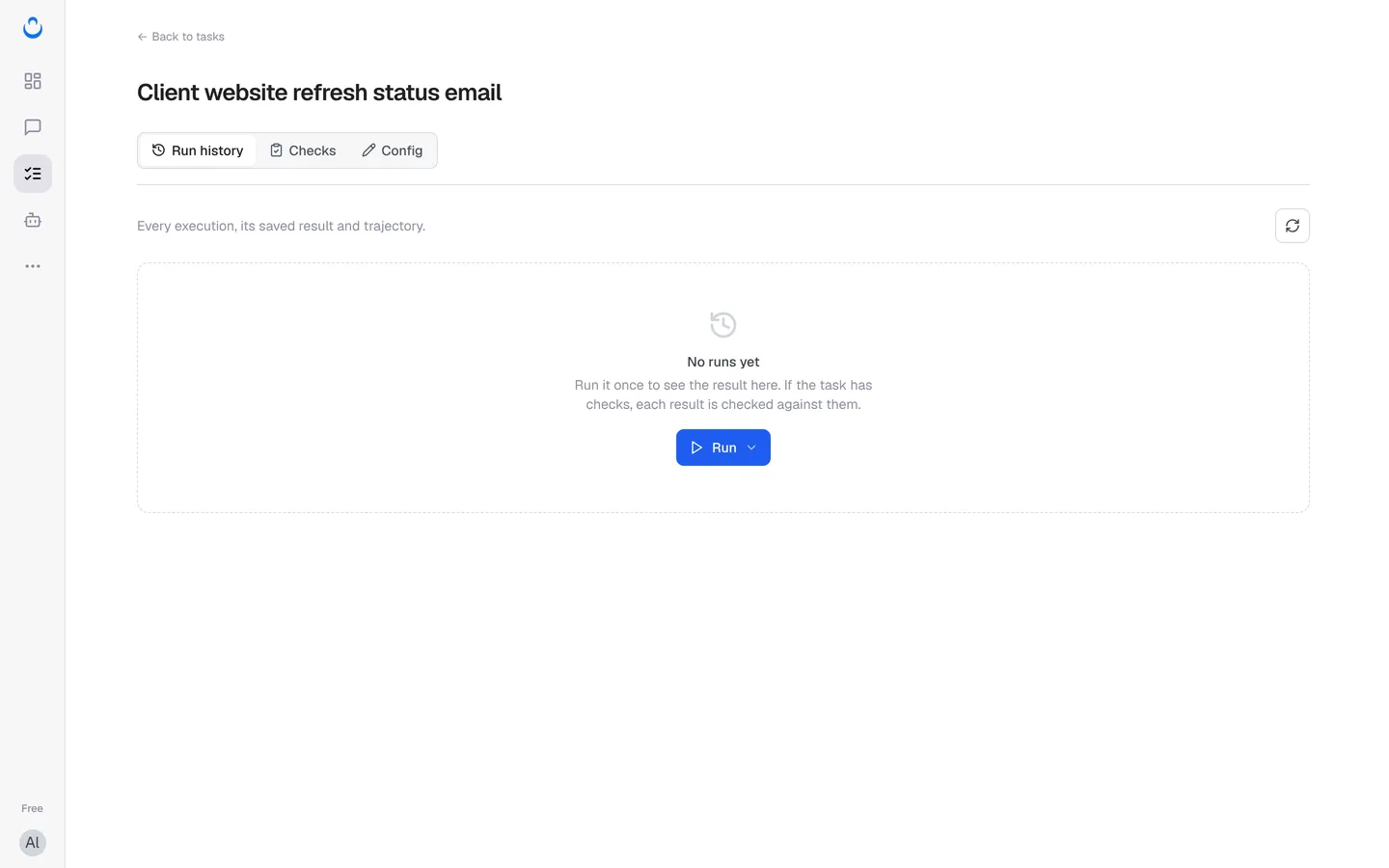
From here you can:
- Click Run to try it. To give a run new facts, such as next week's progress for Maria, choose Add new materials and run in the Run menu. See Run a task.
- Open Checks to review or change the acceptance criteria. See Set acceptance criteria.
- Open Config to change the instructions, capabilities or schedule.
The original chat stays in Chat, unchanged.