Use Shared Models
Models do the work in ConsoleX: they answer your chats, draft tasks, run them and suggest improvements. Shared models are ready to use with no setup, and their usage counts toward your plan allowance or credits. This page explains Auto select, the Model Hub, and how to choose a model in chats, tasks and agents.
Auto select is the default
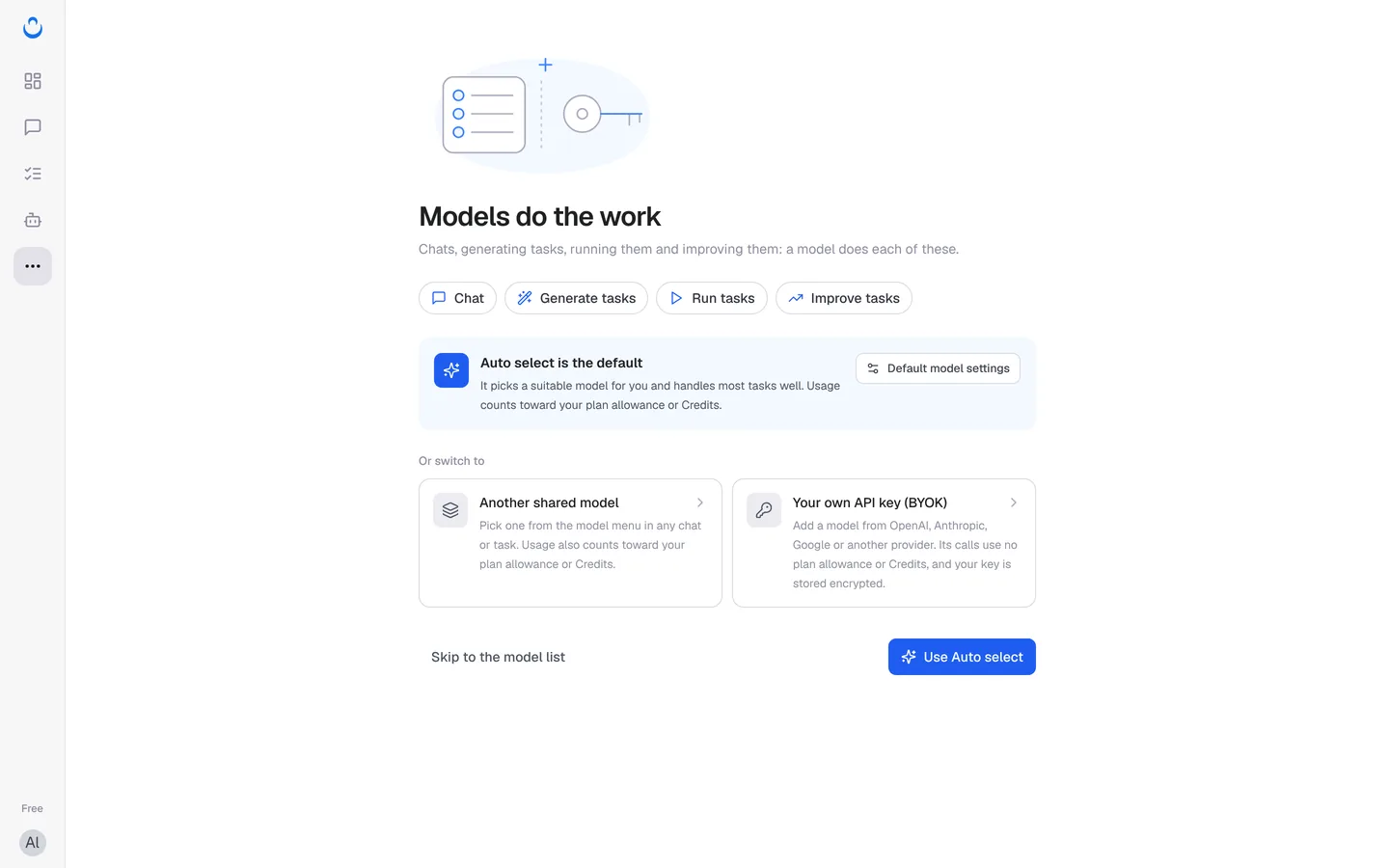
Auto picks a suitable model for you and handles most tasks well. New chats, new tasks and the automatic checks after each run all start on Auto. Its usage counts toward your plan allowance or credits.
You can switch to:
- Another shared model: pick one from the model menu in any chat or task. Usage also counts toward your plan allowance or credits.
- Your own API key (BYOK): add a model from OpenAI, Anthropic, Google or another provider. Its calls use no plan allowance or credits, and your key is stored encrypted. See Custom models.
The first time you open … (More) → Models, a short intro, Models do the work, explains these options. Click Use Auto select to keep the default, or Skip to the model list to open the Model Hub.
Browse the Model Hub
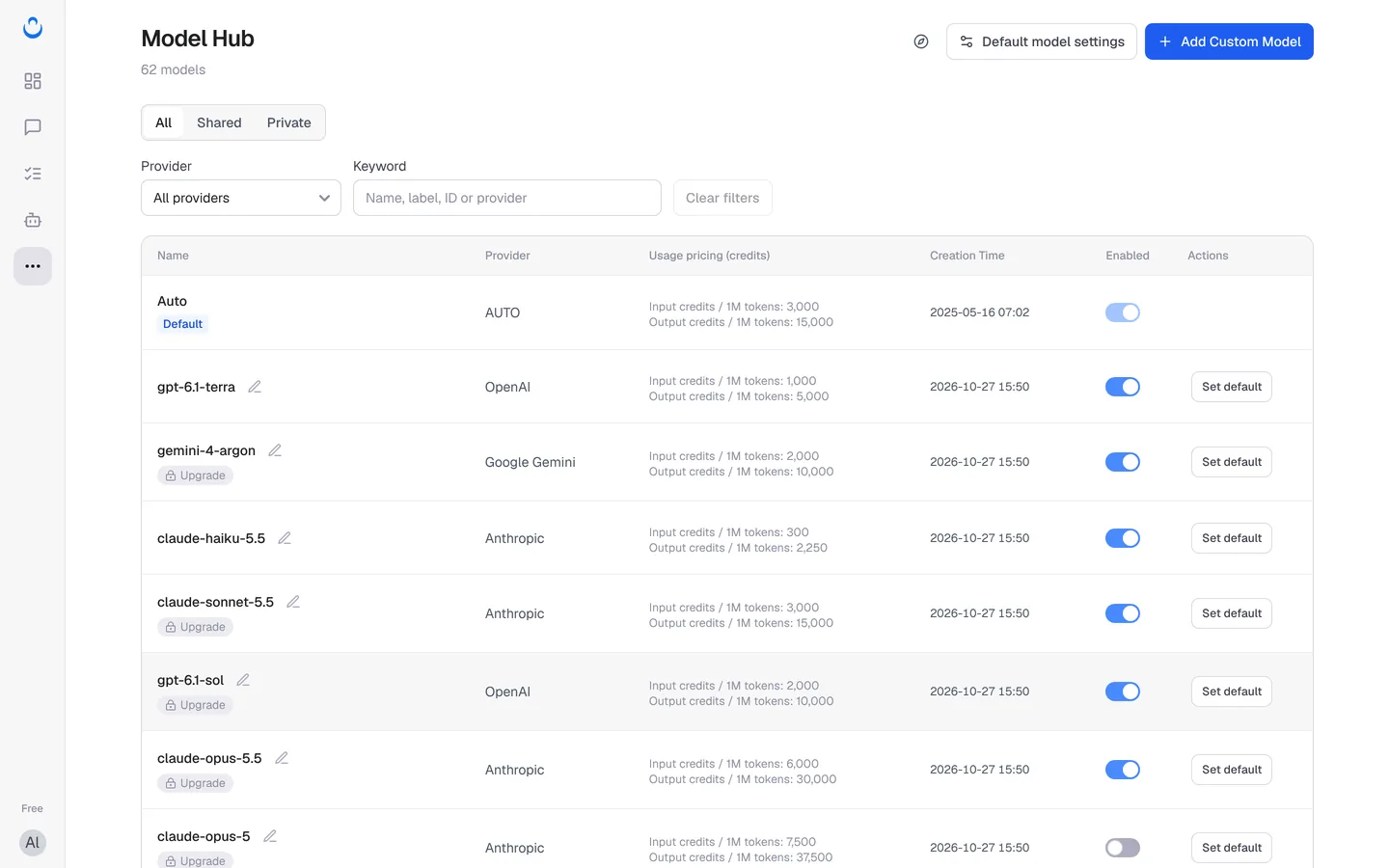
The Model Hub lists every model you can use.
- All / Shared / Private: shared models are provided by ConsoleX; private models are the ones you added with your own key.
- Provider and Keyword (name, label, ID or provider) filter the list. Clear filters resets them.
- Usage pricing (credits) shows each model's price in credits per 1M tokens, separately for input and output. For example, Auto is listed at 3,000 input / 15,000 output credits per 1M tokens. Prices can change; the Model Hub always shows the current ones.
- An Upgrade badge marks a Pro model, available on Pro and Max. Examples include gemini-4-argon, claude-sonnet-5.5, gpt-6.1-sol and claude-opus-5.5.
- Set default makes a model your default. The current default is marked Default.
- The pencil icon next to a model's name lets you give it an alias.
- The Enabled switch shows whether a model is turned on for you.
You can also see the shared models and their prices without signing in on the public Model Hub: consolex.ai/model/public.
Set your default models
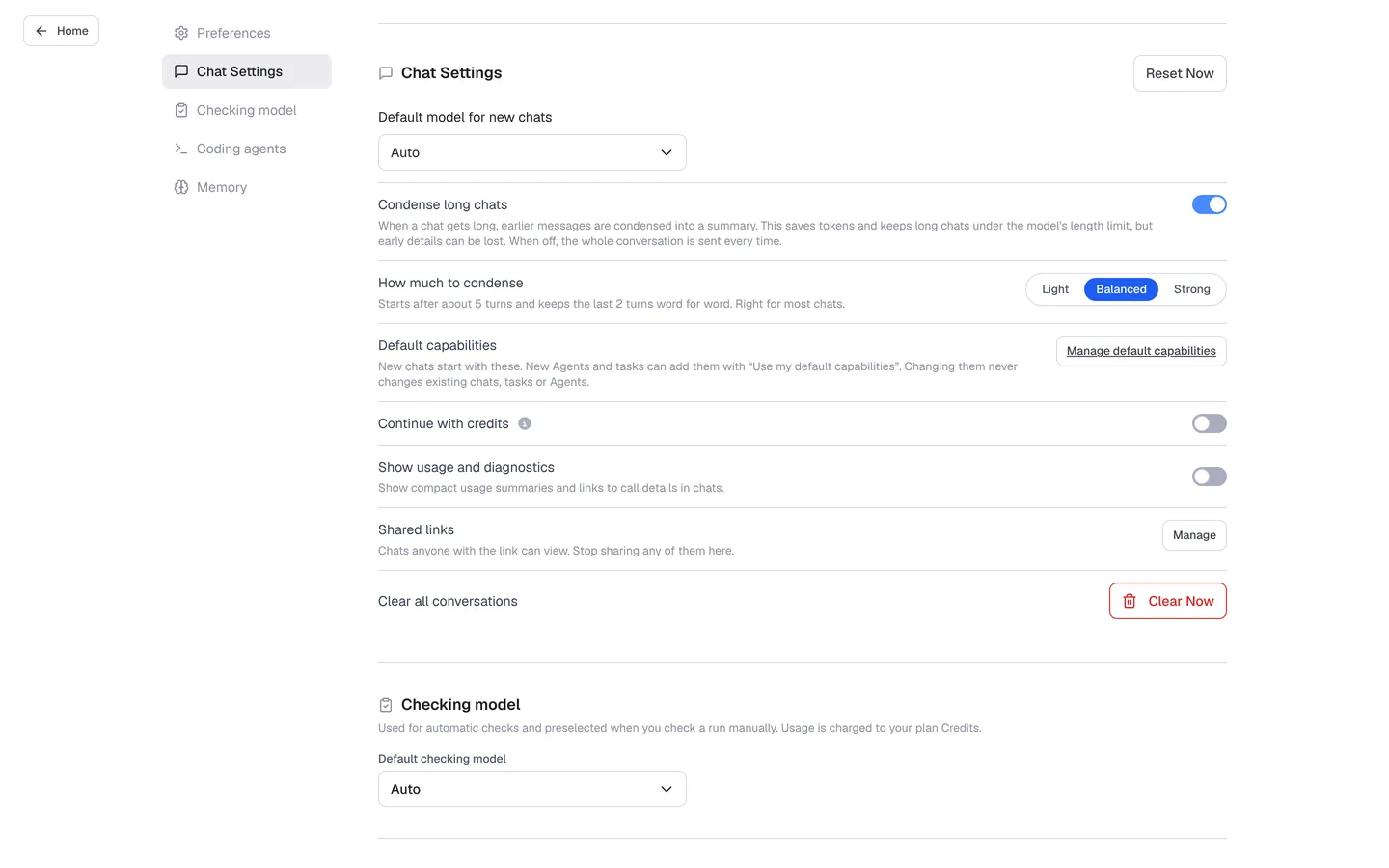
Click Default model settings in the Model Hub. It opens Settings at Chat Settings:
- Default model for new chats: Auto unless you change it.
- Checking model → Default checking model: the model used for automatic checks, also preselected when you check a run manually. Its usage is charged to your plan credits.
See Settings overview for the other options there.
Choose a model for a chat, task or agent
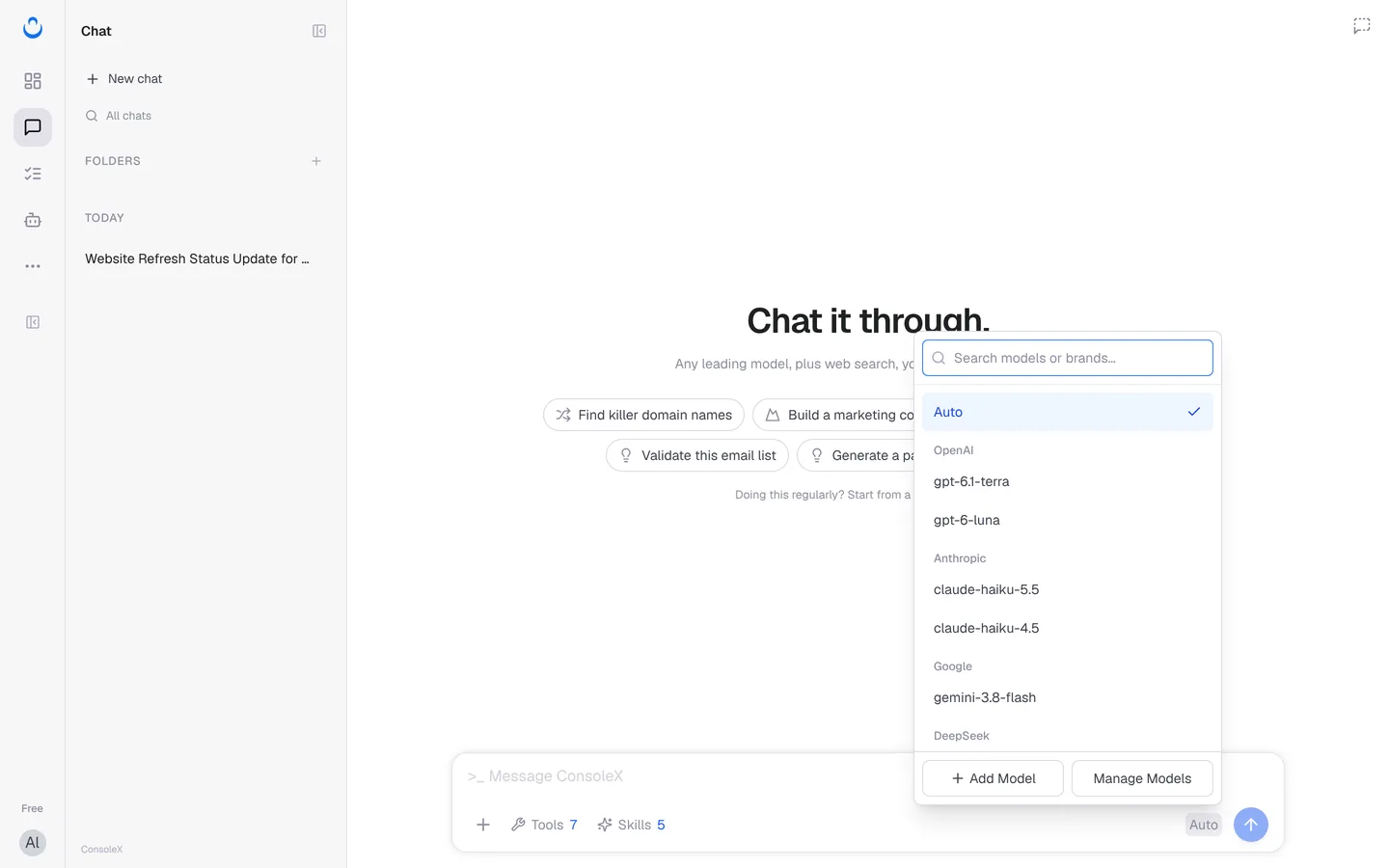
- Chat: click the model name (Auto) at the bottom right of the composer. Search models or brands, or pick one from the list, grouped by provider. On the Free plan, Pro models are grouped under Upgrade to use. The menu also has Add Model and Manage Models. After you choose a specific model, a Reasoning Effort slider lets you trade speed for depth (Faster ↔ Smarter). See Chat with models.
- Task: under Done by, choose Model and pick one (Auto by default), or choose Agent to use the agent's own model, prompt, tools and Skills. You'll find this in the task wizard and on the task's Config tab. See Create a task from a template.
- Agent: under More settings → Which model to use, keep Auto select (recommended) or click Choose a model. See Create a custom agent.
What shared models cost
Shared models use your monthly plan allowance first, then your credits balance. Every task run shows its estimated cost, with checks listed separately, and every call appears in Usage & Credits. For details, see Shared model pricing and Credits and usage.