Use Agents
An agent combines a model, a prompt, skills and tools for one kind of work, so you don't have to set them up every time. This page shows you how to find agents, try the preset ones, and use an agent in a chat or a task.
Open the Agents page
Click Agents in the left rail. The first time you open it, a short introduction shows what each agent combines (Model, Prompt, Skills and tools) and where you can use it (Chats and Tasks). Choose Browse preset agents, Create a custom agent or Skip to the agents page. To see the introduction again, click the guide icon (Show guide) next to Add your own agent.
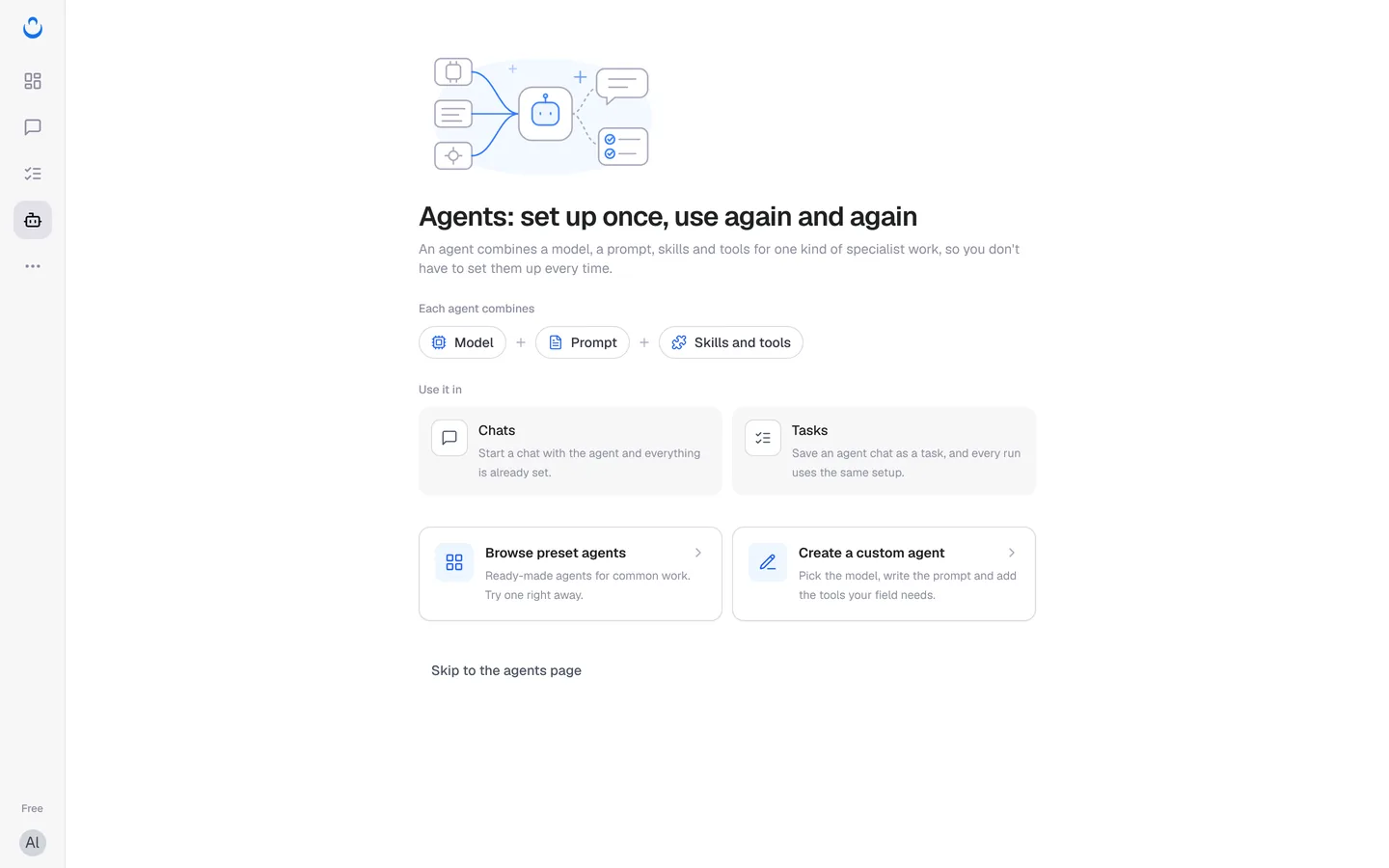
The Agents page has four tabs:
- Pinned: the agents you pinned for quick access.
- Preset: ready-made agents from ConsoleX.
- Custom: agents you created. See Create a custom agent.
- Shared with me: agents other people shared with you.
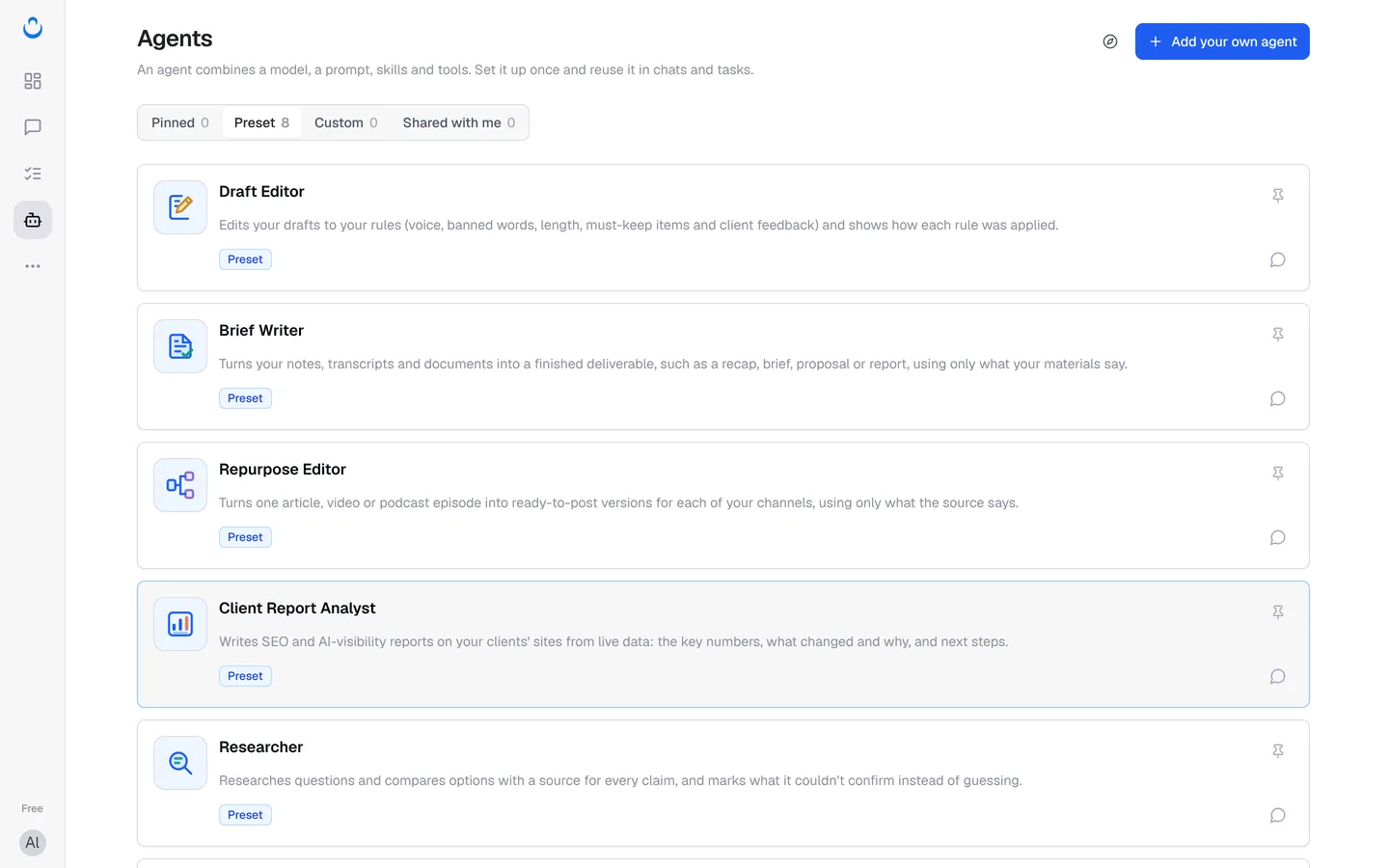
The preset agents
ConsoleX includes eight preset agents. The first five are new and cover the same kinds of work as the task templates: editing, deliverables from your notes, repurposing, client reports and research.
| Agent | What it does |
|---|---|
| Draft Editor | Edits your drafts to your rules (voice, banned words, length, must-keep items and client feedback) and shows how each rule was applied. |
| Brief Writer | Turns your notes, transcripts and documents into a finished deliverable, such as a recap, brief, proposal or report, using only what your materials say. |
| Repurpose Editor | Turns one article, video or podcast episode into ready-to-post versions for each of your channels, using only what the source says. |
| Client Report Analyst | Writes SEO and AI-visibility reports on your clients' sites from live data: the key numbers, what changed and why, and next steps. |
| Researcher | Researches questions and compares options with a source for every claim, and marks what it couldn't confirm instead of guessing. |
| Image Creator | Creates images from your description with image generation models. |
| Voice Master | Turns text into speech in different voice styles and transcribes audio recordings into text. |
| Domain Lookup Assistant | Helps you find a domain name for your project. |
Chat with an agent
- On the agent's card, click the chat icon (Chat now), or click the agent's name.
- A new chat opens with the agent's intro and a few conversation starters. Click a starter to send it, or type your own message.
- The message box shows the agent's name next to the model, so you can see which agent is answering.
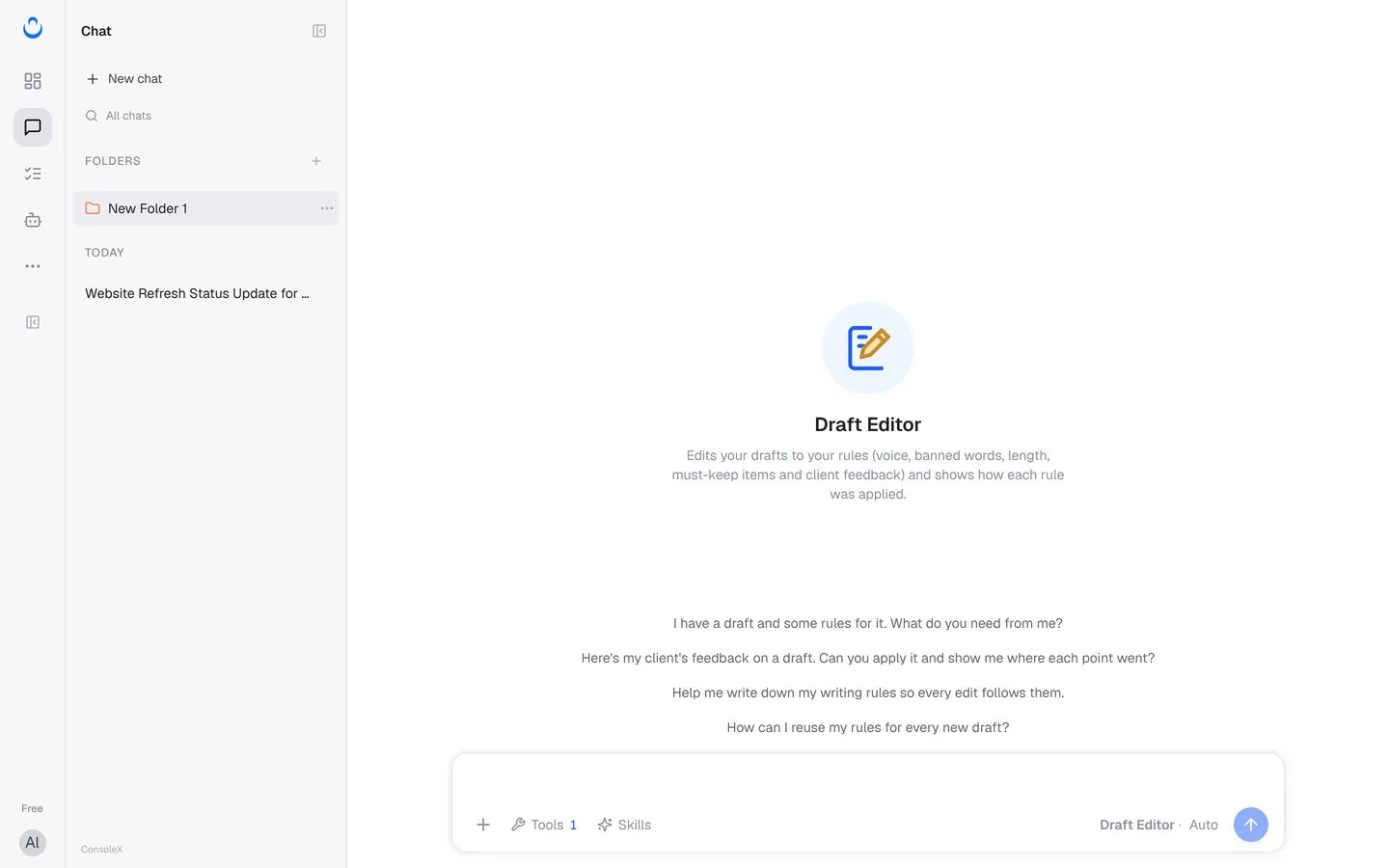
For example, Alex, a freelance web designer, opens Draft Editor, pastes a draft update for Maria at Brightside Bakery, and adds her feedback. The agent applies each point and shows where it went.
Pin the agents you use most
Click the pin icon (Pin agent) on a card. The agent moves into the Pinned tab and appears in the chat sidebar under Agents, so you can start a chat with it in one click. To unpin it, click the pin icon again.
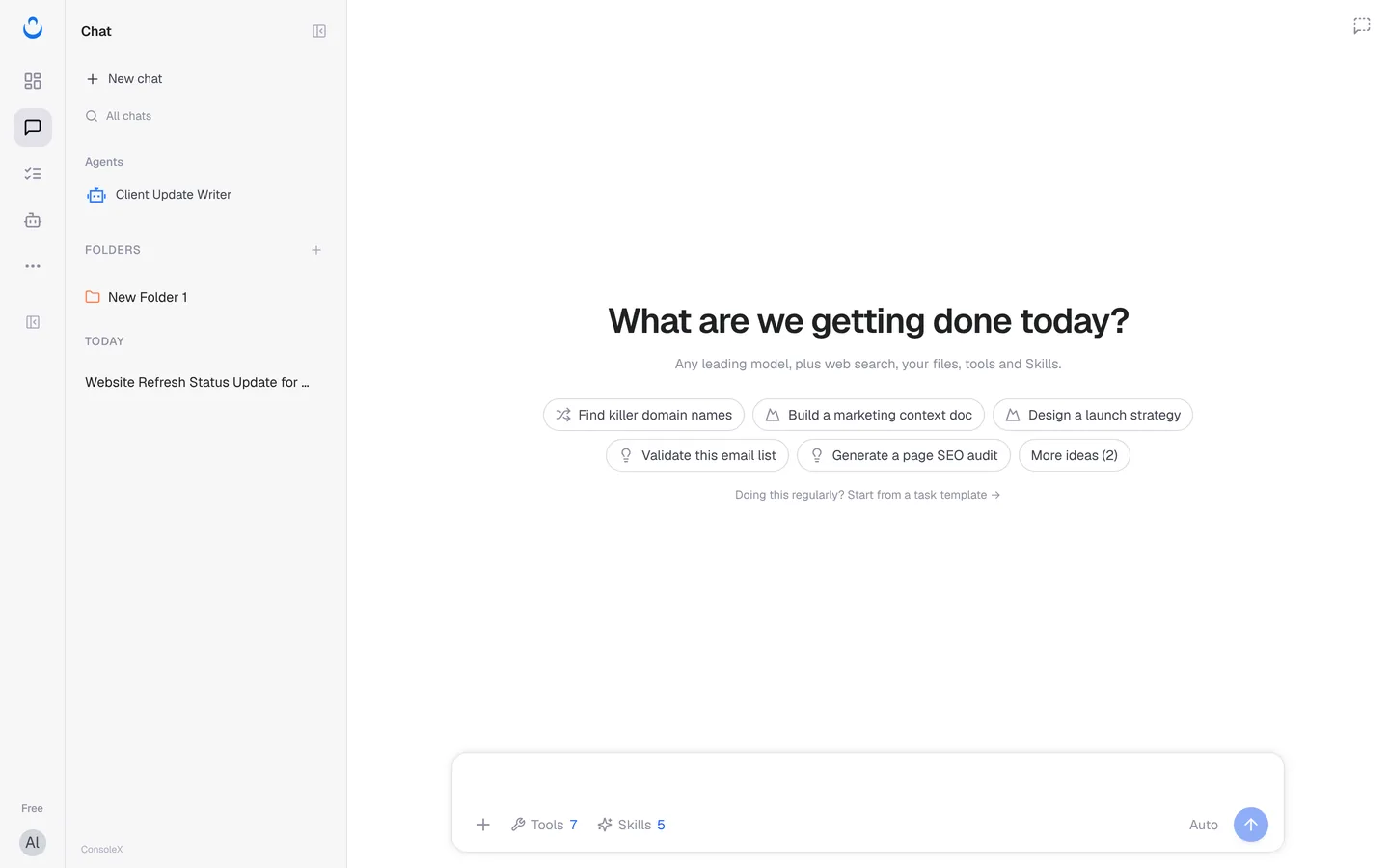
Call an agent with @ in any chat
In the message box, type @. A list of your agents opens with a Search agent box. Pick the agent you want to use.
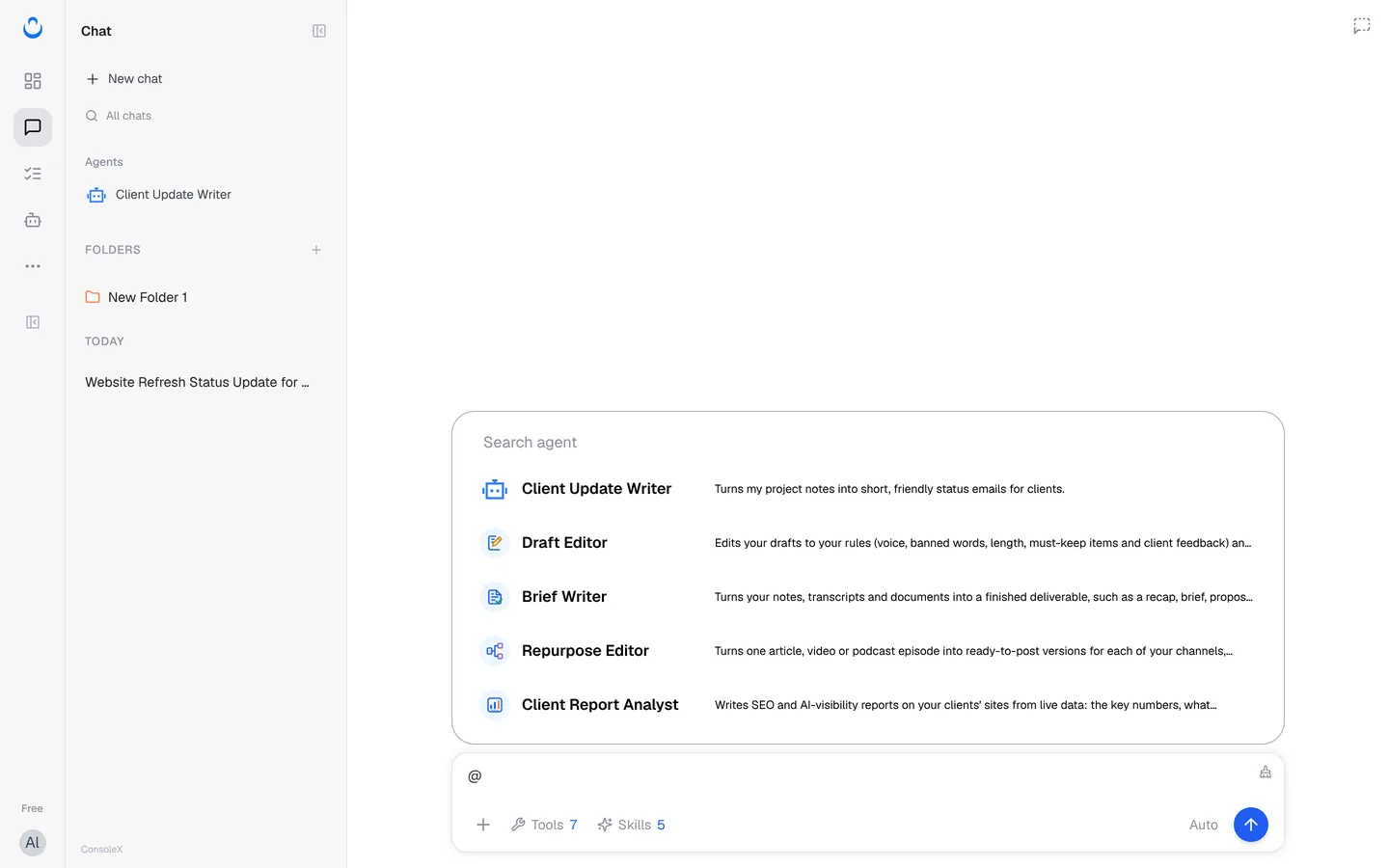
For more on working with agents in conversations, see Chat with agents.
Let an agent do a task
A task can be done by a model or by an agent.
- In the new task wizard (step 1 What to do) or on a task's Config tab, find Done by and choose Agent.
- Pick the agent from the list.
- The agent brings its own setup. The form says: "System prompt, tools, and Skills are provided by the selected Agent. Choose Model if you need to customize them." Rules to always follow shows Provided by Agent, and the task's capabilities are "Copied from the Agent. You can adjust them."
- Fill in the Name and Instructions as usual, then continue.
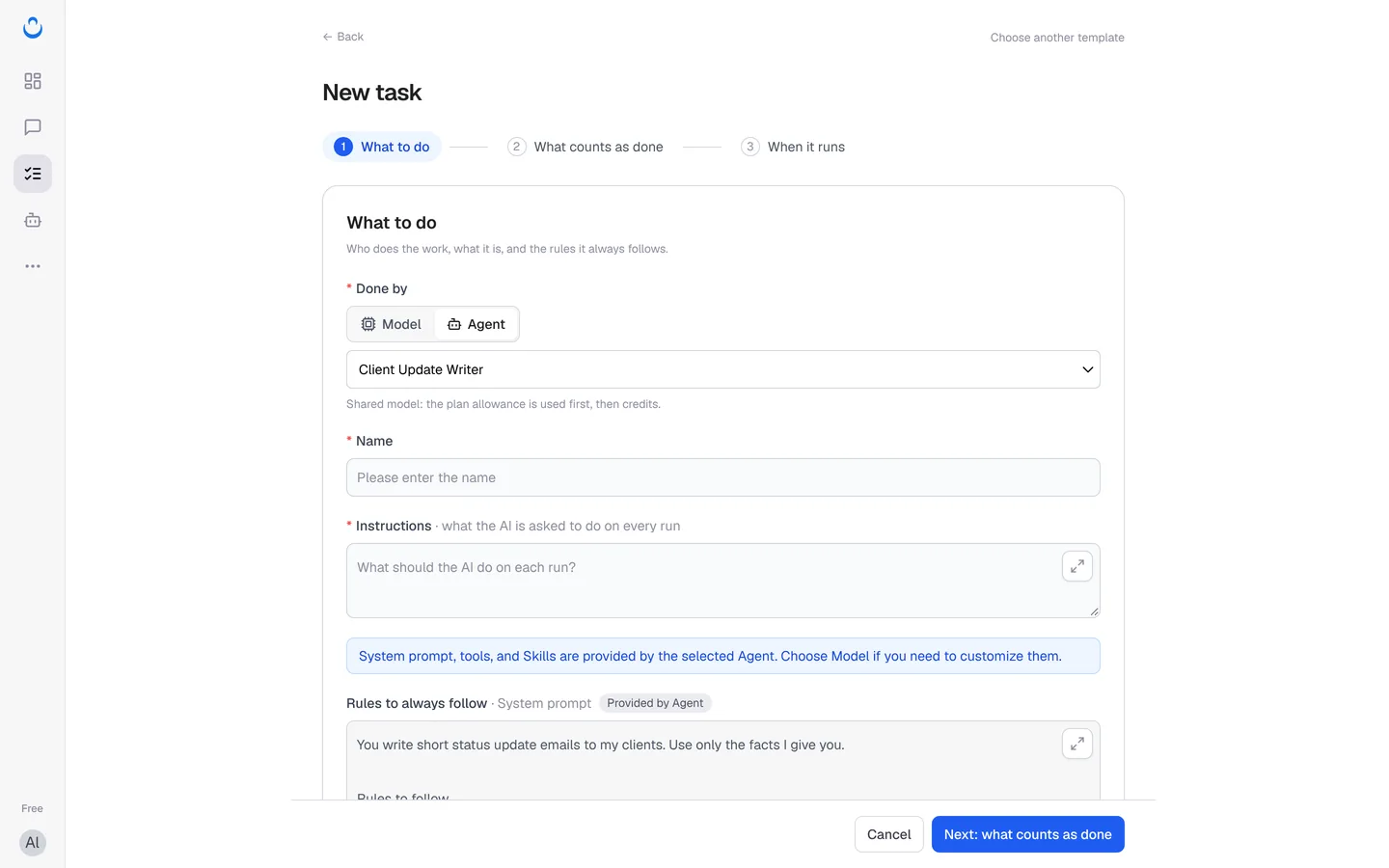
You can also save a chat with an agent as a task, so every run uses the same setup. See Save a chat as a task and Create a task from a template.
What agents cost
Using an agent costs the same as any other chat or task: the model and tools it calls use your plan allowance first, then Credits. See Shared model pricing and Preset tool pricing.