What are tasks?
A task is a piece of work you want done the same way every time. This page explains what a task keeps, the ways to create one, and where to find its runs, checks and settings.
What a task keeps
In the words of the Tasks page: "Each task keeps the instructions and standard for one piece of work. Run it again with new material, or on a schedule."
A task holds:
- The instructions: what the AI is asked to do on every run, any rules it always follows, the files it works from, and the tools and Skills it can use. The work is done by a model (Auto by default) or by one of your agents.
- The standard: the acceptance criteria that say what counts as done. Every run is checked against them when it finishes.
- Its runs: each run records the result, the model used, usage and estimated cost. Checks are billed separately and listed separately.
- Its versions: when a check fails or you give feedback, ConsoleX can suggest changes to the instructions. You review and approve them, later runs follow the new version, and you can go back to an earlier one.
A check never guesses. As the check report says: "A check without enough evidence is marked as needs review, never passed."
For example, Alex, a freelance web designer, sends his client Maria at Brightside Bakery a short status email about her website refresh every week. Once the email comes out right in a chat, he saves it as a task. Each week he runs the task with the new facts, and each run is checked for a clear subject line, the progress and target date, the outstanding materials, and a closing request.
Three ways to create a task
| Way | Start from | Best when |
|---|---|---|
| Start from a template | Tasks → New task → Use a template | A template already matches your work, such as a meeting recap, a client report or a weekly competitor brief. |
| Save a chat as a task | Save as task at the top right of a chat | You already got a good result in a chat and want the same result again. |
| Create a custom task | New task → Create a blank task, or Create a custom task at the end of the template gallery | You prefer to write the instructions yourself. |
See Create a task from a template and Save a chat as a task for the steps.
The Tasks list
Click Tasks in the left rail to see all your saved tasks. Each row shows the task's status, whether it is One-time or Scheduled, and these buttons:
- Run: start a run now, or open the Run menu for more options.
- Run history: the task's runs, with a count.
- Checks: the task's check results and acceptance criteria.
- Config: the task's settings.
Use New task at the top right to create another task.
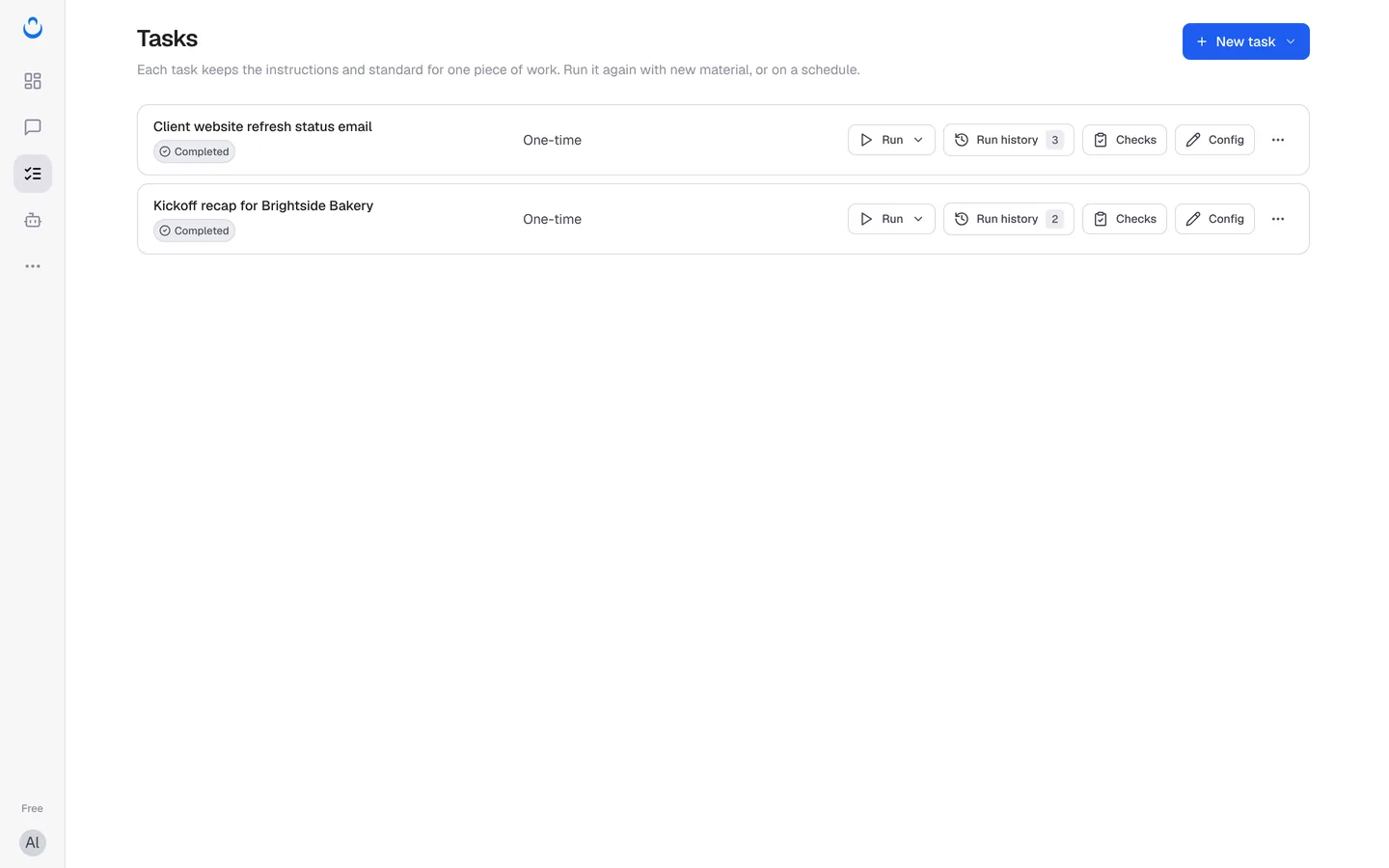
The task page
Open a task to see three tabs. ← Back to tasks returns you to the list.
- Run history: "Every execution, its saved result and trajectory." Start runs here, see the pass rate of recent runs, filter runs, and open each run's result, check result and chat. See Run a task.
- Checks: recent check results, the task's acceptance criteria, and suggestions and versions. See Read run results and checks, Set acceptance criteria and Improve a task from its results.
- Config: What to do, What to work from and When it runs. This is where you edit the instructions, files, capabilities and schedule, or delete the task.
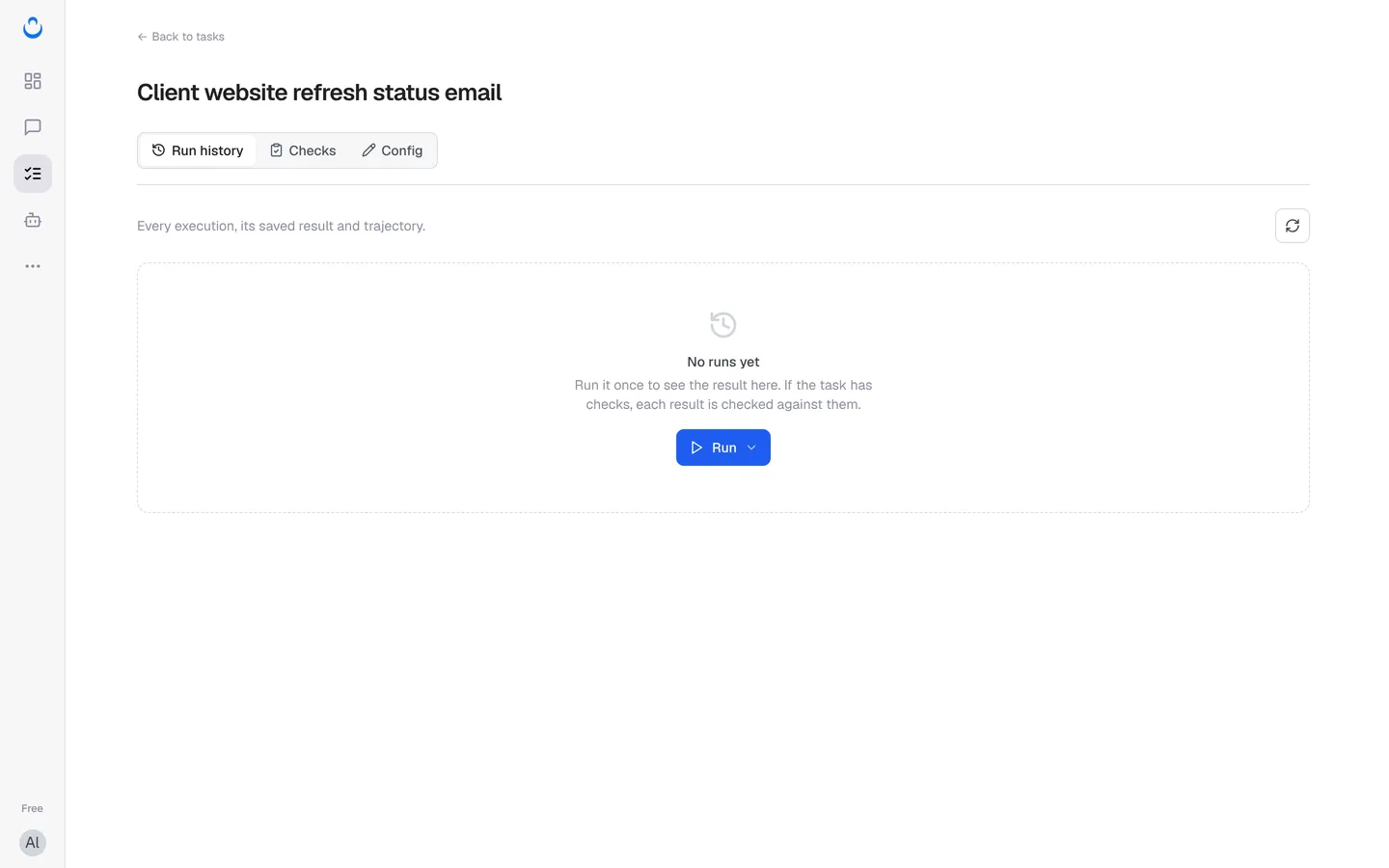
One-time and scheduled tasks
Under When it runs, every task is one of two kinds:
- One-time: "Run manually when you are ready." You start each run yourself from Run.
- Scheduled: "Run automatically on a schedule." You choose how often it repeats, the date and the time.
You can switch between them at any time in Config. When you create a task with the New task wizard, you can save it and run a trial straight away; a scheduled task only starts its schedule after you have seen the result. Learn more in Run a task.
Tasks on the Dashboard
The Dashboard sums up your tasks under Your work: how many tasks you have saved, and how many runs and passed checks you had in the last 7 days. Needs you lists runs waiting for your decision, each with Open report. Recent runs and Coming up next show what ran and which scheduled runs are next.
Plan limits
| Free | Pro | Max | |
|---|---|---|---|
| Saved tasks | Up to 20 | Unlimited | Unlimited |
| Scheduled tasks | 1 | Unlimited | Unlimited |
| Use tasks in Claude Code, each delivery checked | No | Yes | Yes |
| Improvement suggestions you approve | On request | On request and automatic | On request and automatic |
Every plan includes checks on every run, suggested improvements you approve, restoring earlier versions, and an estimated cost on every run. Runs and their checks use your monthly allowance; see Credits overview.