Default Capabilities
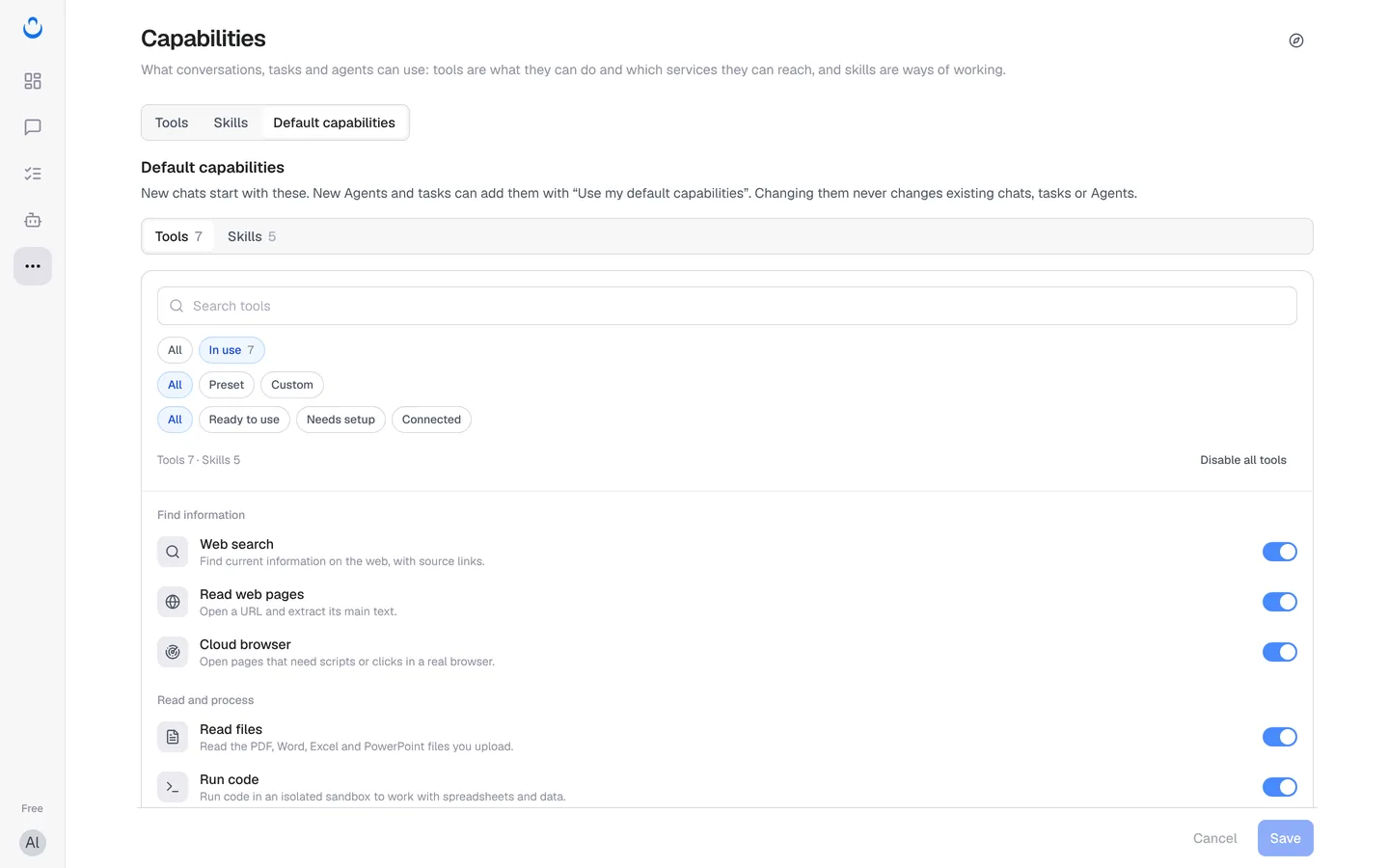
Default capabilities are the tools and skills you want ready without thinking about it. ConsoleX puts it this way: "New chats start with these. New Agents and tasks can add them with 'Use my default capabilities'. Changing them never changes existing chats, tasks or Agents."
What's on by default
Out of the box, your defaults are 7 tools and 5 skills.
Tools
- Web search
- Read web pages
- Cloud browser
- Read files
- Run code
- Time and time zones
- GPT-image-2 generate and edit
Skills
- artifact-builder
- skill-creator
- skills-toolkit
- cloud-browser
- document-suite
That's why a new chat shows Tools 7 and Skills 5 under the message box.
Change your defaults
- Open the Default capabilities page. You can get there in several ways:
- Click … (More) in the left rail, then Capabilities, then the Default capabilities tab.
- In Chat, click All chats, then Manage default capabilities.
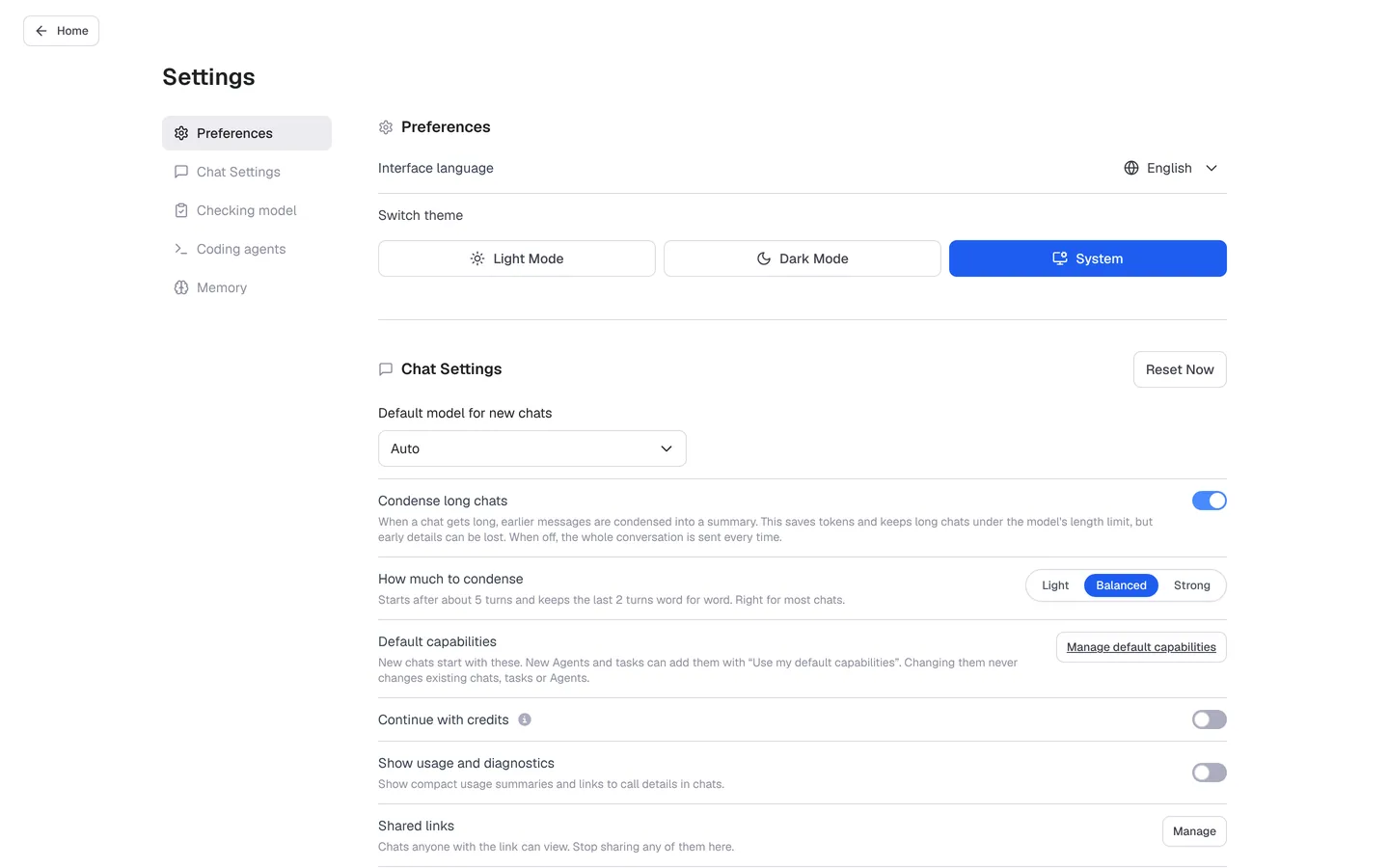
- Open your avatar menu, click Settings, and under Chat Settings click Manage default capabilities.
- On the Skills tab of Capabilities, click the Manage default capabilities link.
- Choose the Tools or Skills tab. The In use filter shows what is on now.
- Switch items on or off. Use the search box and filters to find a tool, or Disable all tools to start from nothing.
- Click Save.
Tip: keep the list short. Every new chat starts with it, and as the agent editor puts it, "fewer means fewer mistakes." For example, if Alex often checks client sites for SEO problems, Alex might add a Growth and SEO tool to the defaults and turn off GPT-image-2 if image generation is never needed in chat.
Use your defaults in tasks and agents
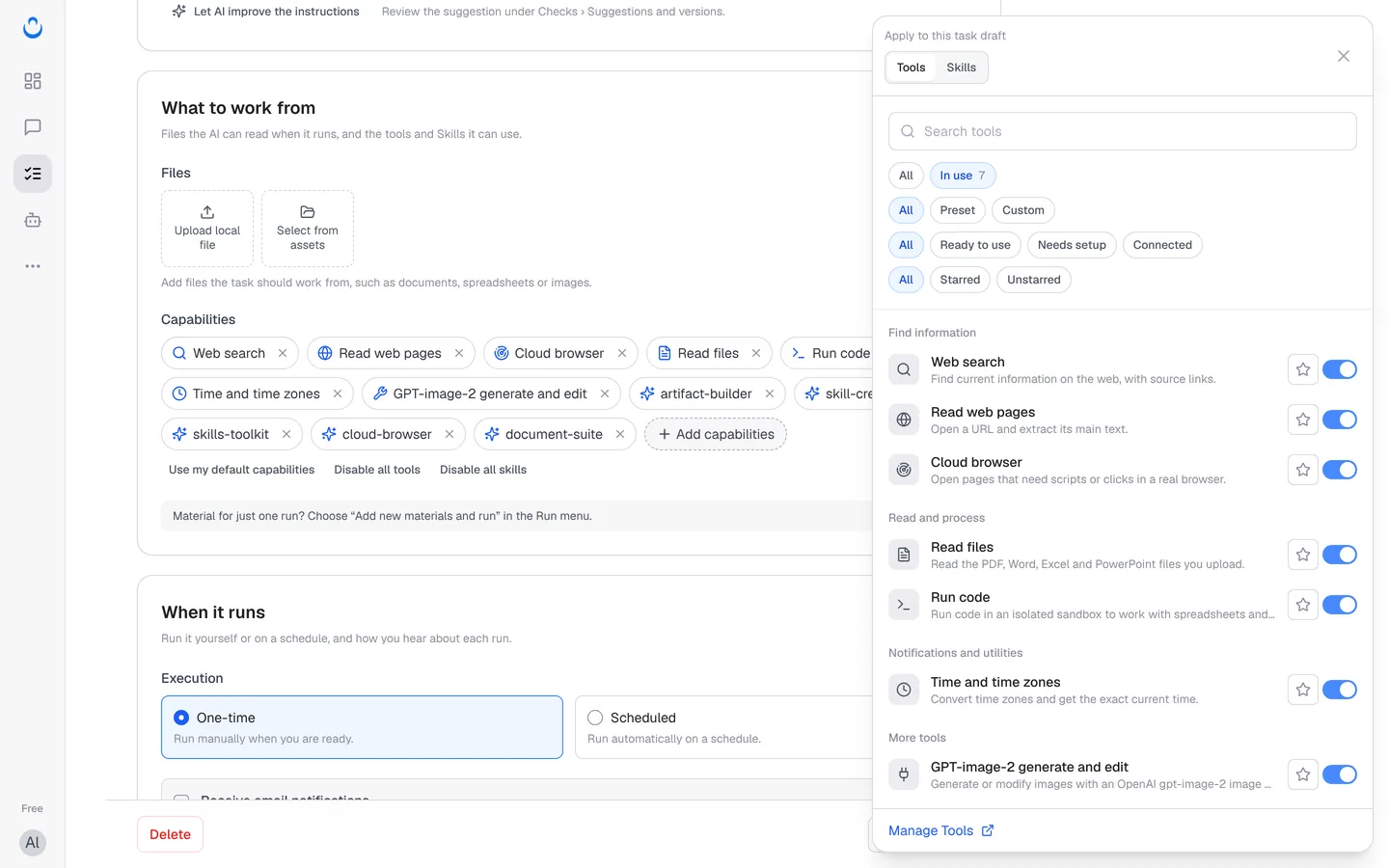
When you set up a task or an agent, the Use my default capabilities button adds your defaults in one click:
- Tasks: in step 1 What to do of the new task wizard, or on a task's Config tab, under What to work from → Capabilities.
- Agents: in the Capabilities section of the agent editor. See Create a custom agent.
After adding them, you can still remove single items or add others with Add capabilities.
Changes only affect what comes next
When you change your defaults:
- New chats start with the new list.
- Use my default capabilities adds the new list to tasks and agents from then on.
- Existing chats, tasks and agents keep their own selection. To change one of them, open it and change its capabilities there.
To change the tools or skills for a single chat only, use Tools and Skills under the message box. See Use preset tools and Preset skills.