Create a task from a template
Templates give you a task that already knows what a good result looks like. This page walks you through the template gallery and the three-step New task wizard, and shows how to start a custom task from scratch.
Open the template gallery
- Click Tasks in the left rail, then New task → Use a template. You can also use New task on the Dashboard, or the "Start from a task template" link on an empty chat.
- Pick a template. Choosing a template doesn't run anything, and you can change every setting before saving.
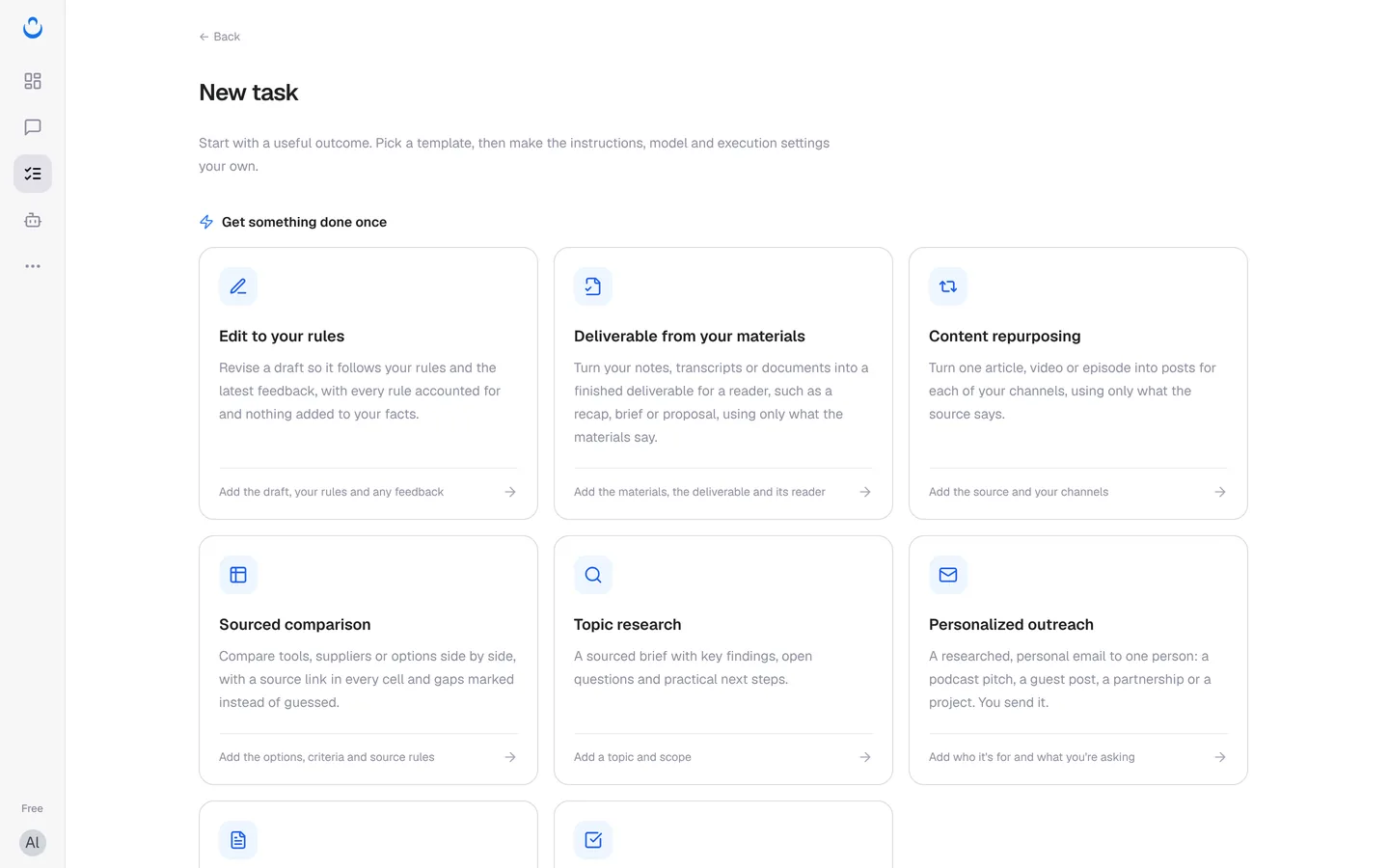
The gallery has two groups. Each card says what you need to add.
Get something done once
| Template | What you get | What you add |
|---|---|---|
| Edit to your rules | A revised draft that follows your rules and the latest feedback | The draft, your rules and any feedback |
| Deliverable from your materials | A finished recap, brief or proposal built only from your materials | The materials, the deliverable and its reader |
| Content repurposing | Posts for each of your channels from one article, video or episode | The source and your channels |
| Sourced comparison | A side-by-side comparison with a source link in every cell | The options, criteria and source rules |
| Topic research | A sourced brief with key findings, open questions and next steps | A topic and scope |
| Personalized outreach | A researched email to one person, which you send | Who it's for and what you're asking |
| Document summary | Key points, conclusions and follow-up questions | The material (attach or paste) |
| Meeting notes & actions | Decisions and next steps with owners and deadlines | The meeting record |
Make it a regular task
| Template | What you get | What you add |
|---|---|---|
| Client report | A regular SEO and AI-visibility report on a client's site | The client's site and what they care about |
| Weekly competitor brief | Product updates, pricing changes and announcements, with sources | Competitor names or URLs |
| Hacker News digest | Five AI developer stories with summaries and links | Review the daily schedule |
| Podcast script draft | A sourced 10-minute script | Review the weekly schedule |
| AI news digest to Slack | A morning AI news digest posted to your Slack channel | Your focus and channel; connect Slack (Needs Slack) |
| Weekly competitor site report | What stands out on competitors' pricing, changelog and similar pages | Competitor URLs; connect FireCrawl (Needs FireCrawl) |
At the end of the gallery, Create a custom task lets you start with your own instructions (see below).
Step 1: What to do
The wizard opens on 1 What to do. In this example, Alex picks Deliverable from your materials to turn his kickoff-call notes with Maria into a confirmation email for her.
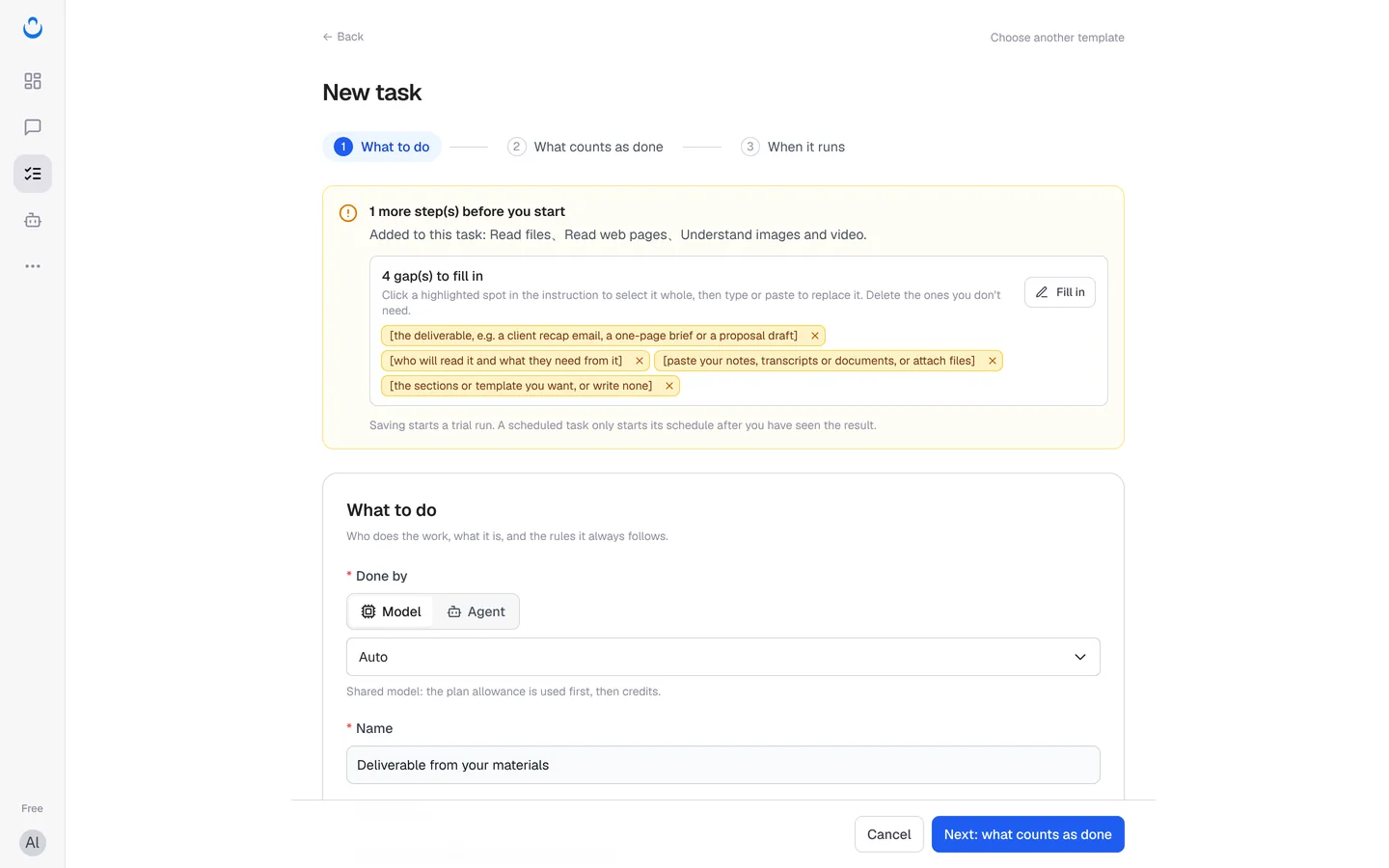
A banner at the top tells you how many steps are left and which tools and Skills the template added to the task ("Added to this task: ..."). It also says: "Saving starts a trial run. A scheduled task only starts its schedule after you have seen the result."
- Fill in the gaps. The banner lists them, for example "4 gap(s) to fill in": "Click a highlighted spot in the instruction to select it whole, then type or paste to replace it. Delete the ones you don't need." Use Fill in, or click a highlighted blank in Instructions and type over it. When nothing is left to fill in, the banner changes to Ready for a trial run.
- Done by. Choose who does the work:
- Model: Auto is selected by default. The note under it reads "Shared model: the plan allowance is used first, then credits."
- Agent: pick one of your agents or a preset agent. "System prompt, tools, and Skills are provided by the selected Agent. Choose Model if you need to customize them." Rules to always follow then shows Provided by Agent.
- Name. The template name is filled in; change it to something you will recognize, such as "Kickoff recap for Brightside Bakery".
- Instructions ("what the AI is asked to do on every run"). The template's instructions, with your blanks filled in. Templates organize the result under fixed headings. For example, Deliverable from your materials asks for "Deliverable", "Where it comes from" and a final "Needs your confirmation" section that lists anything the AI is unsure of or that needs your decision.
- Rules to always follow (System prompt). Optional rules for every run.
- What to work from:
- Files: Upload local file or Select from assets to add documents, spreadsheets or images the task should work from.
- Capabilities: "From this template. You can adjust them." Use Add capabilities, Use my default capabilities, Disable all tools or Disable all skills.
- Click Next: what counts as done.
Templates that need a connection
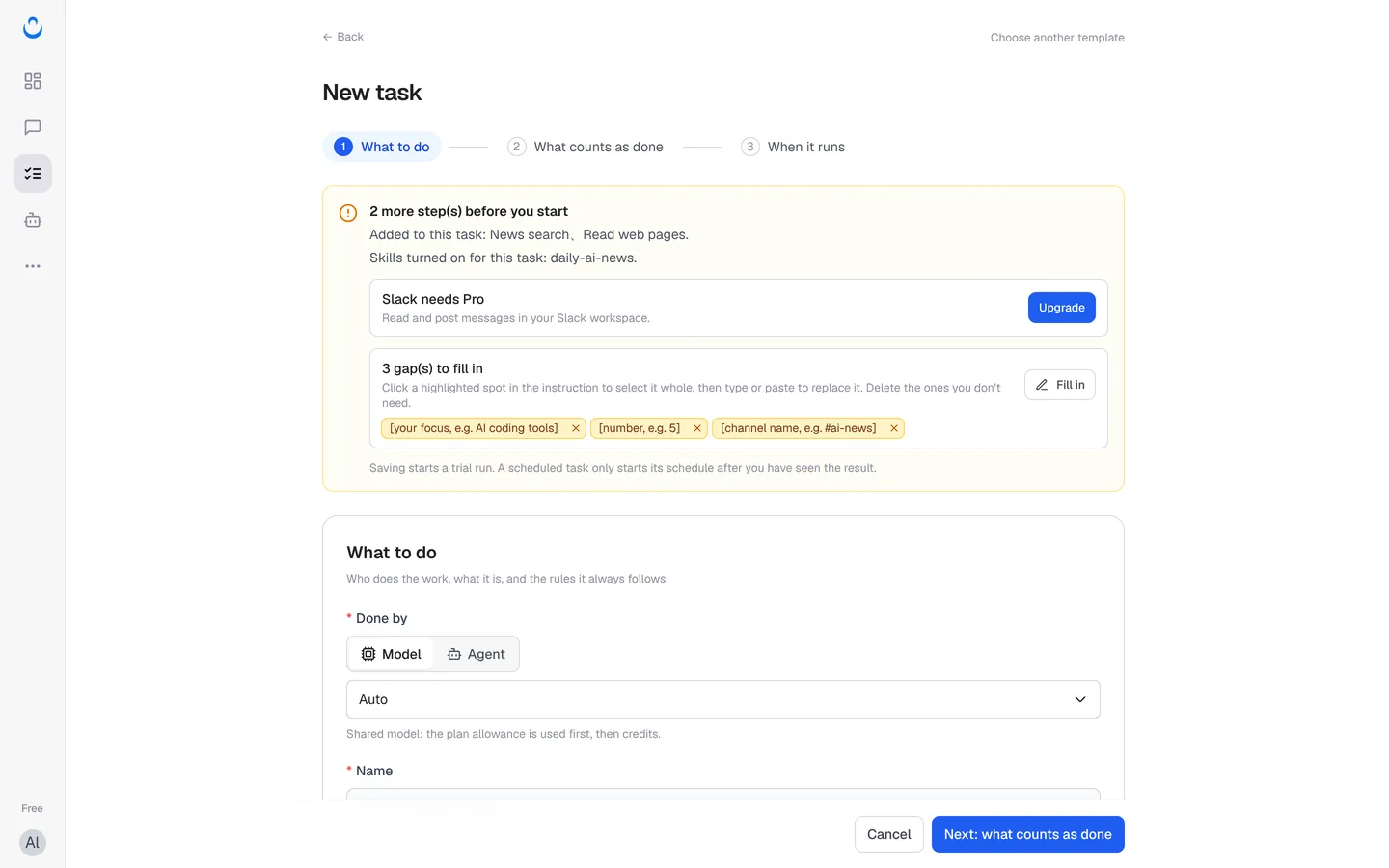
Some templates use a service that needs your own account or a paid plan. The wizard flags it in the banner before you save. For example, AI news digest to Slack shows "Slack needs Pro" with an Upgrade button, next to its blanks for your focus, the number of items and the channel name.
Step 2: What counts as done
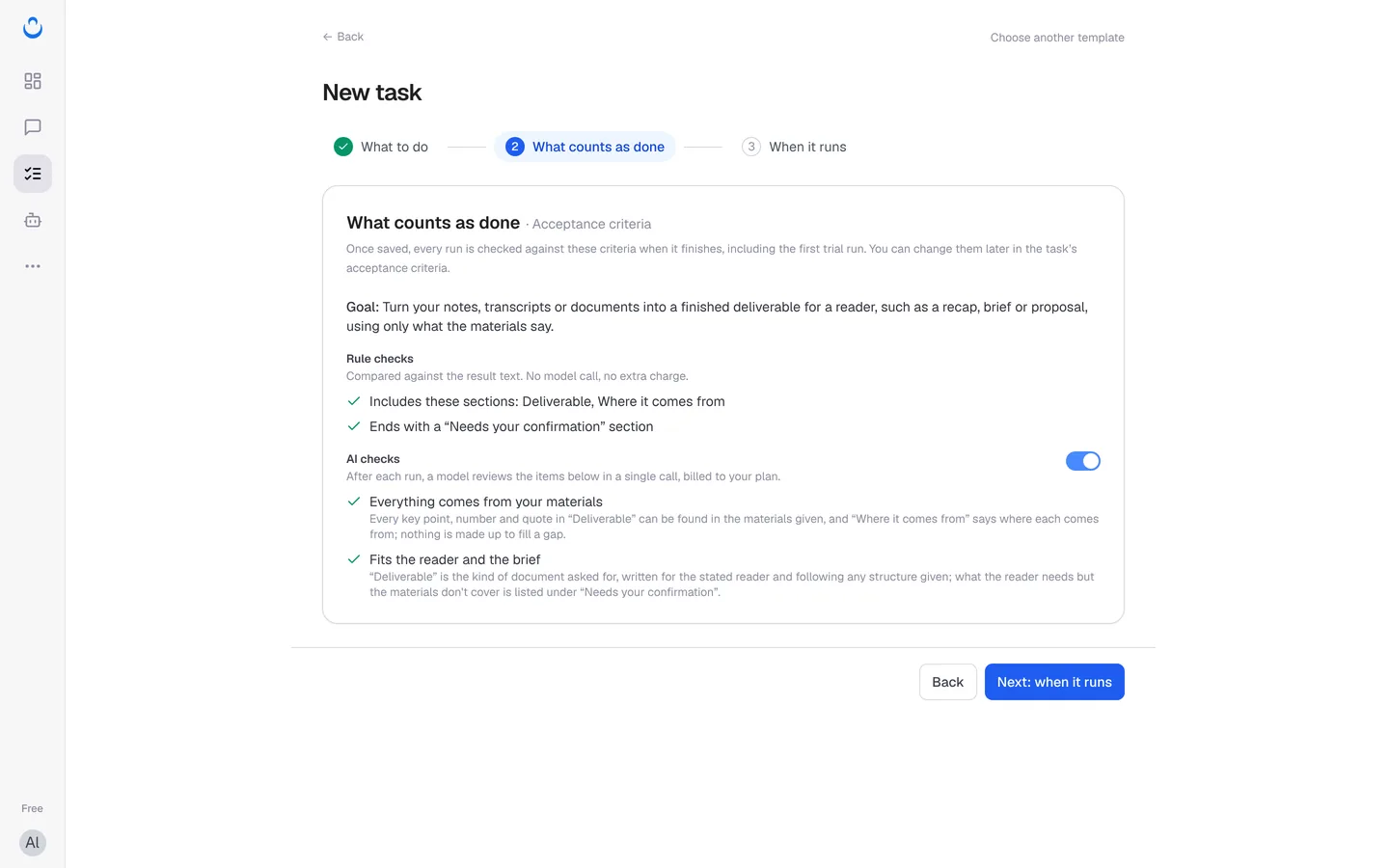
2 What counts as done · Acceptance criteria shows the standard each run is checked against: "Once saved, every run is checked against these criteria when it finishes, including the first trial run. You can change them later in the task's acceptance criteria."
- Goal: what the task is for.
- Rule checks: "Compared against the result text. No model call, no extra charge." For example, "Includes these sections: Deliverable, Where it comes from" and "Ends with a 'Needs your confirmation' section".
- AI checks: "After each run, a model reviews the items below in a single call, billed to your plan." For example, "Everything comes from your materials" and "Fits the reader and the brief". Use the switch to turn AI checks off.
Click Next: when it runs. To change the criteria after saving, see Set acceptance criteria.
Step 3: When it runs
- Under Execution, choose:
- One-time: "Run manually when you are ready."
- Scheduled: "Run automatically on a schedule." Then set Schedule: how often it repeats (Doesn't repeat, Hourly, Daily, Weekly, Monthly or Yearly), the date and the time. The form notes "Times are in UTC" and shows the next run, for example "Next run: Oct 28, 5:55 PM". The Free plan includes 1 scheduled task; Pro and Max have unlimited scheduled tasks.
- Receive email notifications: "Send an email when this task finishes or fails."
- Show this task's run chats in Chats: "Off by default. Include existing and future run chats in Chats, favorites and search. Turning this off keeps chats accessible from Run history."
- Save the task:
- Save and run a trial saves the task and starts a trial run, so you see the result and its check straight away.
- Save only saves the task without running it. You can run it later from the task page.
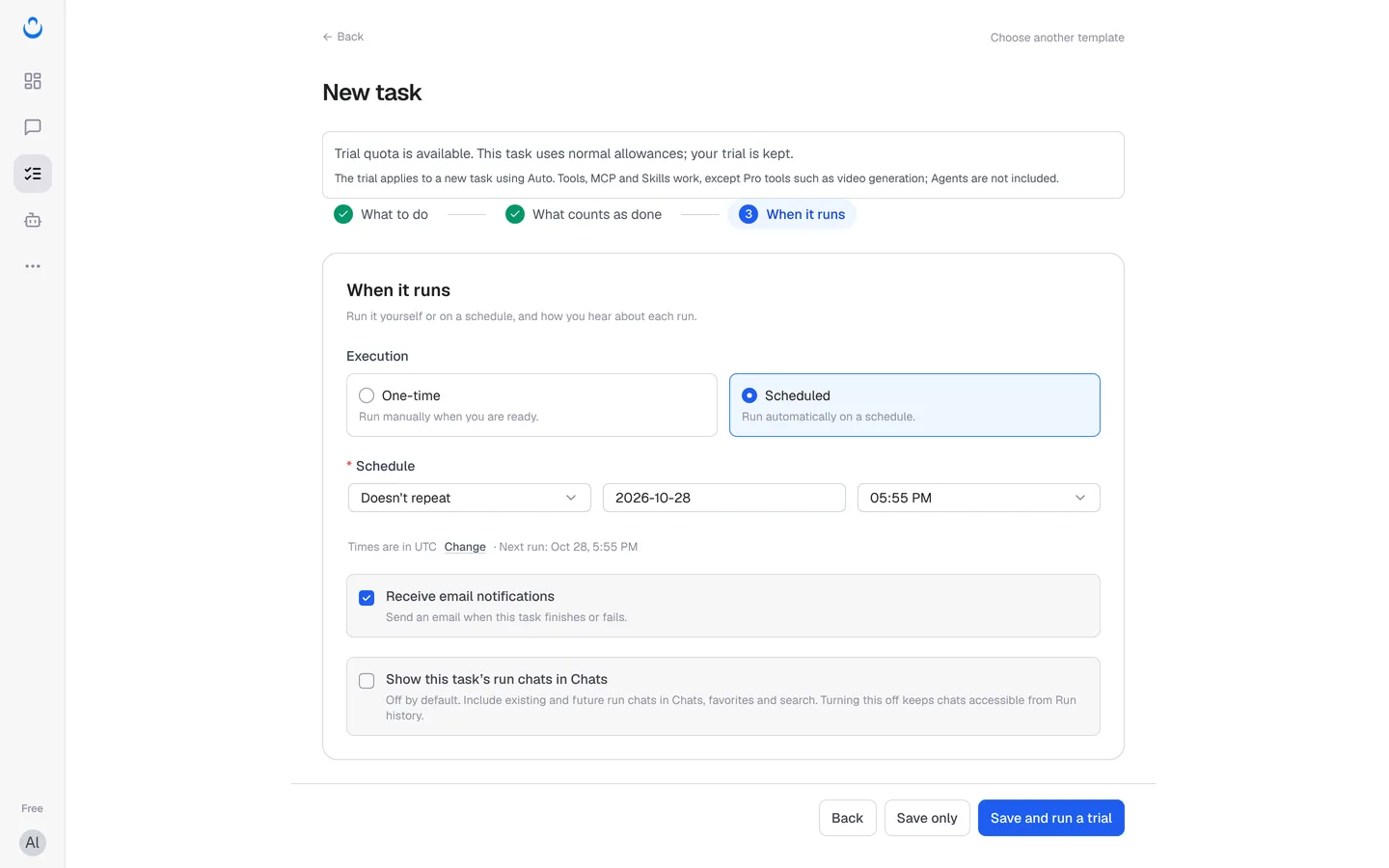
After Save and run a trial, you land on the task's Run history, where a banner says "This is a trial run". See Run a task for what happens next.
Create a custom task
If no template fits, start from a blank task:
- Click New task → Create a blank task ("Start with your own instructions and settings."), or Create a custom task at the end of the template gallery.
- In What to do, choose Done by. With Model, pick a model from the list (it starts at "Please select a model"). With Agent, pick an agent.
- Enter a Name and the Instructions, and optionally Rules to always follow.
- Under What to work from, add Files if needed. Capabilities starts empty: "Nothing added yet. Add web search, app connections or Skills when the task needs them." Use Add capabilities or Use my default capabilities.
- Continue to What counts as done and When it runs, then save.
You can also skip the wizard: get the result right in a chat first, then save the chat as a task.