Improve a task from its results
When a run fails a check, or you want a task to work differently, ConsoleX can draft a change to the task's instructions. You review every change before it is applied, nothing is applied automatically, and earlier versions are kept.
Where to start
- On the task's Checks tab, scroll to Suggestions and versions: "Describe what to change, optionally with a checked run as reference. Review changes before applying them." Click Optimize prompts.
- On the task's Config tab, click Let AI improve the instructions. It opens the same dialog, and you "Review the suggestion under Checks › Suggestions and versions."
Ask for a suggestion
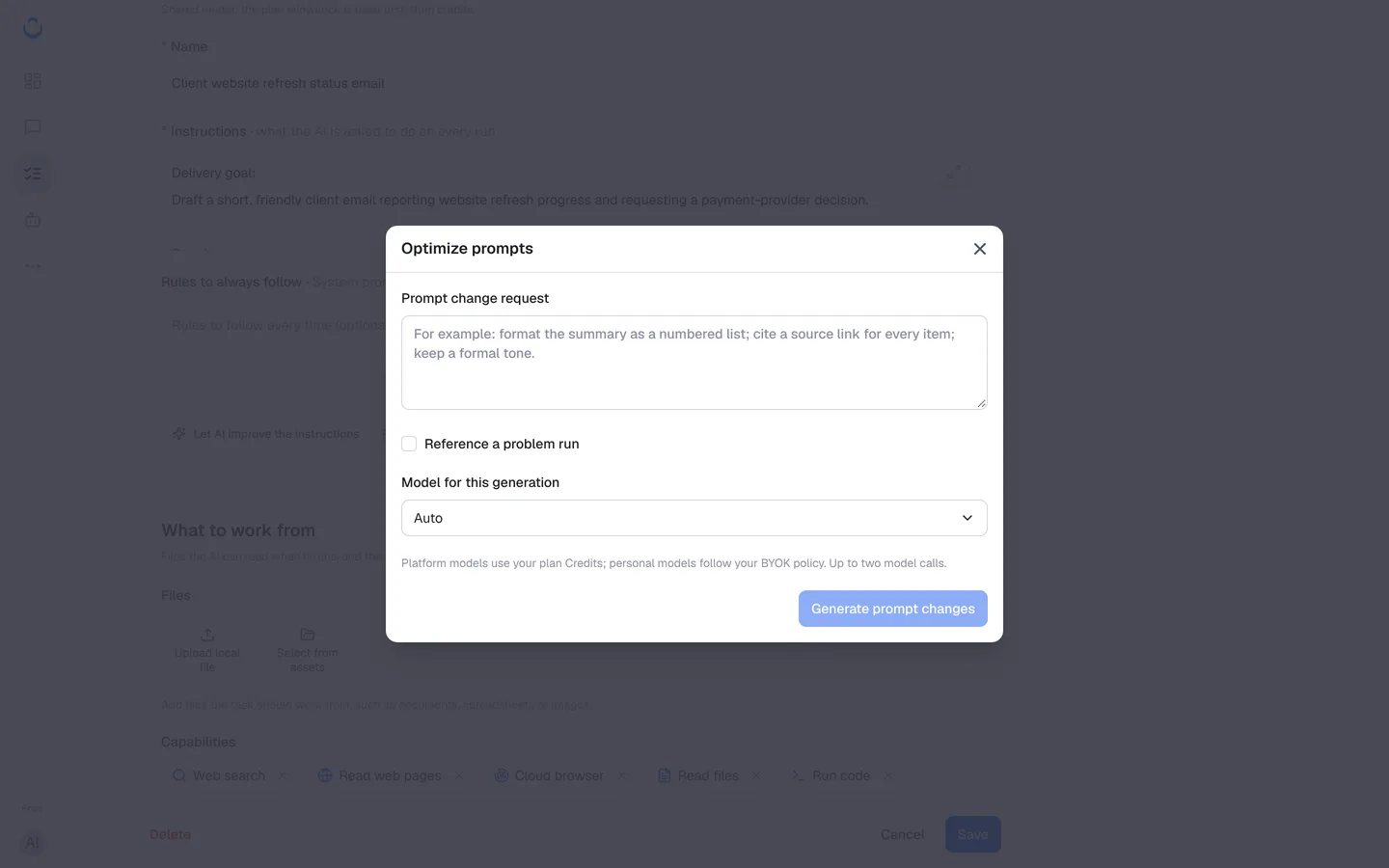
- Click Optimize prompts.
- Under Prompt change request, describe what to change. The box suggests examples such as "format the summary as a numbered list; cite a source link for every item; keep a formal tone."
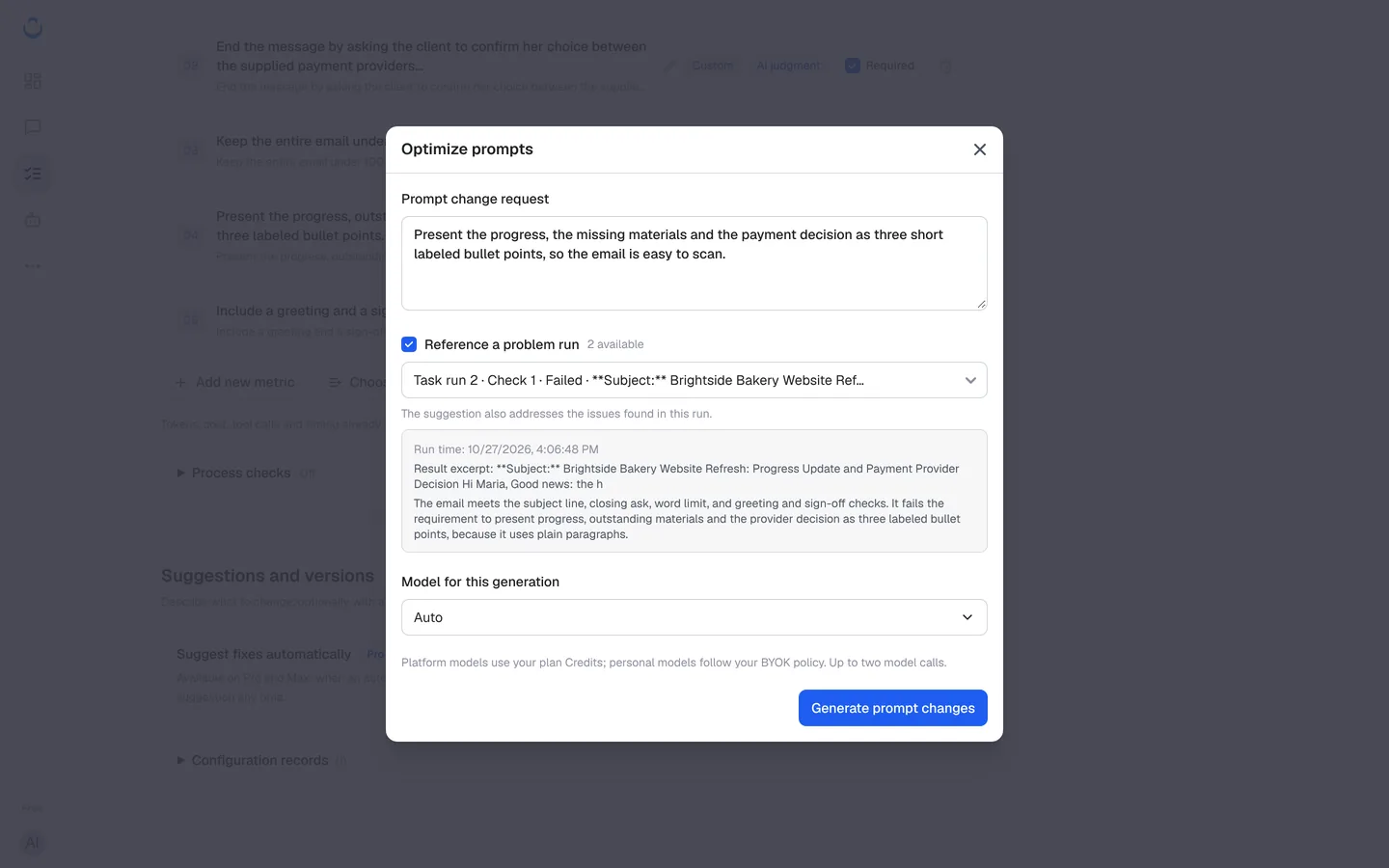
- Optional: tick Reference a problem run and pick a checked run from the list (the number available is shown next to it). "The suggestion also addresses the issues found in this run." The dialog shows that run's time, a result excerpt and its check summary.
- Under Model for this generation, keep Auto or choose another model. "Platform models use your plan Credits; personal models follow your BYOK policy. Up to two model calls."
- Click Generate prompt changes.
Review the suggestion
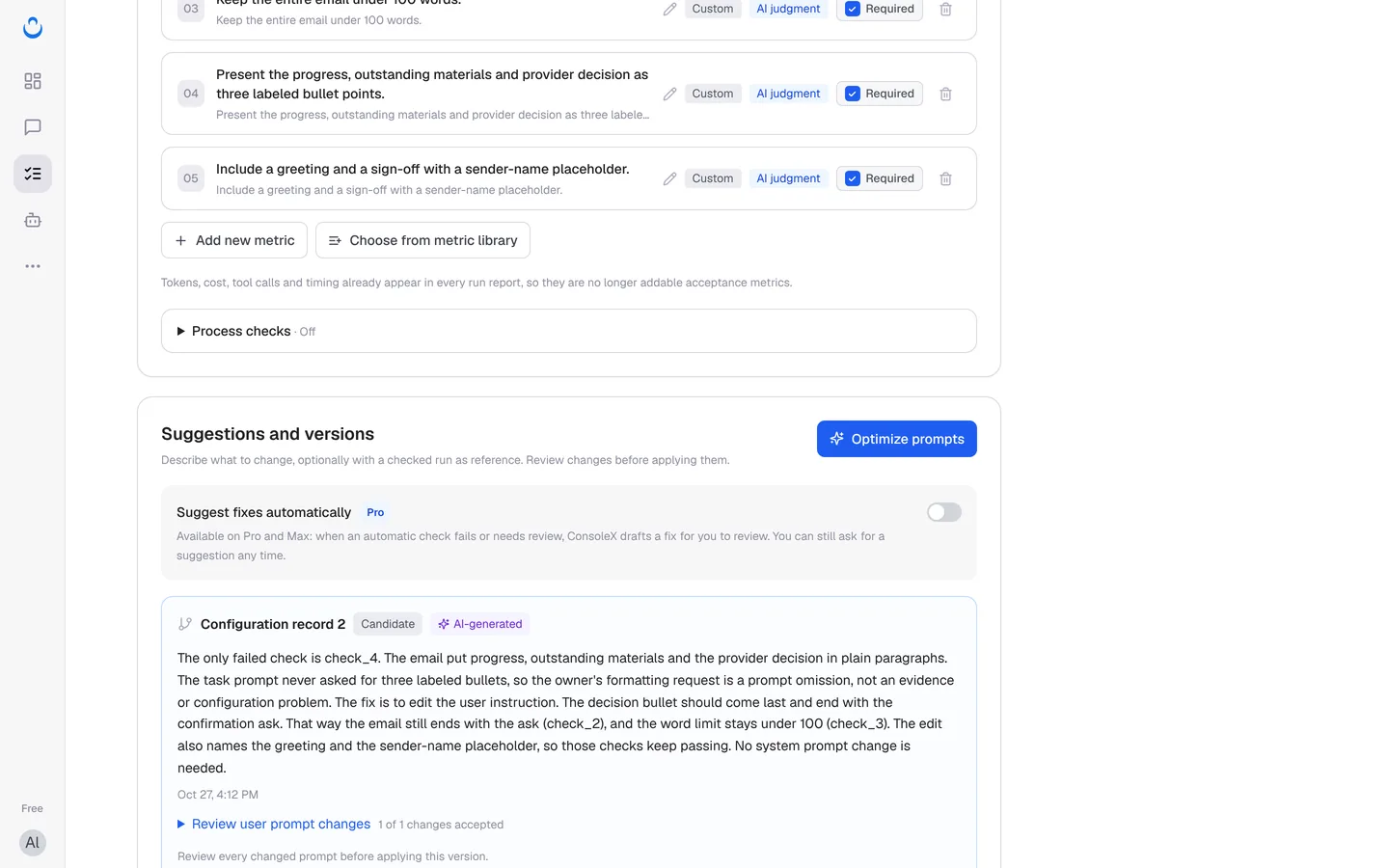
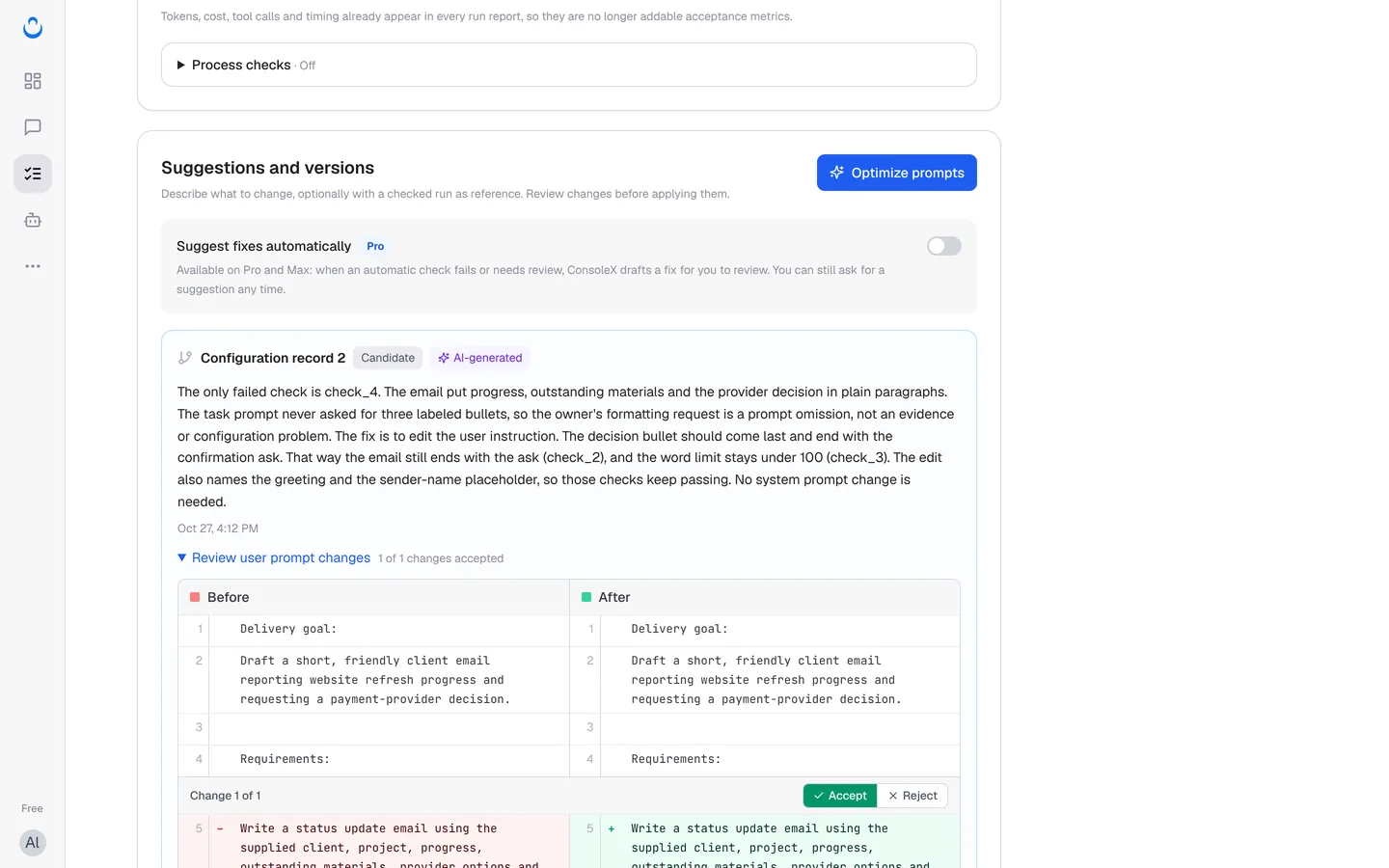
The suggestion appears as a new Configuration record marked Candidate and AI-generated. It starts with an explanation of what went wrong and why the change should fix it.
- Expand Review user prompt changes. The current instructions (Before) and the suggested ones (After) appear side by side, with each change numbered, for example "Change 1 of 1".
- Click Accept or Reject on each change. A counter such as "1 of 1 changes accepted" shows your progress. "Review every changed prompt before applying this version."
- Click Apply suggestion to use the version, or Reject to discard the whole suggestion.
After you apply a suggestion
- ConsoleX confirms: "Configuration applied. Subsequent runs will be checked." The record is now marked Active.
- Later runs use the new instructions and are checked against the same acceptance criteria. Each check report names the configuration record it used (for example "Acceptance criteria version 1 · Configuration record 2"), so you can compare runs before and after the change.
- Run the task again to see the effect. See Run a task.
Configuration records and generation history
Configuration records lists every version of the task setup:
- Active: the version runs use now.
- History: earlier versions. In the example, record 1 is marked Auto-captured: "Task setup saved for later comparison. This is not a generated improvement suggestion." Click Review saved instructions to see what a record contains.
Generation history keeps the suggestions you have generated.
Every plan includes suggested improvements approved by you and restoring earlier versions. Acceptance criteria have their own version history; see Set acceptance criteria.
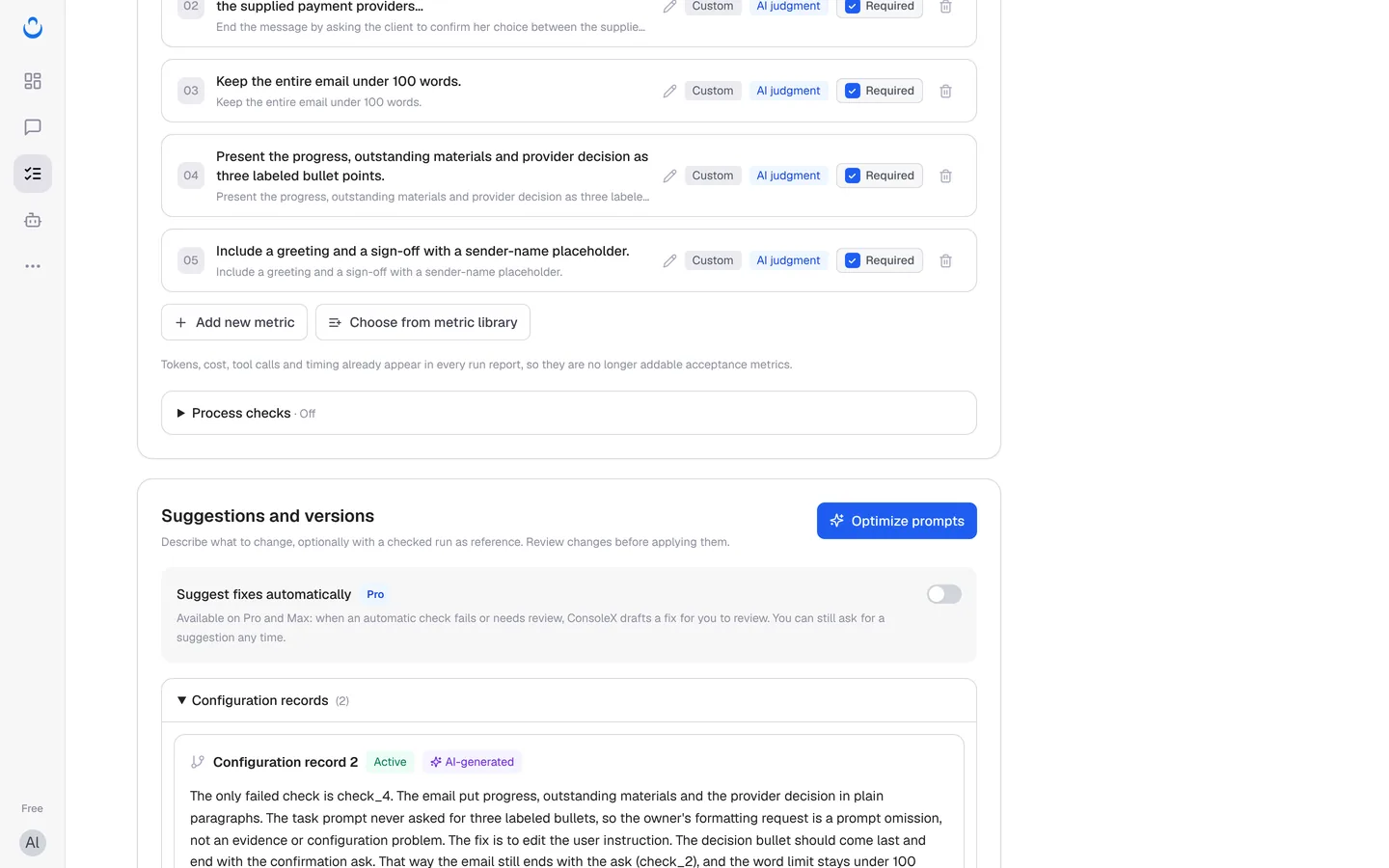
Suggest fixes automatically (Pro and Max)
The Suggest fixes automatically switch carries a Pro badge: "Available on Pro and Max: when an automatic check fails or needs review, ConsoleX drafts a fix for you to review. You can still ask for a suggestion any time." On the Free plan, you ask for suggestions yourself with Optimize prompts. Either way, you review a suggestion before it is applied. See Membership for plans.
Example: fixing the bullet-point check
Alex's task Client website refresh status email writes a short update to Maria at Brightside Bakery.
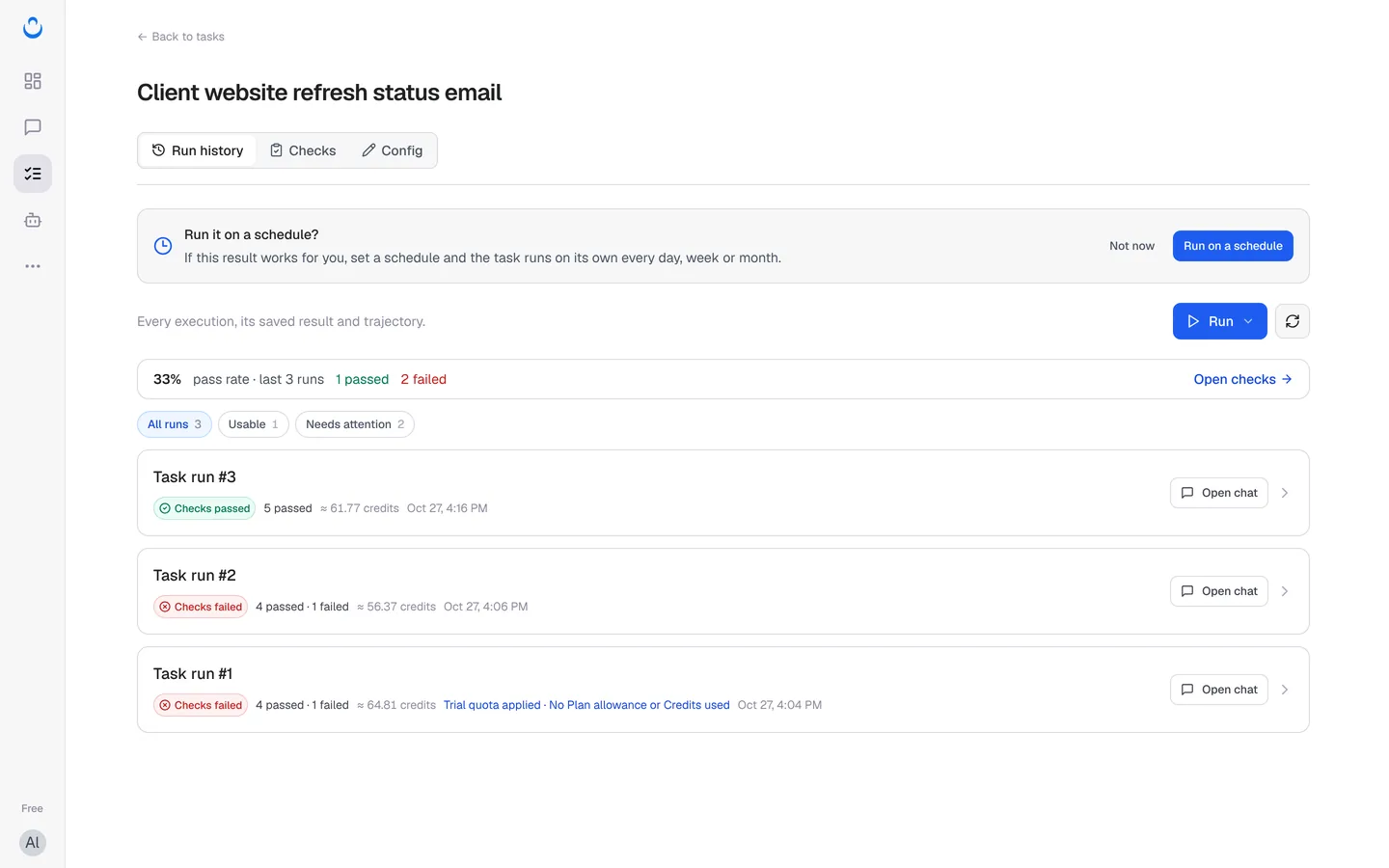
- Runs #1 and #2 each passed 4 of 5 checks. Both failed "Present the progress, outstanding materials and provider decision as three labeled bullet points." because the email used plain paragraphs.
- Alex clicked Optimize prompts and wrote: "Present the progress, the missing materials and the payment decision as three short labeled bullet points, so the email is easy to scan." Alex then ticked Reference a problem run, chose "Task run 2 · Check 1 · Failed" and kept Auto.
- The suggestion (Configuration record 2) explained that "The task prompt never asked for three labeled bullets" and that "The fix is to edit the user instruction." It also noted "No system prompt change is needed."
- Its one change rewrote the requirements: exactly three short bullet points, each starting with a bold label ("Progress:", "Missing materials:" and "Payment decision:"), with the payment decision last, then only a brief sign-off with a sender-name placeholder, still under 100 words.
- Alex accepted the change and clicked Apply suggestion.
- Run #3 passed all five checks. The email had three labeled bullets and about 55 words. The pass rate became 33% over the last 3 runs.