Use tasks from Claude Code
If you work with Claude Code, you can have it do a ConsoleX task on your computer. ConsoleX checks each delivery against the task's saved acceptance standard and records every attempt. This page explains how it works and how to set it up.
Pro and Max only. "Checking tasks in coding agents needs a paid plan."
How it works
- Claude Code does the work on your computer.
- Each time it delivers, ConsoleX checks the delivery against the task's saved acceptance standard and records the attempt. The pricing page puts it this way: "before it finishes, ConsoleX checks the delivery against the task's standard and records the attempt in Runs."
- If a check fails or needs review, the agent reports it and waits for your decision before making changes.
- With each delivery, the ConsoleX plugin also sends the commands and tool results from that Claude Code session since the task started, with keys and tokens masked, so the checker can see how facts were checked. To send only the delivery, set
CONSOLEX_TOOL_EVIDENCE=off.
What you need
- A Pro or Max plan. See Membership.
- Claude Code on the computer you want to use.
- A saved task with acceptance criteria. See What are tasks and Set acceptance criteria.
Set up once on each computer
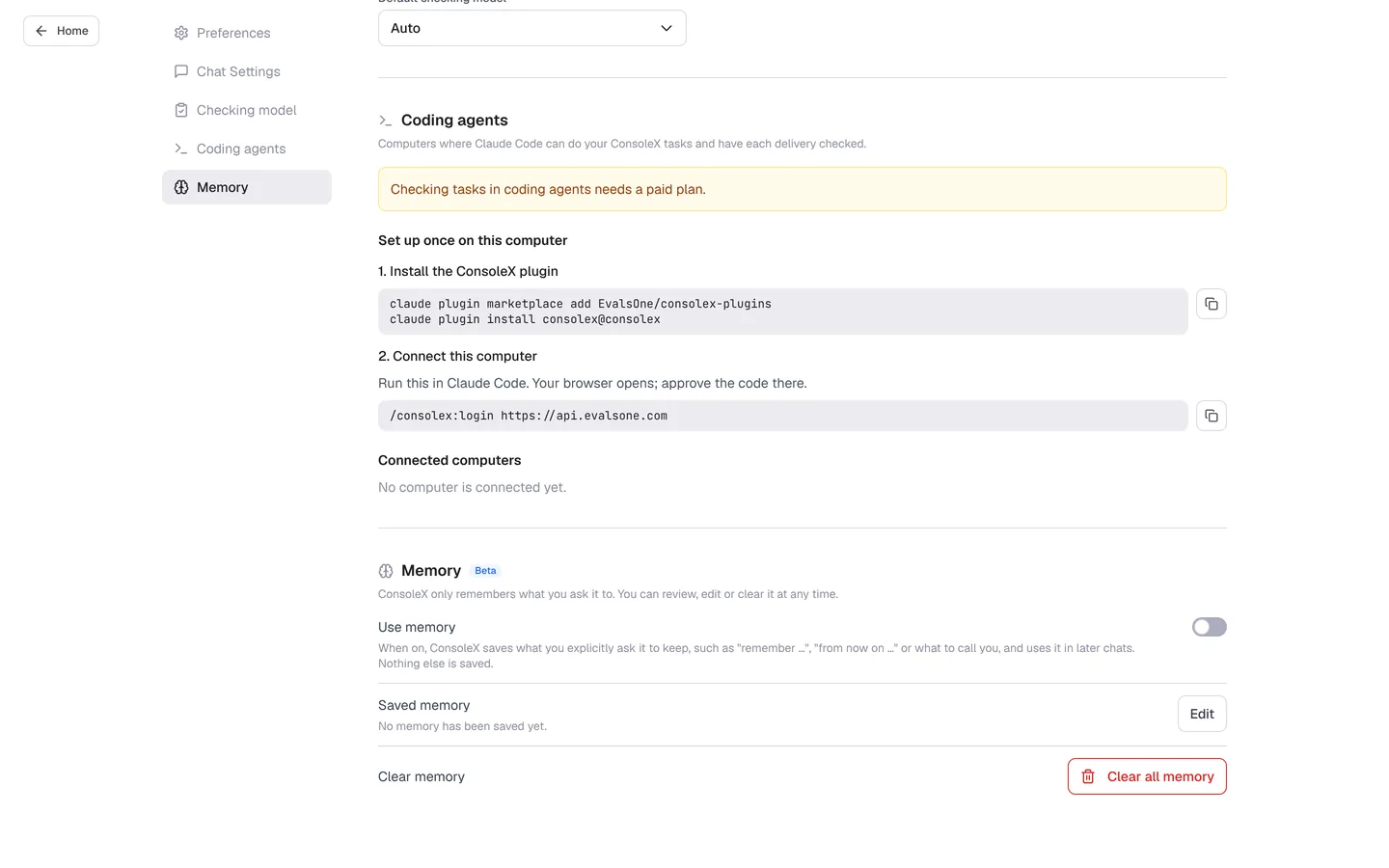
Open Settings from your avatar menu and go to Coding agents: "Computers where Claude Code can do your ConsoleX tasks and have each delivery checked." Each command has a copy button next to it.
-
Install the ConsoleX plugin:
claude plugin marketplace add EvalsOne/consolex-plugins
claude plugin install consolex@consolex -
Connect this computer. Run this in Claude Code:
/consolex:login https://api.evalsone.comYour browser opens; approve the code there.
-
Check Connected computers in the same section. Before the first connection it says "No computer is connected yet."
Run a task in Claude Code
-
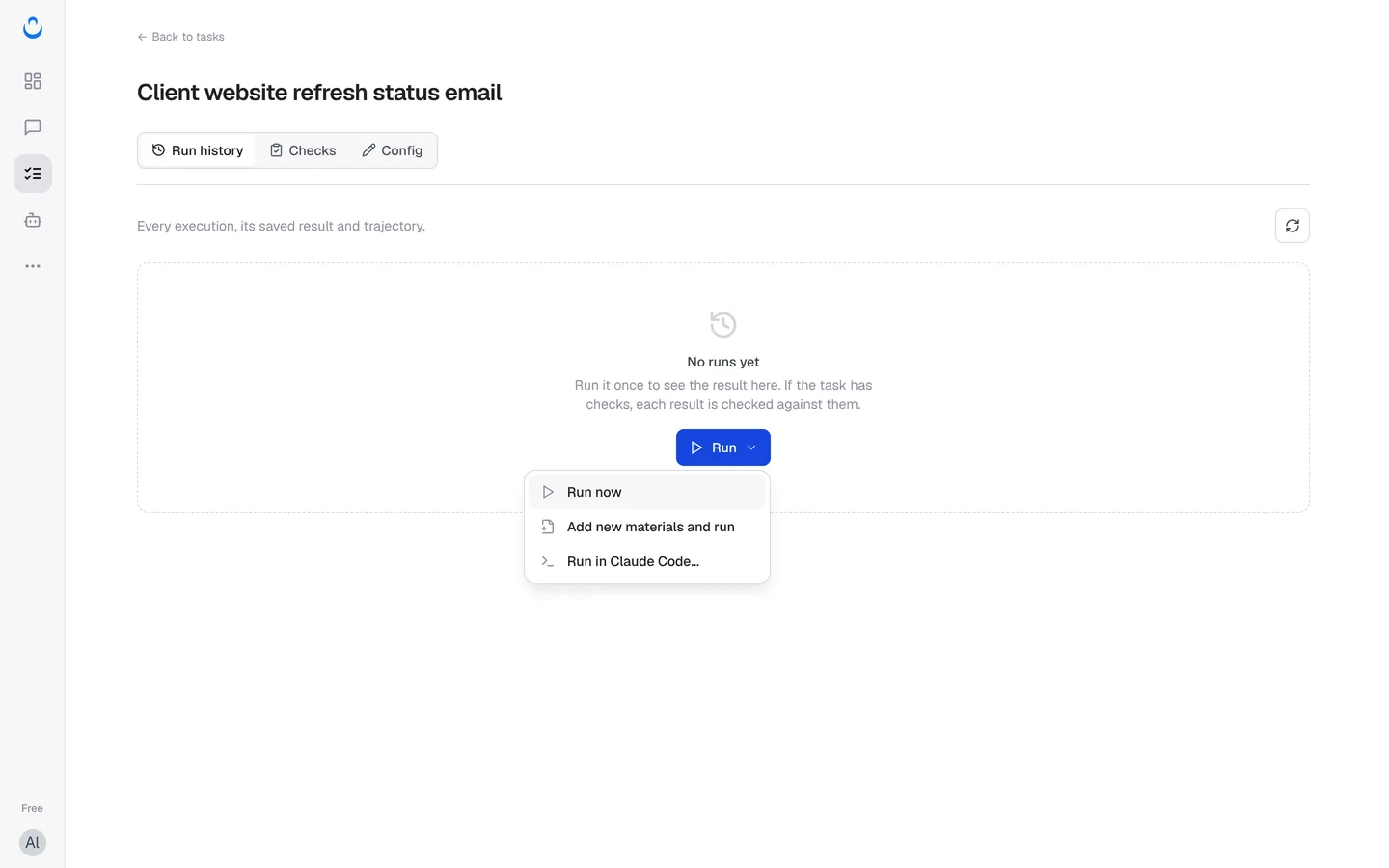
Open the task. On the Run history tab, open the Run menu and choose Run in Claude Code….
-
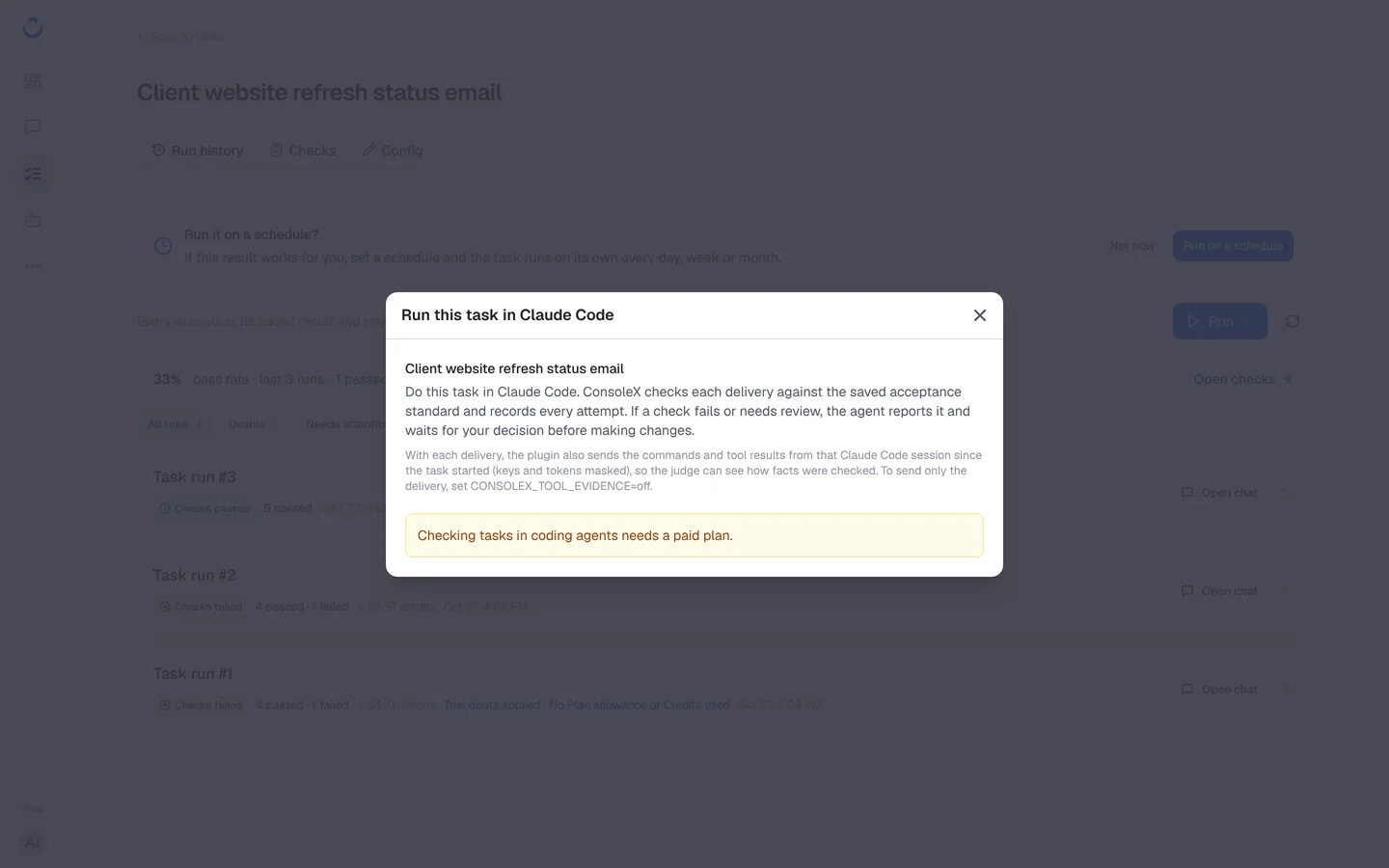
The Run this task in Claude Code dialog names the task and explains how the work is checked. On the Free plan it shows "Checking tasks in coding agents needs a paid plan."
-
When a delivery fails a check or needs review, the agent stops and waits for you. Read the check report as you would for any run (see Read run results and checks), then tell the agent how to continue.
Usage and billing
- "Checks and any tools ConsoleX runs for the agent use your plan's usage."
- The pricing page lists these coding agent features for Pro and Max: Use tasks in Claude Code, Check each delivery before the agent finishes and Save an agent session as a task.
To start or run tasks in ConsoleX itself, see Run a task.