Run a task
Once a task is saved, you can run it as often as you need. This page covers the Run menu, the trial run, Run history, schedules, notifications, failed runs and how runs are charged.
Start a run
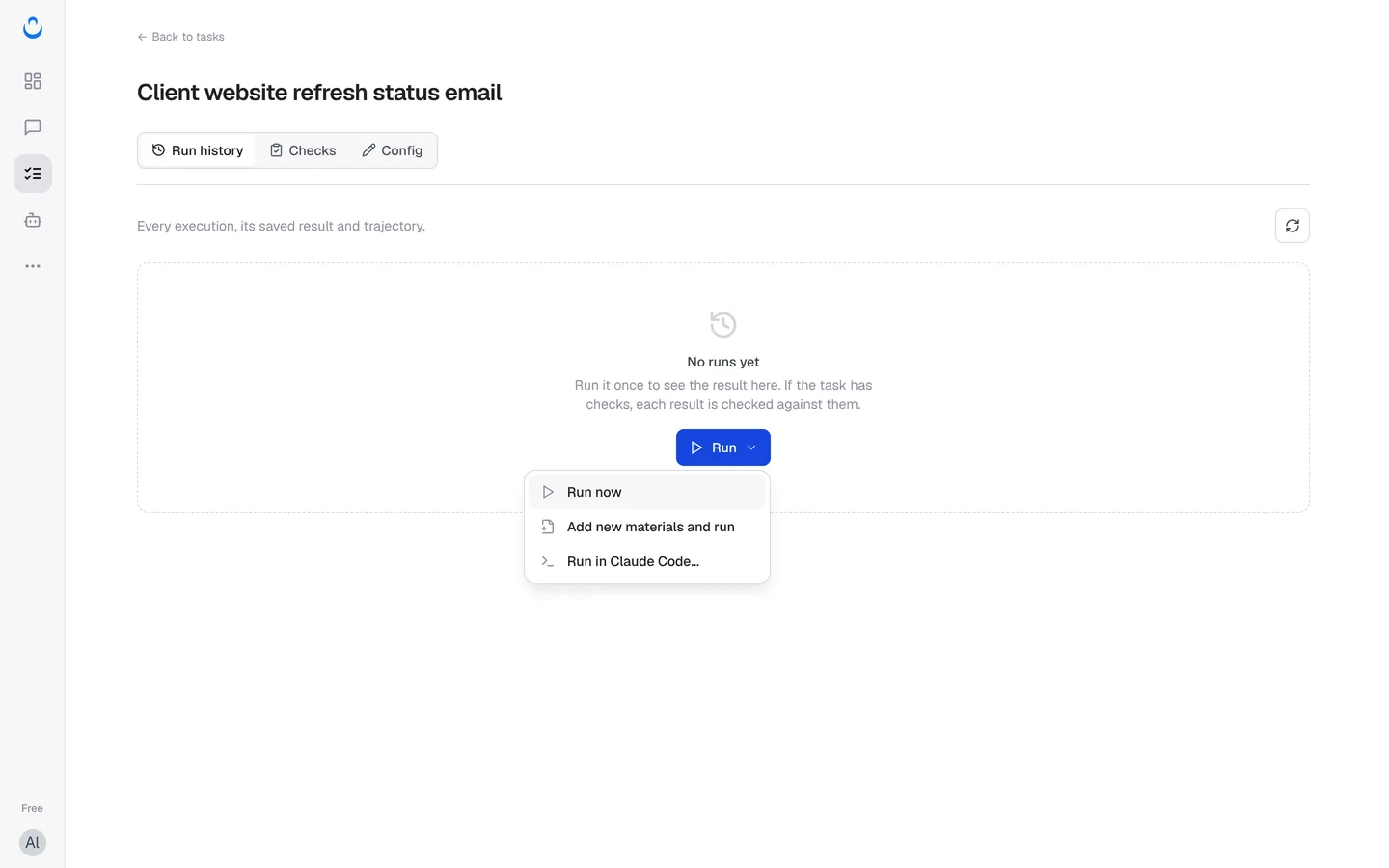
Click Run on the task's Run history tab, or on the task's row in the Tasks list. The Run menu offers three ways to run:
- Run now: run the task with its saved instructions, files and capabilities.
- Add new materials and run: give this one run new text or files.
- Run in Claude Code…: do the task in Claude Code and have each delivery checked.
Run with new materials
Use this when the task stays the same but the facts change, such as this week's progress for Alex's client status email to Maria.
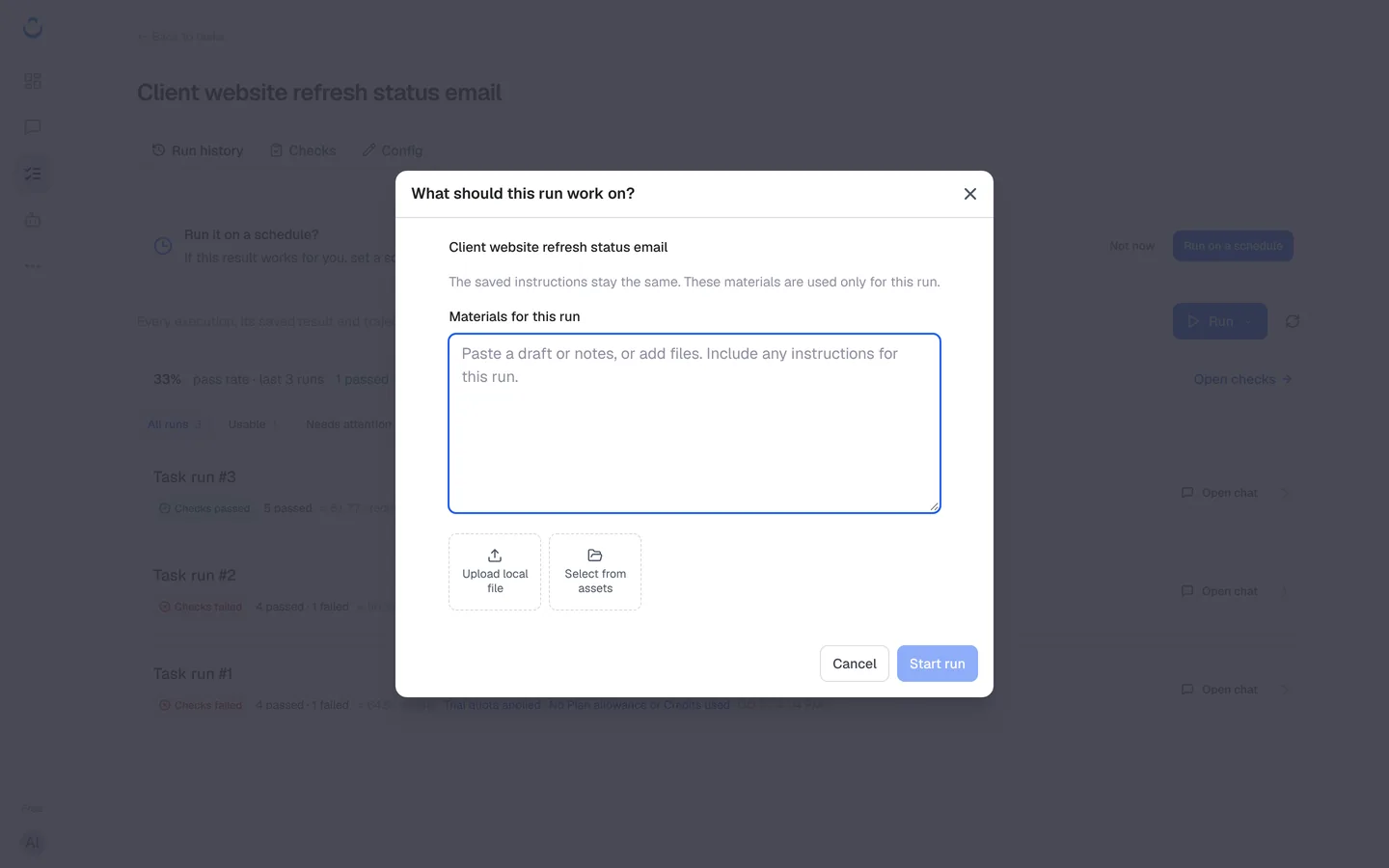
- Choose Add new materials and run. The dialog asks "What should this run work on?" and notes: "The saved instructions stay the same. These materials are used only for this run."
- Under Materials for this run, paste a draft or notes, or use Upload local file or Select from assets. You can include any instructions for this run.
- Click Start run.
To change the files a task uses on every run, edit Files in Config instead. The Config tab reminds you: "Material for just one run? Choose 'Add new materials and run' in the Run menu."
Run in Claude Code
Run in Claude Code… shows how to do the task in Claude Code: "ConsoleX checks each delivery against the saved acceptance standard and records every attempt." Checking tasks in coding agents needs a paid plan (Pro or Max). See Use tasks from Claude Code.
The trial run
When you create a task in the New task wizard and click Save and run a trial, ConsoleX saves the task and runs it once. The task's Run history shows "This is a trial run. The task is running. Its result will appear below." Click Got it to dismiss the banner.
If the task is scheduled, its schedule only starts after you have seen the trial result.
Follow a run
A run moves through these states:
- Running (the Run button shows In progress): the task is working. Its chat isn't available yet ("Chat unavailable; view the run summary").
- Checking…: the run has finished and its result is being checked against the acceptance criteria.
- Checks passed, Checks failed or Needs review: the check result, with a count such as "4 passed · 1 failed". A check that doesn't have enough evidence is marked as needs review, never passed.
- Out of allowance: the run couldn't start or finish because there wasn't enough usage left. See When a run fails.
Click the refresh button next to Run to update the list.
Run history
The Run history tab lists "Every execution, its saved result and trajectory."
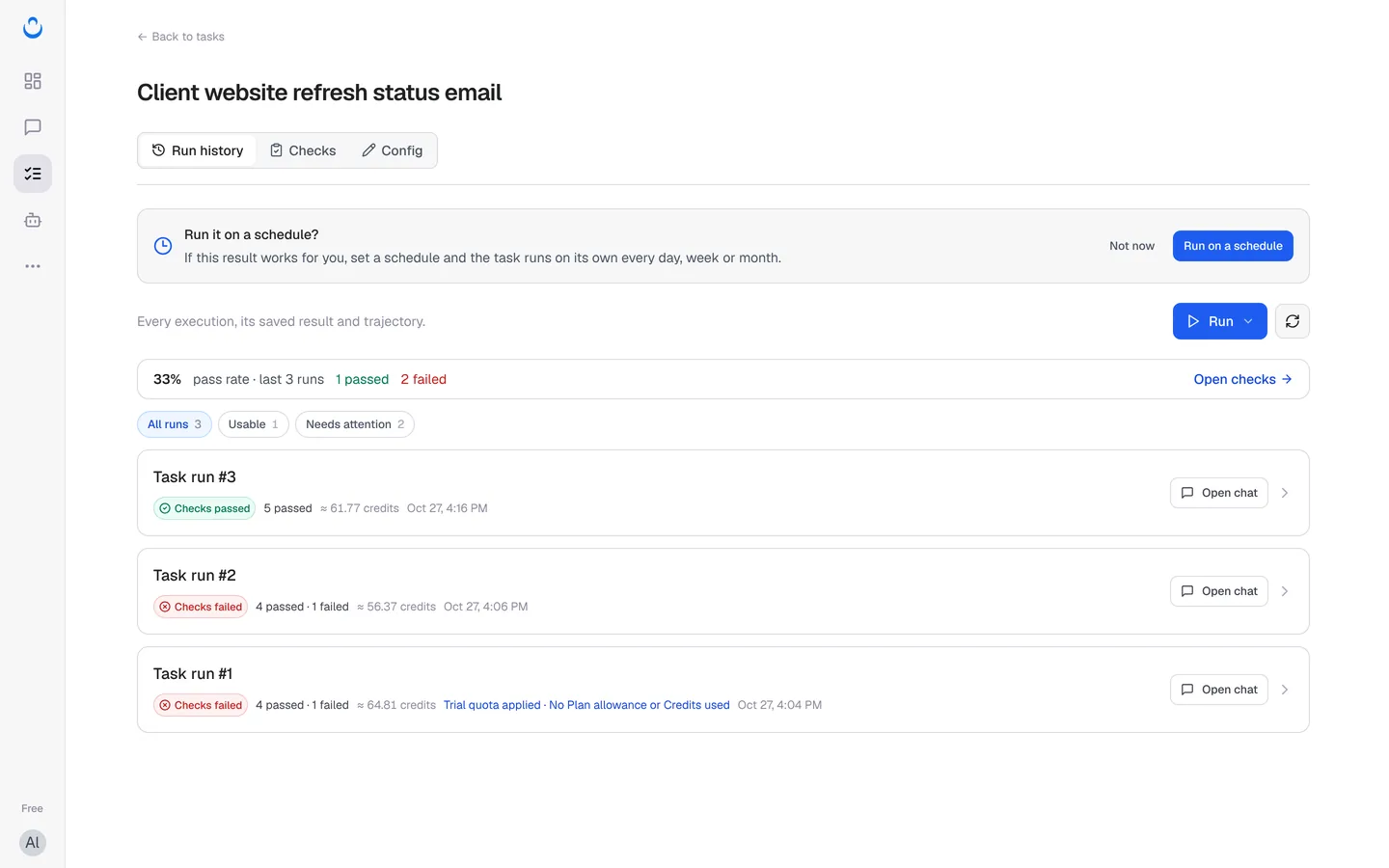
- Pass rate: for example "33% pass rate · last 3 runs", with how many passed and failed. Open checks takes you to the Checks tab.
- Filters: All runs, Usable (runs whose checks passed) and Needs attention (runs that failed or need review), each with a count.
- Each run shows its number (for example "Task run #3"), its check result, the estimated credits it used (for example "≈ 61.77 credits"), and the date and time.
- Open chat: each run has its own chat, which you can open to see the conversation behind the result.
Click a run to open its details: Result (the saved output and run statistics), Check result (each check with its verdict and evidence, and Your call) and Execution process (every model and tool step). See Read run results and checks.
Put a task on a schedule
After a run, Run history may ask: "Run it on a schedule? If this result works for you, set a schedule and the task runs on its own every day, week or month."
- Click Run on a schedule (or Not now to dismiss the prompt). You can also open the Config tab directly.
- Under When it runs → Execution, select Scheduled ("Run automatically on a schedule").
- Under Schedule, choose how often it repeats: Doesn't repeat, Hourly, Daily, Weekly, Monthly or Yearly. Then set the date and the time.
- Check the note under the fields: "Times are in UTC", followed by the next run, for example "Next run: Oct 28, 6:20 PM".
- Click Save.
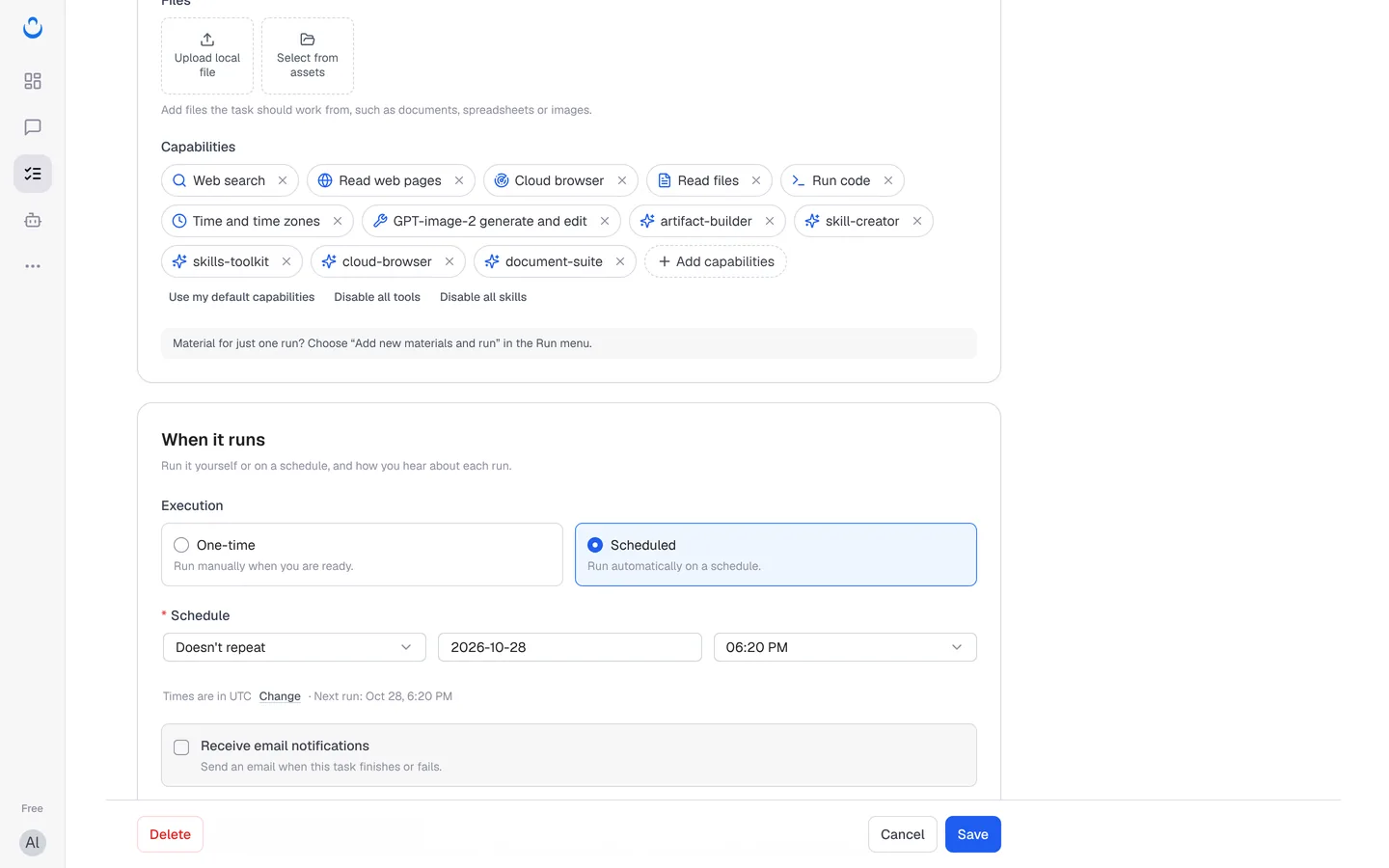
To change or stop a schedule, edit When it runs in Config again; choose One-time to go back to running the task yourself. Upcoming scheduled runs appear on the Dashboard under Coming up next.
The Free plan includes 1 scheduled task. Pro and Max include unlimited scheduled tasks.
Notifications and run chats
Both options are under When it runs in Config (and in step 3 of the New task wizard):
- Receive email notifications: "Send an email when this task finishes or fails." Result emails include a summary and a link to the report.
- Show this task's run chats in Chats: "Off by default. Include existing and future run chats in Chats, favorites and search. Turning this off keeps chats accessible from Run history." Turn it on if you want to find run chats alongside your other chats.
When a run fails
A run that fails explains why in plain words and suggests what to do. For example, when there isn't enough usage left, the run is marked Out of allowance and its Result tab says:
Not enough credits. Your account doesn't have enough credits or balance left for this run. Upgrade or top up, then run it again.
- Top up or upgrade: add credits or move to a plan with more monthly usage.
- Run again: start the run again once you have usage available.
- Technical details: more information about the error, useful if you contact support.
A failed run still appears in Run history under Needs attention, and on the Dashboard under Needs you.
How runs are charged
- Each run uses credits for the models and tools it calls, including its check. Chats and tasks share one monthly allowance.
- With a shared model such as Auto, "the plan allowance is used first, then credits."
- Rule checks are "Compared against the result text. No model call, no extra charge." AI checks run "in a single call, billed to your plan."
- Every run shows its estimated cost. In a run's Result tab, Run statistics lists the Estimated execution cost (known model fees and known tool fees) and the cost of its checks separately, for example "Checks: ≈ 36.94 credits".
- Failed tool calls are not charged.
- If you use your own API key for the model, those model calls are billed by your provider. Checks and ConsoleX's built-in tools still use your plan's usage.
- If your usage runs out during a run, a run that has already started still finishes, going over by up to a quarter of your monthly allowance. After that, new runs stop and show when your usage renews. To keep going sooner, buy credits and turn on Continue with credits in Settings.
For plans, allowances and top-ups, see Credits overview.