Scheduled Tasks
What are Scheduled Tasks?
Scheduled Tasks let you define time-based rules so AI can automatically run preset conversation tasks. This is especially useful for repetitive workflows that need to happen on a recurring schedule.
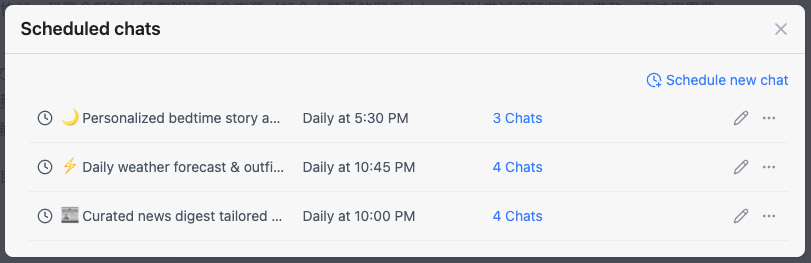
Example use cases
- Daily market analysis
- Generate a market report every morning.
- Recurring content creation
- Produce a weekly report every Monday.
- Automated monitoring
- Pull weather or status data on a fixed schedule.
How to create a scheduled task
Create a new scheduled task
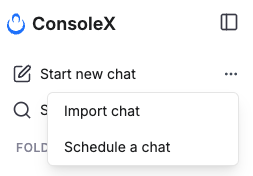
- In the left sidebar of the ConsoleX AI workspace, hover over New Chat and click the icon to find the New Scheduled Task entry.
- In the Scheduled Task dialog, configure the task:
- Enter the instruction you want AI to run, such as “What is the weather in Beijing right now?”
- Choose whether the task should run with a model or an Agent.
- Attach candidate tools or upload files if needed.
- Choose the schedule frequency—daily, weekly, monthly, yearly, or one-time—and set the exact time.
- Click Edit or Save to finish.
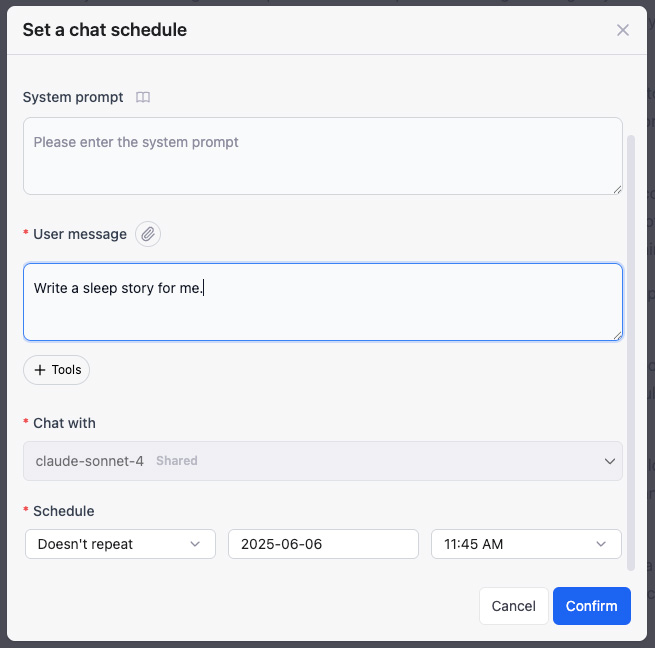
Example
- Instruction: What is the weather in London right now?
- Tool: Get current weather
- Frequency: Every day at 23:30
Convert an existing conversation into a scheduled task
- Open an existing conversation and click the icon in the upper-right corner.
- The content and configuration of the first message in that conversation group will be prefilled for you.
- Adjust anything you want, then click Save.
How to manage scheduled tasks
View the task list
- Click your account avatar in the lower-left corner of the main interface to find Manage Scheduled Tasks.
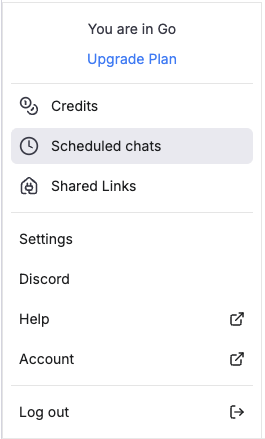
- In the management page, you can view every scheduled task and its completed run history.
- You can also edit, pause, resume, or delete each task.
Edit a scheduled task
- Change the execution time
- Update the instruction
- Adjust other related settings
Pause or resume a task
- You can pause a scheduled task at any time.
- Resume it later whenever needed.
Delete a task
- Deletion cannot be undone.
- Deleting the task does not delete the history of runs that already happened.
- It is best to confirm that you no longer need the task before deleting it.
Usage limits
The number of scheduled tasks you can create depends on your plan. See the pricing page for the latest limits.