Read run results and checks
Every task run keeps its output, what it cost, a check report and a record of each step. This page walks you through the three tabs of a run and shows you how to record your decision on the result.
The examples use Alex's task Client website refresh status email, which drafts a short progress email to Maria at Brightside Bakery. For starting runs and the run list itself, see Run a task.
Open a run
- Open the task and stay on the Run history tab.
- Click a run in the list.
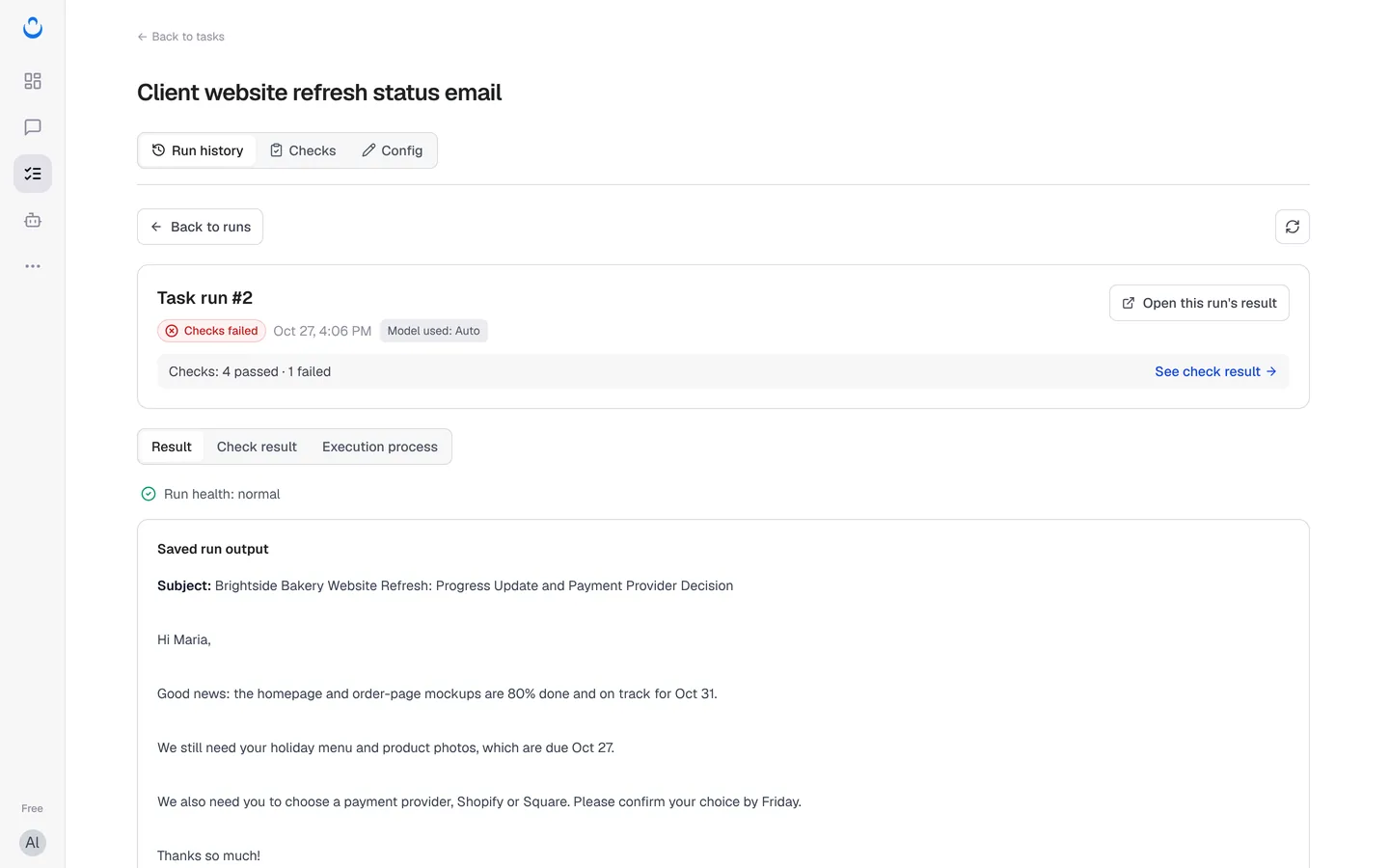
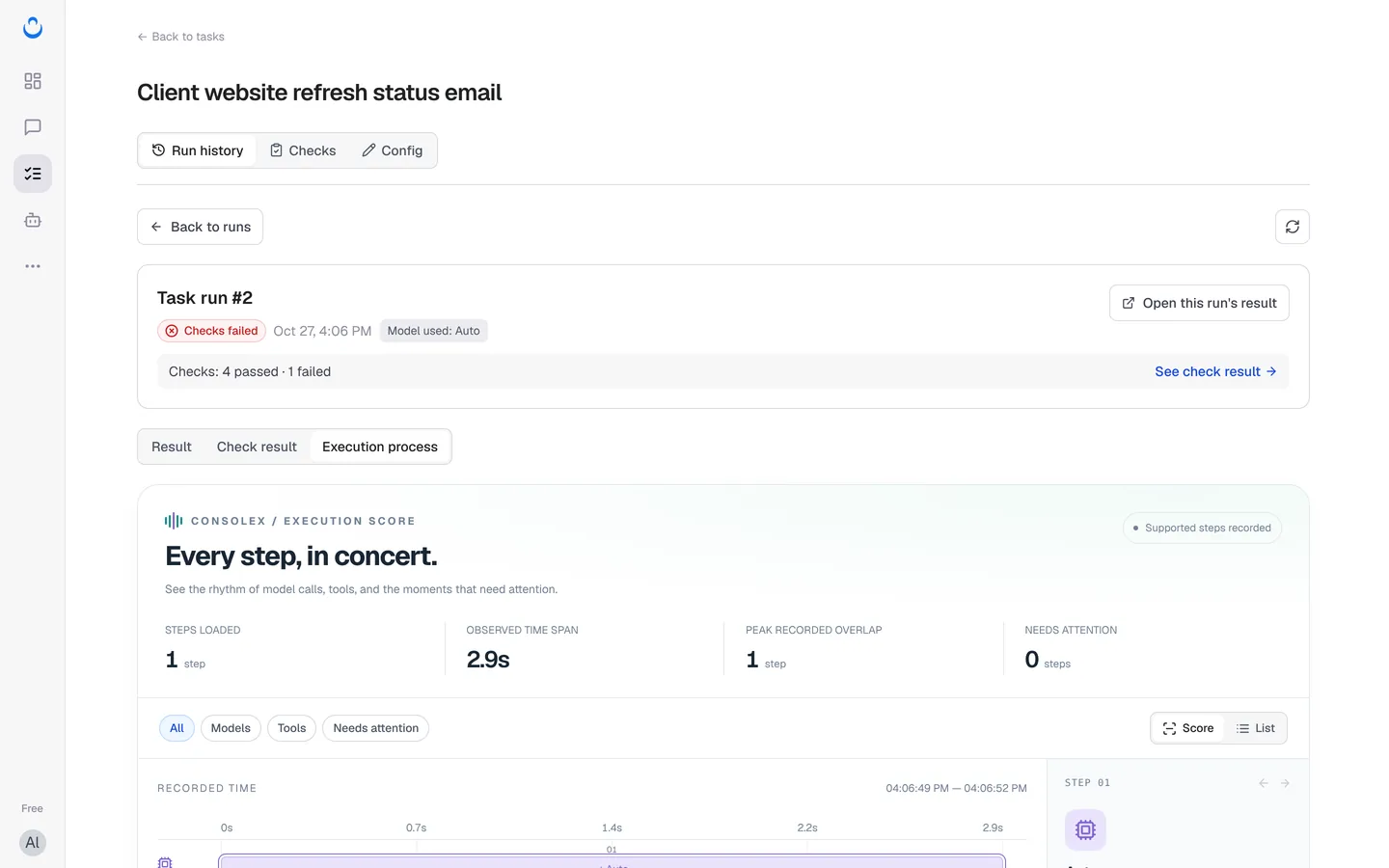
The top of the run shows its number, its status (for example Checks failed), the date and Model used. A line such as "Checks: 4 passed · 1 failed" takes you to the report with See check result. Use Back to runs to return to the list.
You can also reach a run from the Dashboard: Needs you lists runs waiting for your call, each with Open report.
Result tab
The Result tab shows what the run produced and what it took.
- Run health, for example "Run health: normal".
- Saved run output: the exact result of this run.
- Run statistics, "Always included in reports, without using a metric slot":
- Tool call count and Total tokens.
- Estimated execution cost, split into known model fees and known tool fees. For a shared model, "the plan allowance is used first, then credits."
- Checks: the estimated cost of checking this run, listed separately from the execution cost.
- Task duration (active, waiting and total time) and Average time to first token.
In the example, run #2 shows an estimated execution cost of ≈ 56.37 credits and, separately, "Checks: ≈ 36.94 credits".
Check result tab
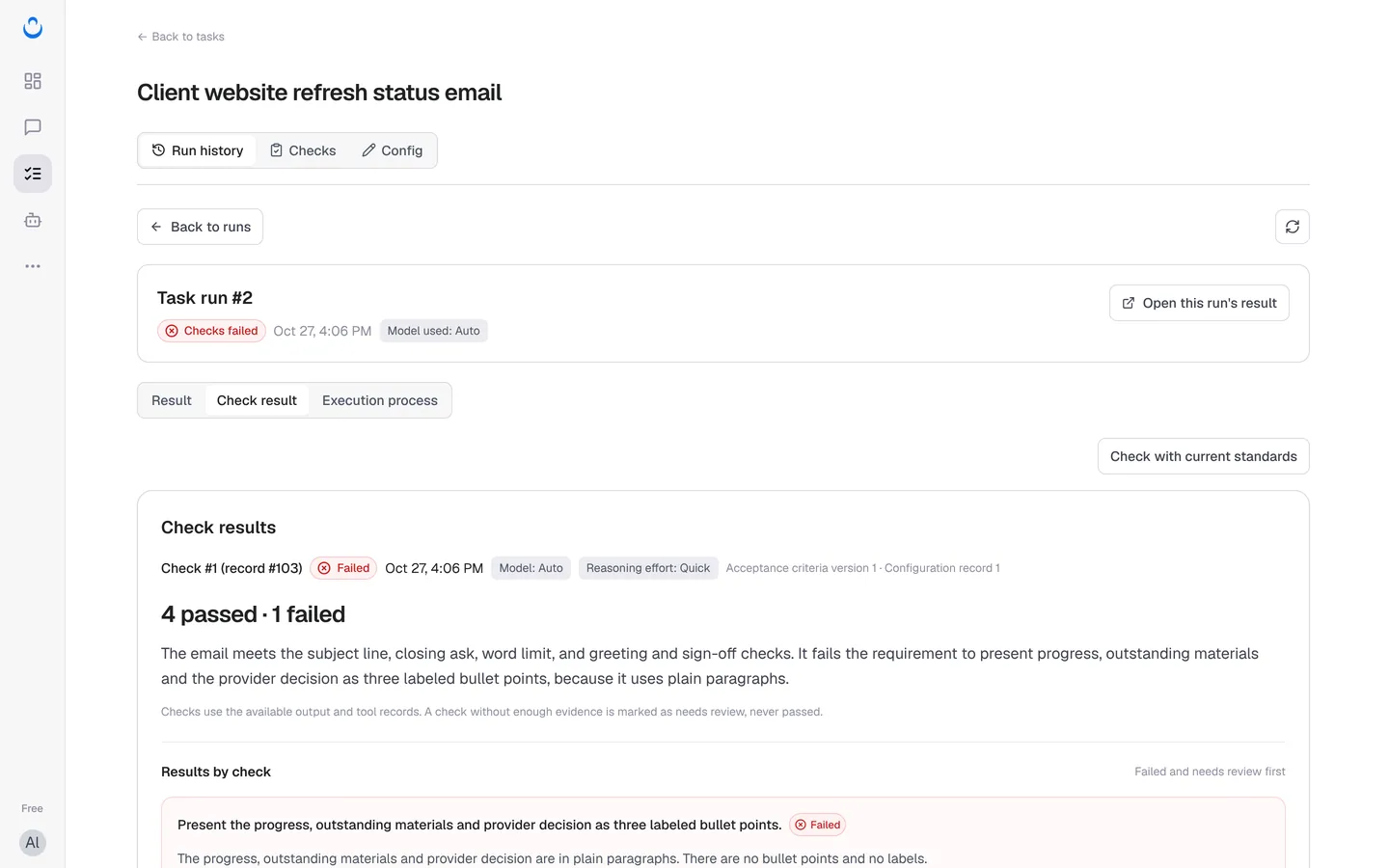
The Check result tab is the check report for the run. Its header shows:
- The check number and record, for example "Check #1 (record #103)".
- The verdict: Passed, Failed or Needs review.
- The Model and Reasoning effort the checker used.
- The Acceptance criteria version and Configuration record the run was checked against, so you know which standard and which version of the task setup it used.
Below the header you see the count (for example "4 passed · 1 failed") and a short summary in plain words. The report also states the rule every check follows: "Checks use the available output and tool records. A check without enough evidence is marked as needs review, never passed."
If a run fails before it finishes, its output is not checked. The Dashboard says so in plain words: "Continue or rerun it to check the result."
Results by check
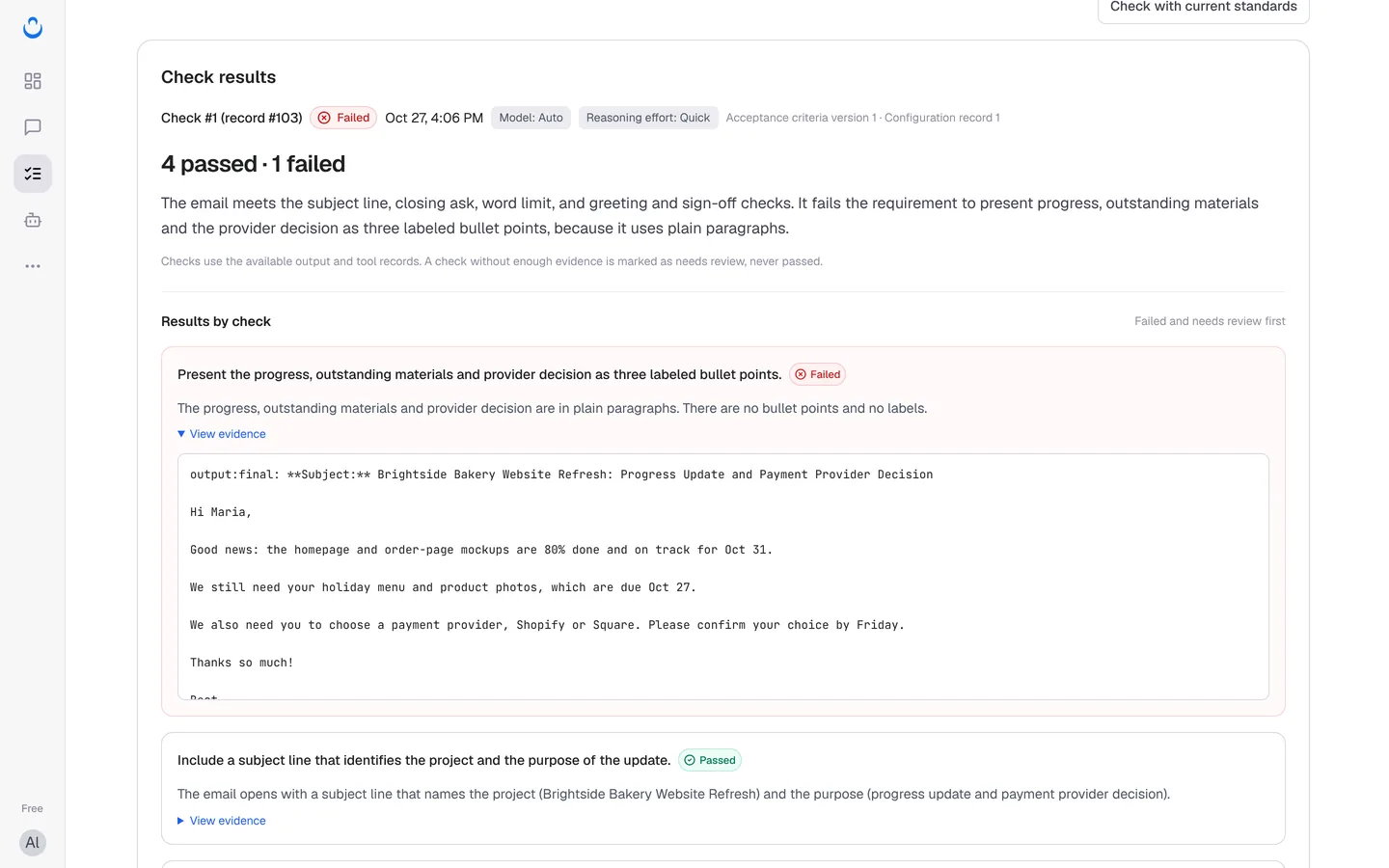
Results by check lists every criterion with its verdict and an explanation, with failed and needs-review items first. Click View evidence under a criterion to see the exact text the verdict is based on.
In run #2, four criteria passed: the subject line, the closing request to confirm a payment provider, the length ("I counted about 67 words… That is under 100") and the greeting and sign-off. One failed:
Present the progress, outstanding materials and provider decision as three labeled bullet points. Failed The progress, outstanding materials and provider decision are in plain paragraphs. There are no bullet points and no labels.
Check a run again
- View criteria used for this check expands the criteria exactly as they were for this check.
- Re-check with these criteria checks the run again against those same criteria.
- Check with current standards (top right) checks the run against the task's current acceptance criteria, for example after you have changed them.
When you check a run yourself, the default checking model from Settings → Checking model is preselected, and its usage is charged to your plan Credits. To change what runs are checked against, see Set acceptance criteria.
Your call
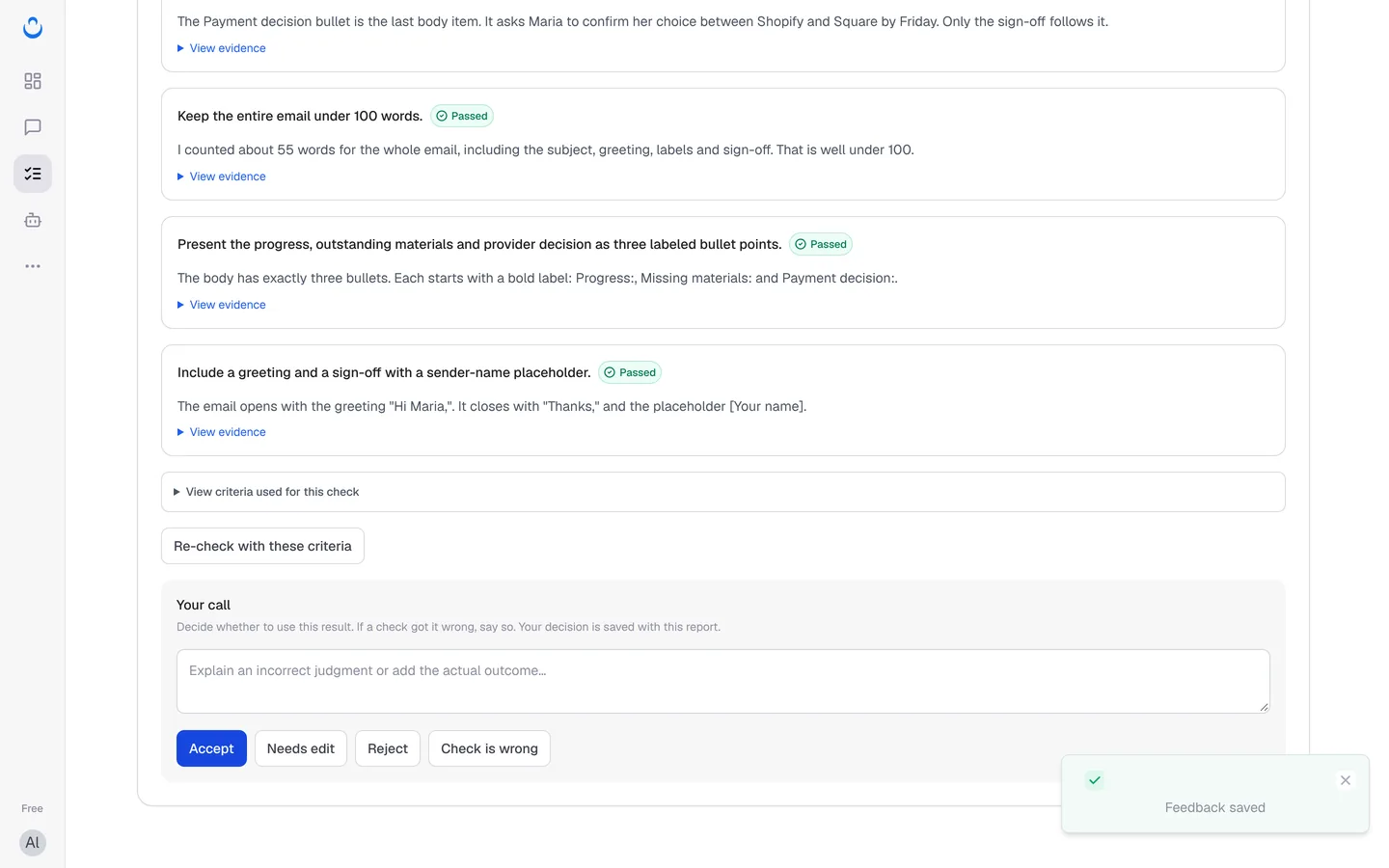
At the bottom of the report, Your call asks you to "Decide whether to use this result. If a check got it wrong, say so. Your decision is saved with this report."
- Optionally write a note in the box ("Explain an incorrect judgment or add the actual outcome…").
- Click one of the buttons:
- Accept: you will use the result.
- Needs edit: the result needs changes before you use it.
- Reject: you will not use the result.
- Check is wrong: a verdict is wrong. Use the note to say why.
- "Feedback saved" appears.
The report header then shows your decision (for example Accepted, Needs edit or Check disputed) next to "Original model verdict", and notes that "Human feedback and the automated verdict are retained separately for review."
Execution process tab
The Execution process tab ("Every step, in concert.") replays what happened during the run:
- A summary: Steps loaded, Observed time span, Peak recorded overlap and Needs attention.
- Filters All, Models, Tools and Needs attention, and two views: Score (a timeline of recorded time) and List.
- Each step: what ran (for example the model Auto), whether it succeeded, how long it took, and an Input excerpt and Output excerpt. Excerpts are bounded, so some content is omitted.
Opening this tab never repeats the work: "Reviewing recorded events only. No actions are run again." Timing shows observed overlap, not cause and effect, and the internals of external tools are not recorded.
From a failed check to a pass
Run #1 and run #2 of the example both failed the bullet-point check. Alex asked for a suggested change based on run #2, reviewed it and applied it. Run #3 then passed all five checks: "The body has exactly three bullets. Each starts with a bold label: Progress:, Missing materials: and Payment decision:." To do the same with your task, see Improve a task.