Set acceptance criteria
Acceptance criteria are the standard every run of a task is checked against. You manage them on the task's Checks tab, where you also see how recent runs did against each criterion.
Open the Checks tab
Open a task and click Checks. You can also click Checks on the task's row in the tasks list, or Open checks on the Run history tab.
The tab has three sections, with buttons at the top to jump to each: Recent results, Acceptance criteria and Suggestions and versions. The last one is covered in Improve a task.
Auto-check
The Auto-check switch sits at the top right of the tab. While it is on, every run is checked against the acceptance criteria when it finishes. Turn it off if you don't want runs checked automatically.
Recent results
"Check results of recent runs. Results by criterion count only the current standard."
- The pass rate of recent runs, for example "0% pass rate · last 2 runs", with the number passed and failed.
- By criterion: each criterion of the current standard, with one marker per run and a count such as 2/2 or 0/2. This shows at a glance which requirement keeps failing.
- A notice such as "2 runs need a look" with View in run list, which takes you to those runs.
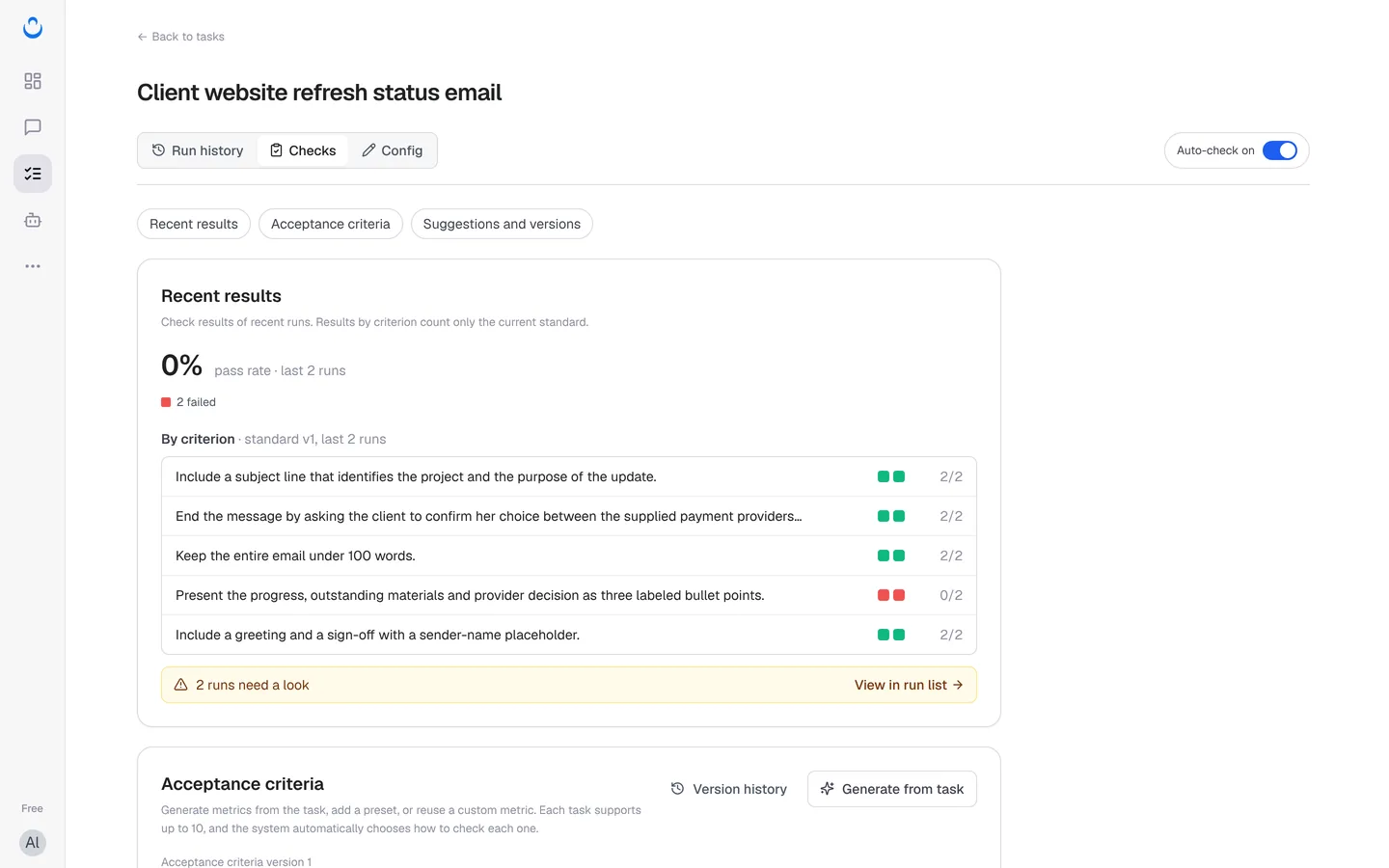
In the example task, Client website refresh status email, four criteria passed in both runs (2/2), while "Present the progress, outstanding materials and provider decision as three labeled bullet points." passed in neither (0/2).
Acceptance criteria
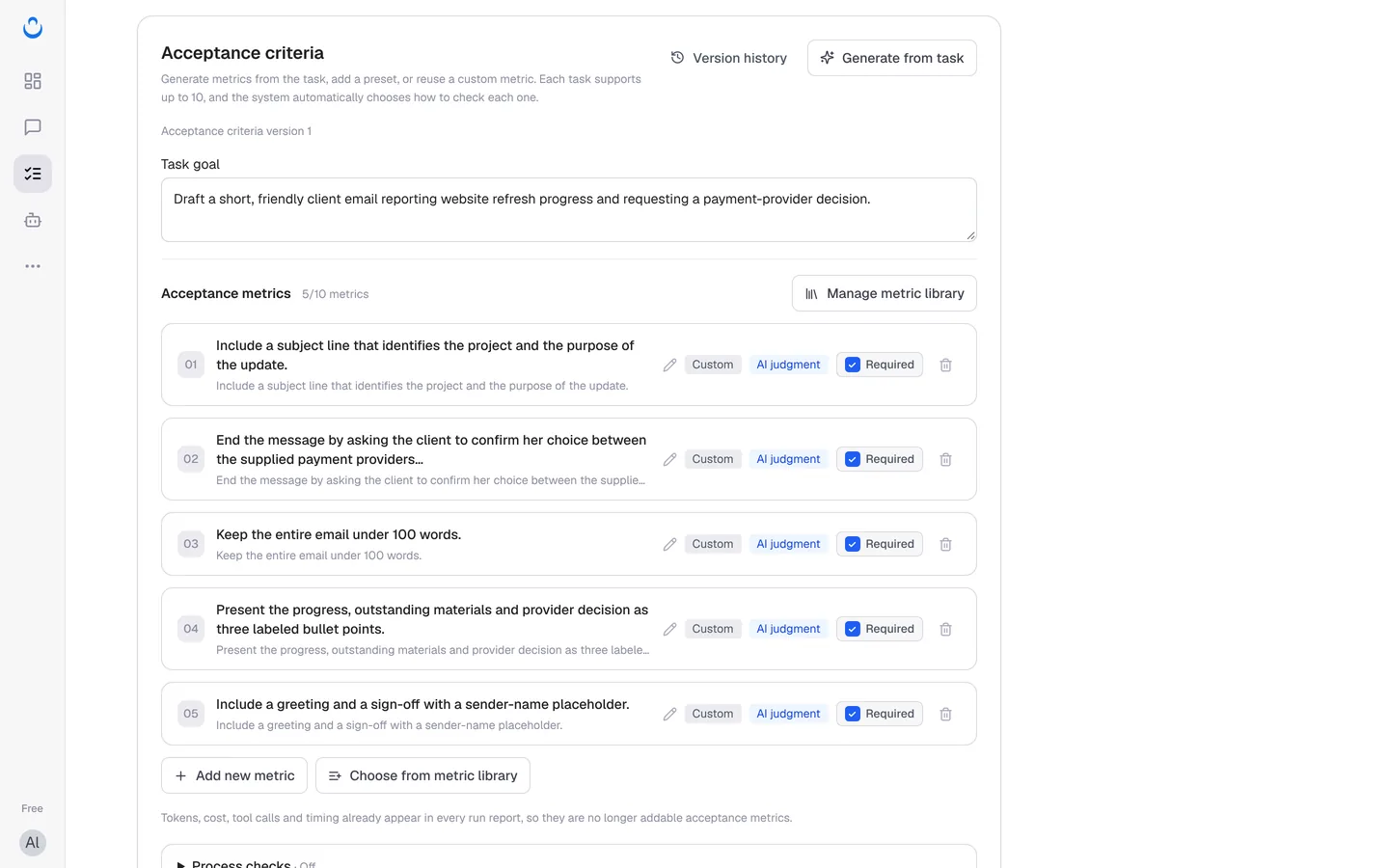
"Generate metrics from the task, add a preset, or reuse a custom metric. Each task supports up to 10, and the system automatically chooses how to check each one."
The section shows the current version (for example "Acceptance criteria version 1") and:
- Task goal: what the task should deliver, in a sentence or two.
- Acceptance metrics: how many you have out of 10 (for example "5/10 metrics"). Each metric shows its name and criterion, an edit (pencil) button, labels for where it comes from and how it is checked (for example Custom and AI judgment), a Required checkbox and a delete button.
Add or change metrics
- Generate from task: AI drafts metrics from the task's instructions.
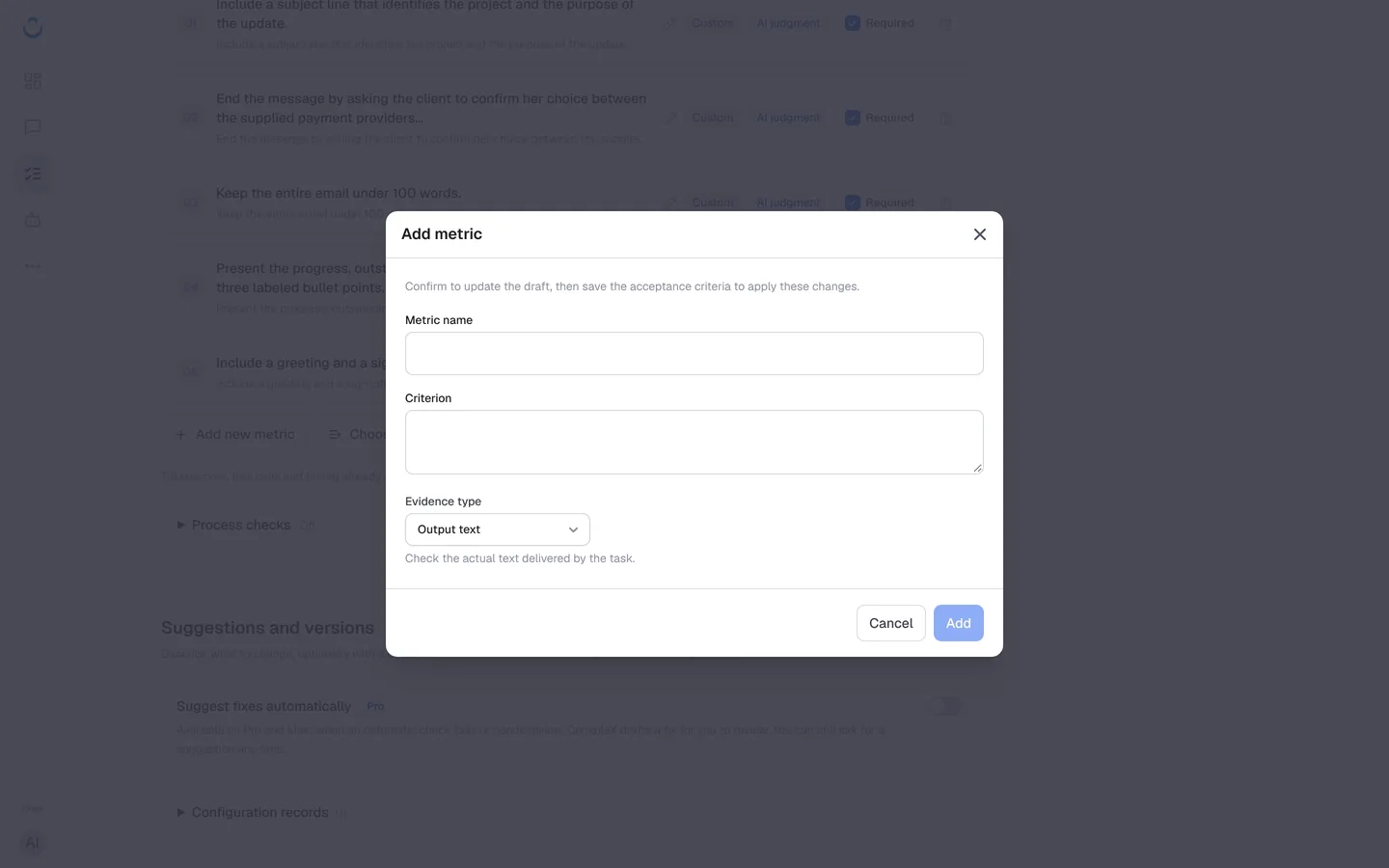
- Add new metric: opens Add metric. Fill in Metric name and Criterion (what must be true), pick an Evidence type, then click Add:
- Output text: "Check the actual text delivered by the task."
- Tool records: the tool calls and results recorded during the run.
- Artifact or external state: something the run produced or changed outside its text reply.
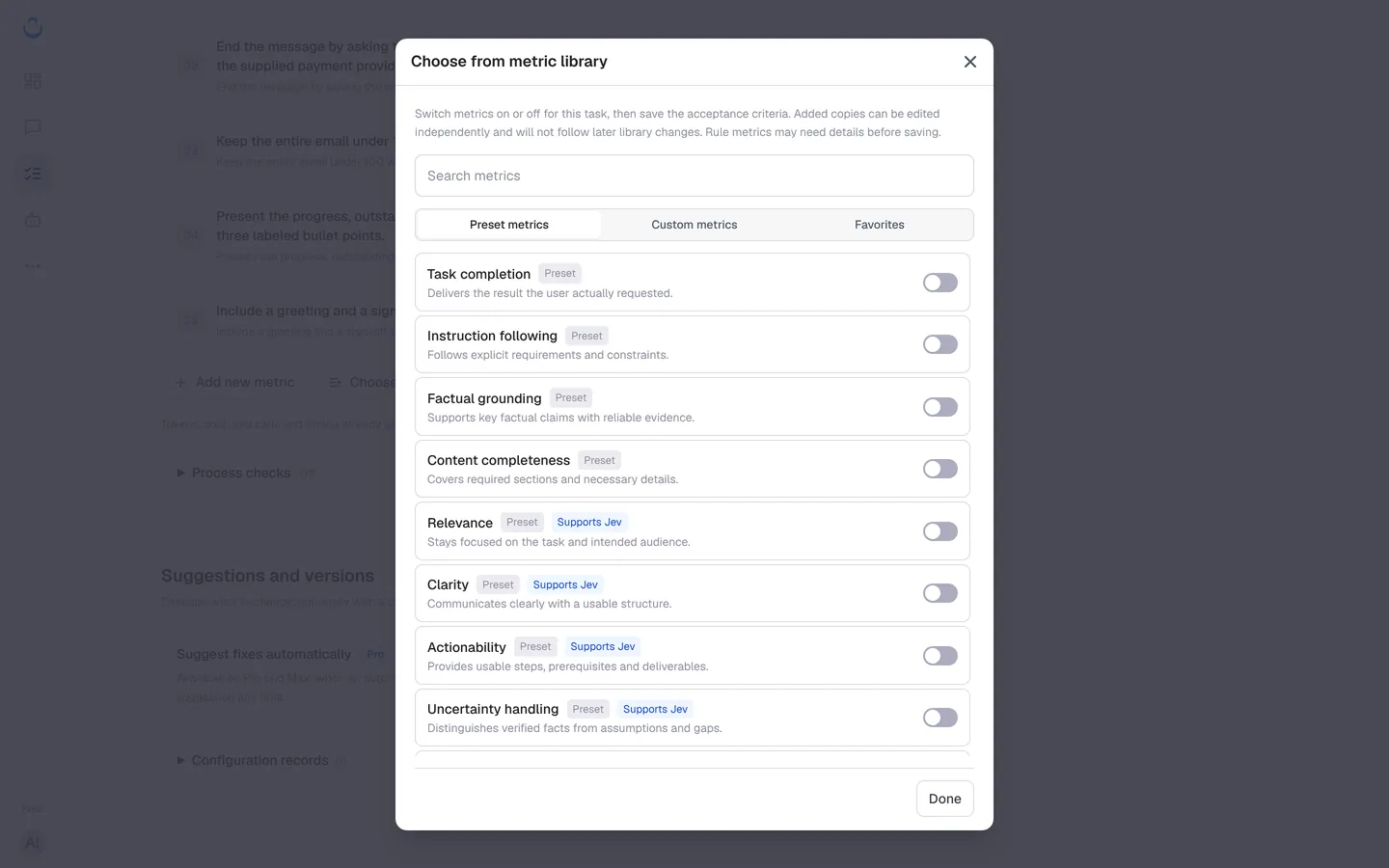
- Choose from metric library: switch metrics on or off for this task, then click Done. Search, or browse the Preset metrics, Custom metrics and Favorites tabs. "Added copies can be edited independently and will not follow later library changes."
- Manage metric library: opens the library of metrics you can reuse.
Changes go into a draft first: "Confirm to update the draft, then save the acceptance criteria to apply these changes."
The metric library includes these presets:
| Preset | What it checks |
|---|---|
| Task completion | Delivers the result the user actually requested. |
| Instruction following | Follows explicit requirements and constraints. |
| Factual grounding | Supports key factual claims with reliable evidence. |
| Content completeness | Covers required sections and necessary details. |
| Relevance | Stays focused on the task and intended audience. |
| Clarity | Communicates clearly with a usable structure. |
| Actionability | Provides usable steps, prerequisites and deliverables. |
| Uncertainty handling | Distinguishes verified facts from assumptions and gaps. |
| Contain / Not contain | Output contains, or does not contain, the specified content. |
| Exact match | Final output exactly matches the specified content. |
| Regex match | Output matches the specified regular expression. |
| Length range | Final output length is within the specified range. |
| Tool called | The specified tool was called at least once. |
| Tool succeeded | The specified tool returned at least one successful result. |
The last seven are rule metrics. "Rule metrics may need details before saving", such as the content to look for or the tool to check.
Version history
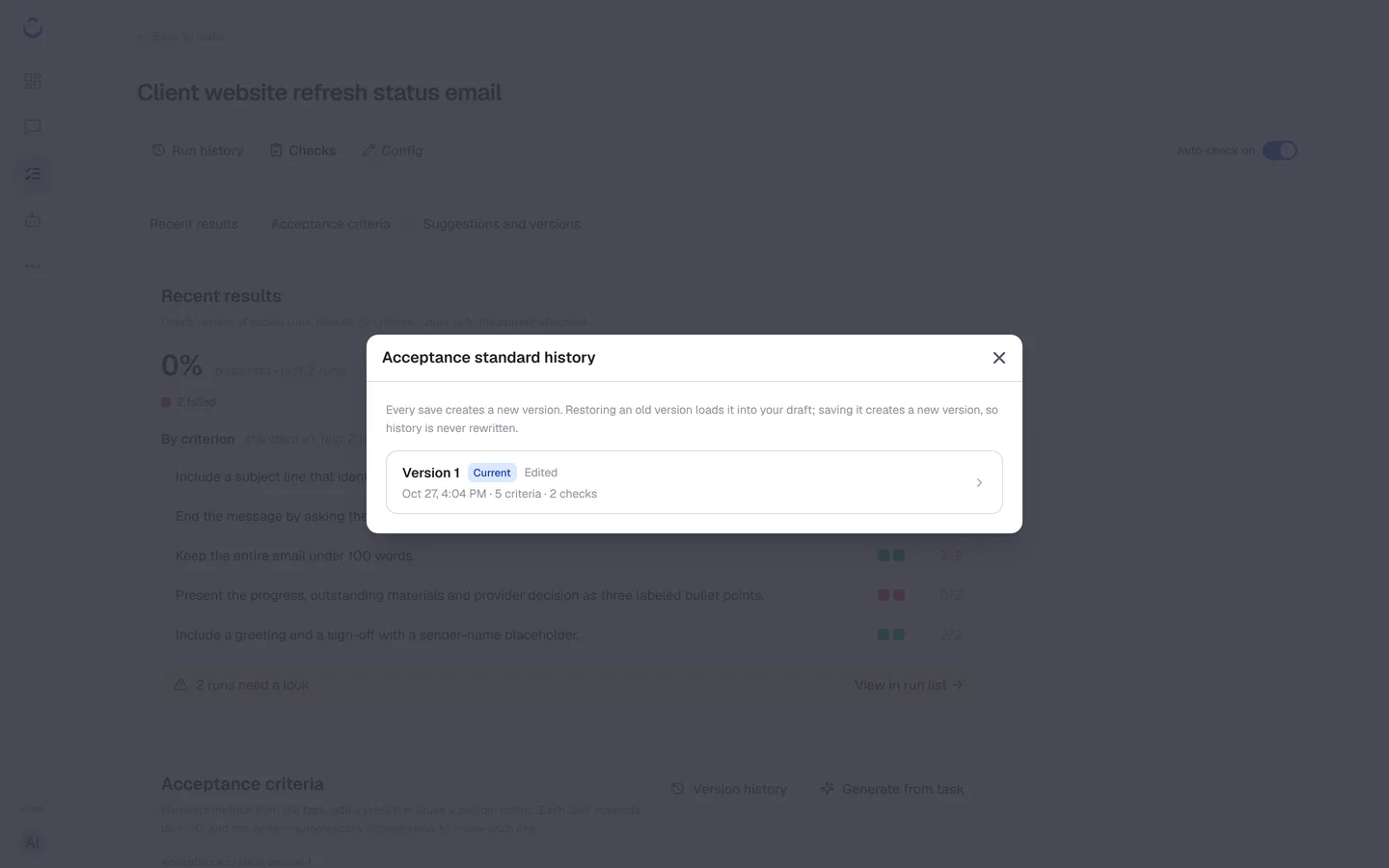
Click Version history to see earlier versions of the criteria: "Every save creates a new version. Restoring an old version loads it into your draft; saving it creates a new version, so history is never rewritten." Each check report names the criteria version it used.
Rule checks and AI checks
ConsoleX decides how to check each metric:
- Rule checks apply a fixed rule, such as the rule metrics above. They need no model call and cost nothing extra.
- AI checks (labelled AI judgment): after each run, a model reviews all of these items in a single call, billed to your plan.
Whatever the type, a criterion the checker cannot confirm from the evidence is marked needs review, never passed. Each run lists what its check cost separately from the run itself. In the example, the five AI checks on run #2 cost "Checks: ≈ 36.94 credits". See Read run results and checks.
Why tokens, cost and timing are not metrics
"Tokens, cost, tool calls and timing already appear in every run report, so they are no longer addable acceptance metrics." You find them under Run statistics on each run's Result tab.
Choose the checking model
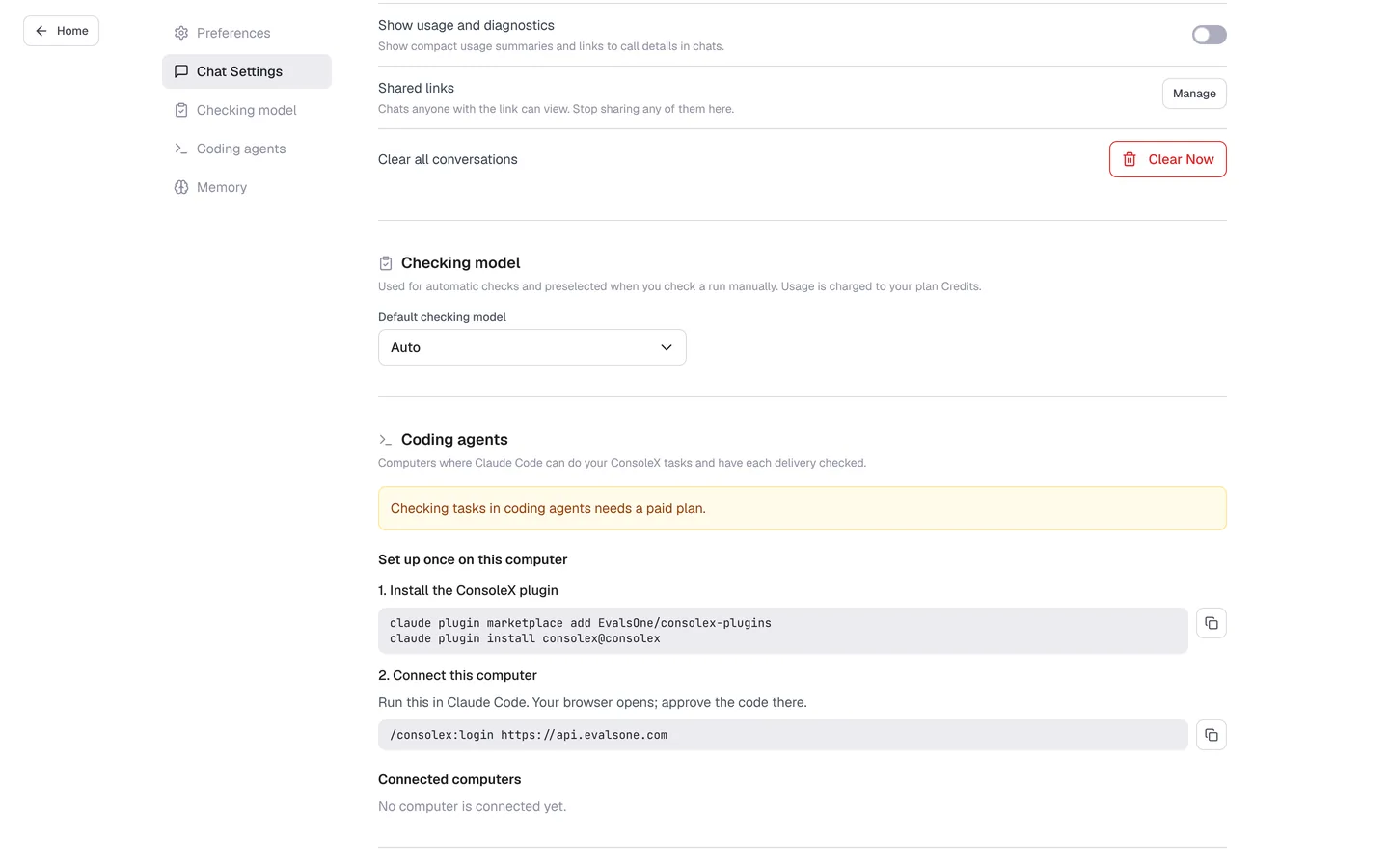
AI checks use the checking model set in Settings → Checking model: "Used for automatic checks and preselected when you check a run manually. Usage is charged to your plan Credits." The Default checking model is Auto. Each check report shows the model and reasoning effort it used. See Settings overview.
Process checks
Below the metrics there is a collapsed Process checks section, which is off by default.