Preview and Iterate Assets
Once you have an image, audio clip or video you like, you rarely need to start from scratch to change it. This page shows how to preview an asset and keep improving it, step by step, until it matches what you need.
Preview an asset
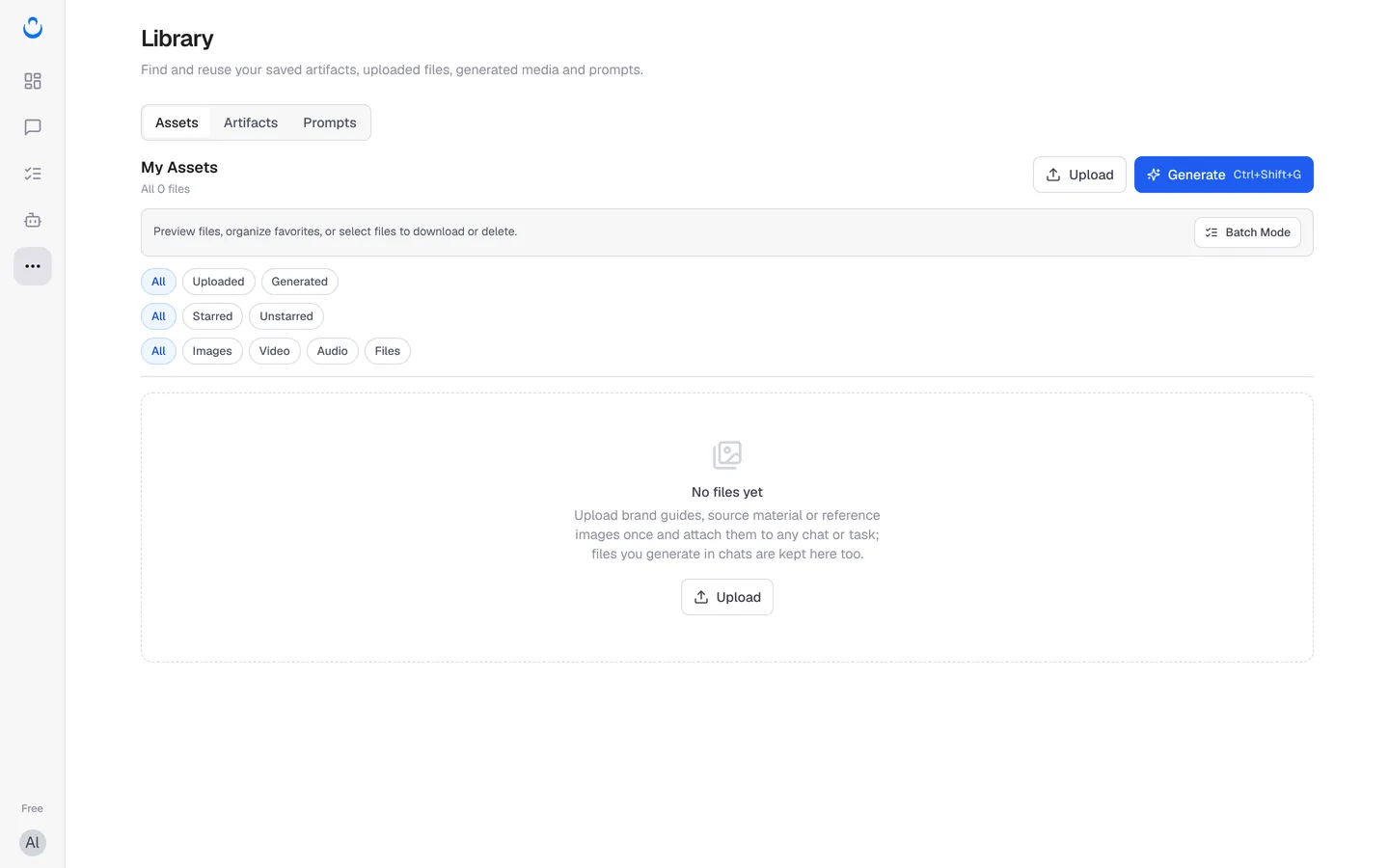
Click the thumbnail of an image, audio clip or video in a chat, or open … (More) → Library → Assets and click the file. Use the filters to find it quickly: Generated for media created in chats or with Generate, Starred for favorites.
Keep working on the current result
From the preview you can iterate on the asset you have instead of generating from scratch. For example:
- Stylize, enhance, remix or inpaint an image.
- Generate a video from an existing image (video generation is available on Pro and Max).
- Adjust the prompt, model or settings around the current result and compare several versions.
Every version is saved to Library → Assets, so you can go back to an earlier one.
Iterate in a chat
A chat is the most flexible way to refine an asset, because you can describe each change in plain words.
- In a chat, click + in the composer and choose Select from assets, then pick the file.
- Describe the change. For example, Alex asks: "Remove the background from this croissant photo and make a 16:9 version for the Brightside Bakery homepage hero."
- Check the result and ask for the next change.
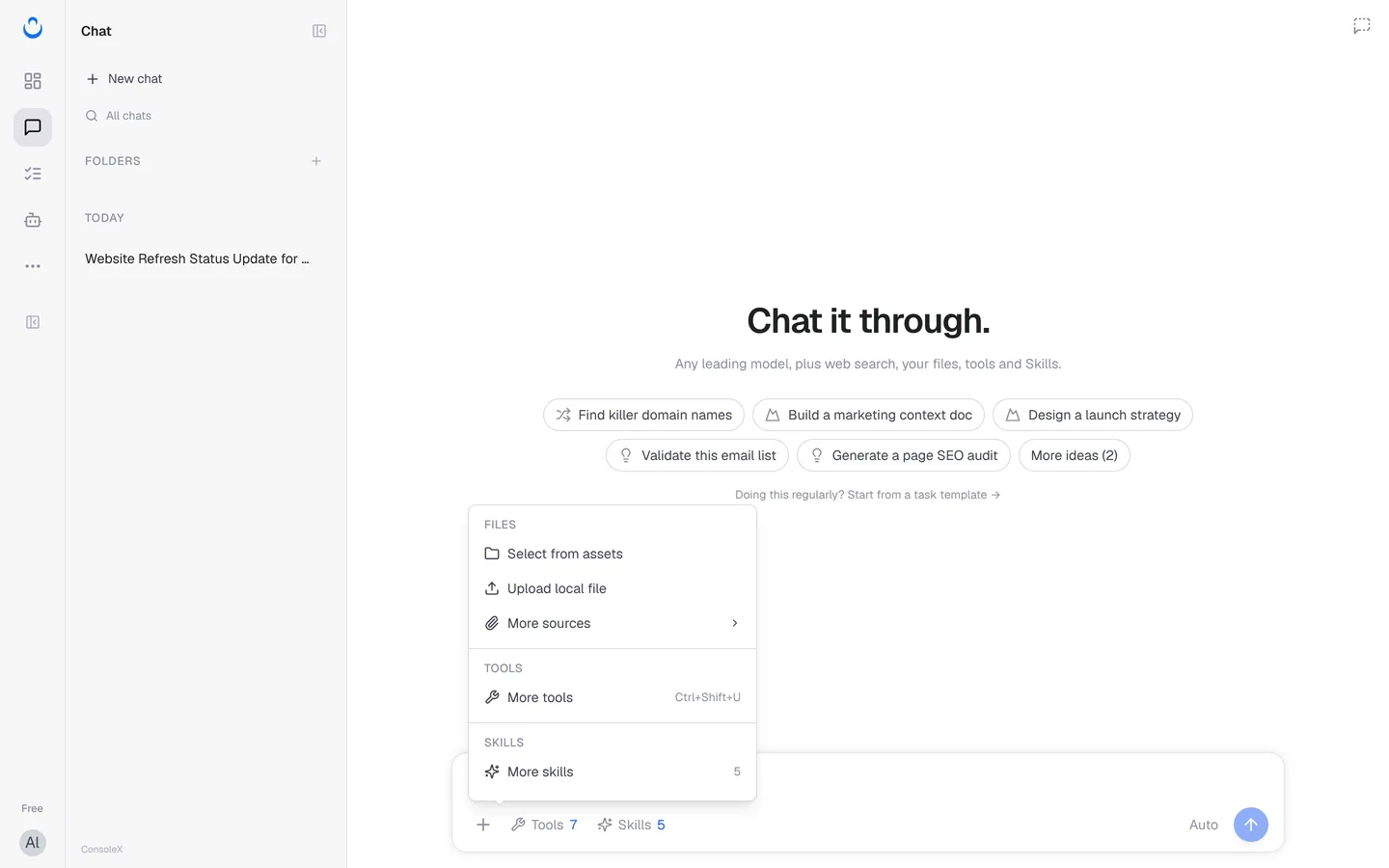
These tools in More → Capabilities help with edits. Turn them on for the chat from Tools in the composer if they aren't already on:
| Tool | What it does |
|---|---|
| Generate images | Creates or edits images from a description, with a choice of models. |
| Image background remove | Removes the background from an image. |
| Upscale image | Upscales an image. |
| Image-to-SVG convert | Converts an image to SVG. |
| Generate video | Creates short videos from a description or an image. Pro tool. |
| Generate speech and music | Reads text aloud, or creates music and sound effects. |
To compare how different models handle the same request, use Compare generation under an AI reply. See Chat with models.
To create a new asset with set options instead, see Generate assets.