Generate Assets
Besides asking for media in a chat, you can open Generate in the Library to create an image, video or audio clip with exactly the settings you choose. The generation runs in a chat, and the file is saved to your assets.
Open Generate
- Click … (More) in the left rail, then Library.
- On the Assets tab, click Generate, or press Ctrl+Shift+G.
- At the top of the dialog, choose Image, Video or Audio.
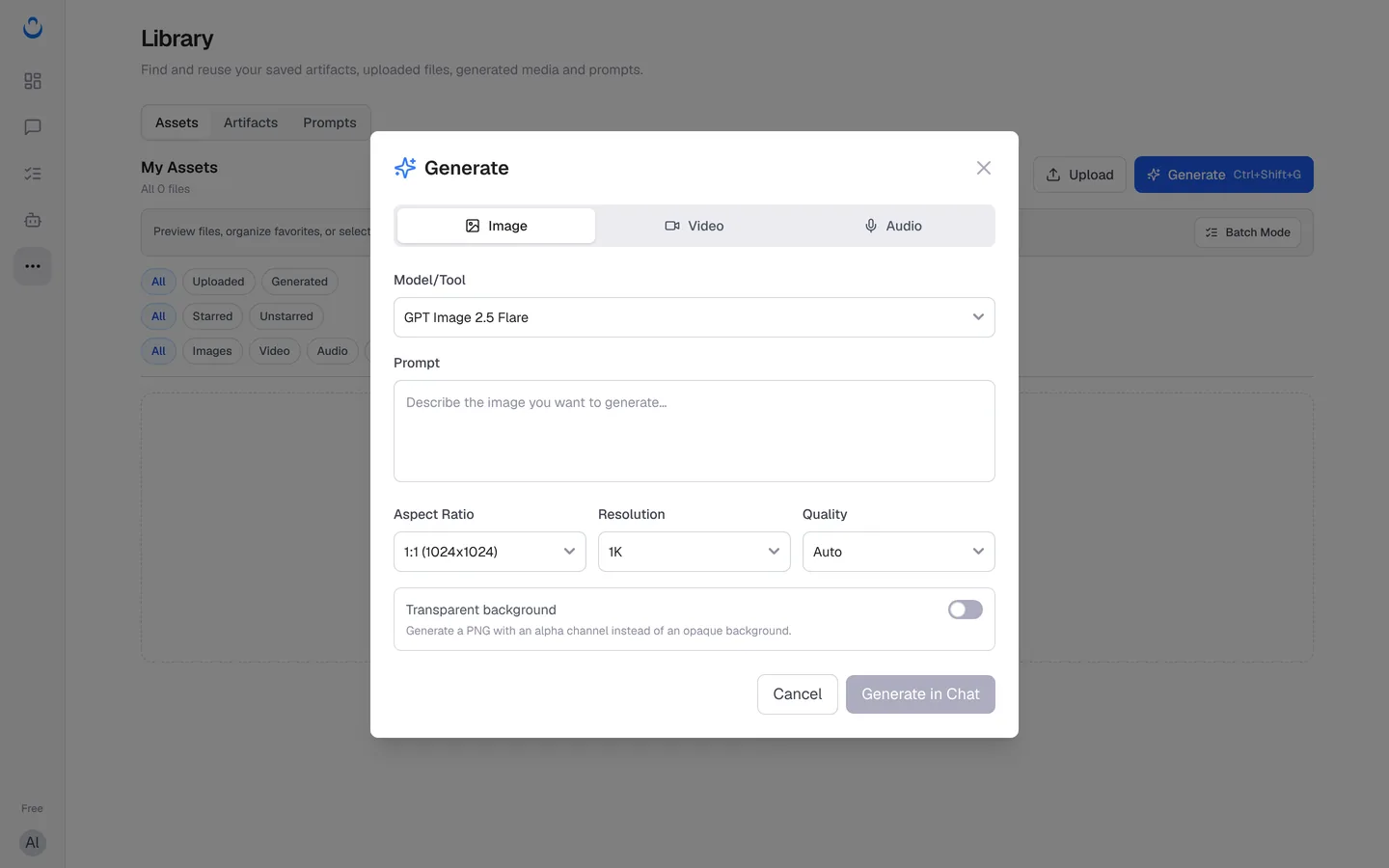
Create an image
- Under Model/Tool, pick a model. The current list includes GPT Image 2.5 Flare, GPT Image 2.5 Sunburst, GPT Image 2, Nano Banana Pro, Nano Banana 2, MAI Image 2.6, MAI Image 2.6 Flash, FLUX.2 Pro, Seedream, Imagen 4 and Qwen Image. The list changes as models are added.
- Under Prompt, describe the image you want. For example: "A warm, softly lit photo of fresh croissants on a wooden counter, for the Brightside Bakery homepage."
- Choose the settings. With GPT Image 2.5 Flare, the dialog offers:
- Aspect Ratio: from square 1:1 (1024x1024) through 4:3, 3:2, 16:9, 2:1 and 21:9 to 3:1, plus the matching portrait formats (for example 9:16 or 1:3).
- Resolution: 1K, 2K or 4K.
- Quality: Auto, Low, Medium, High, X-High or Max.
- Transparent background: generates a PNG with an alpha channel instead of an opaque background. Useful for logos, stickers and product cut-outs.
- Click Generate in Chat.
Create video and audio
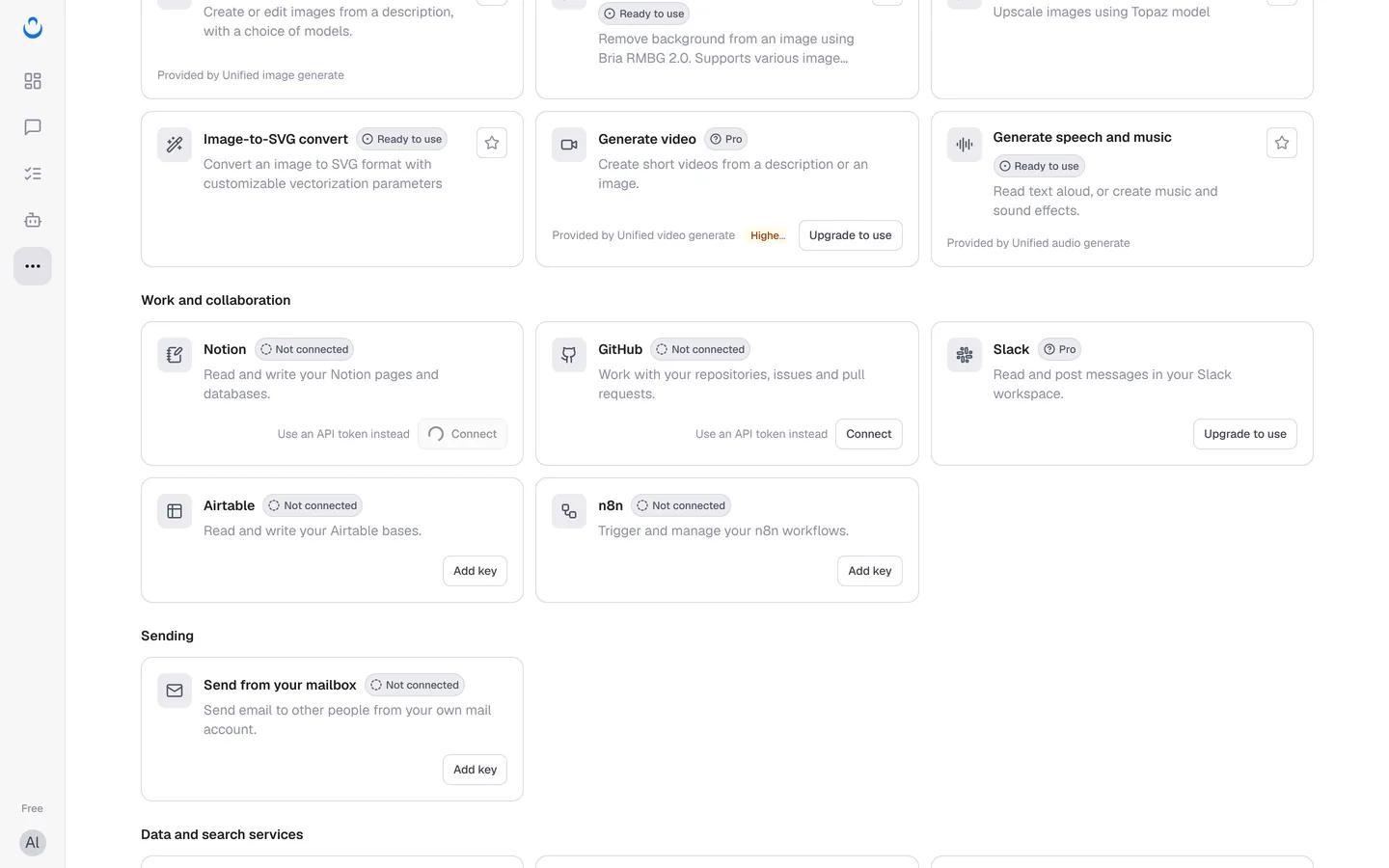
- Video generation is a Pro tool: it is available on Pro and Max. In More → Capabilities, the Generate video tool ("Create short videos from a description or an image") is marked Pro and Higher cost, and shows Upgrade to use on the Free plan. Recent updates added video models such as MiniMax H3 and Seedance 2.5, settings for resolution, aspect ratio and duration, reference images, video upscaling, and Talking Avatar, which turns an image and an audio clip into a talking video.
- Audio uses the Generate speech and music tool: read text aloud, or create music and sound effects. Expressive text-to-speech is available with MAI Voice 2.
To upgrade, see Membership.
Where the results go
- The result appears in a chat, and the file is saved to Library → Assets. Use the Generated filter to find it.
- Image and video generations keep running in the background. They appear even if you leave the page or refresh it.
- Generating media uses your plan allowance first, then credits, like any other tool call. See Preset tool pricing.
Generate vs. asking in a chat
You can also create media by asking in a chat. New chats include the GPT-image-2 generate and edit tool by default, and you can turn on other media tools from Tools in the composer.
| Method | How it works | Best for |
|---|---|---|
| Generate dialog | Calls the chosen model directly with the settings you pick and returns a result in one step. | Clear requests where you already know the model, size and quality you want. |
| Asking in a chat | The model drafts the tool's settings from the conversation, the tool runs, and the model replies with the result. | Working out what you need as you go, using earlier context, or explaining and refining the result. |
To keep improving a result you already have, see Preview and iterate assets.